> ## Documentation Index
> Fetch the complete documentation index at: https://docs.aseeflow.org/llms.txt
> Use this file to discover all available pages before exploring further.
# Leverage Business Rules
This guide demonstrates how to integrate decision automation into BPMN processes using business rule tasks and DMN decision tables.
## Add a business rule task
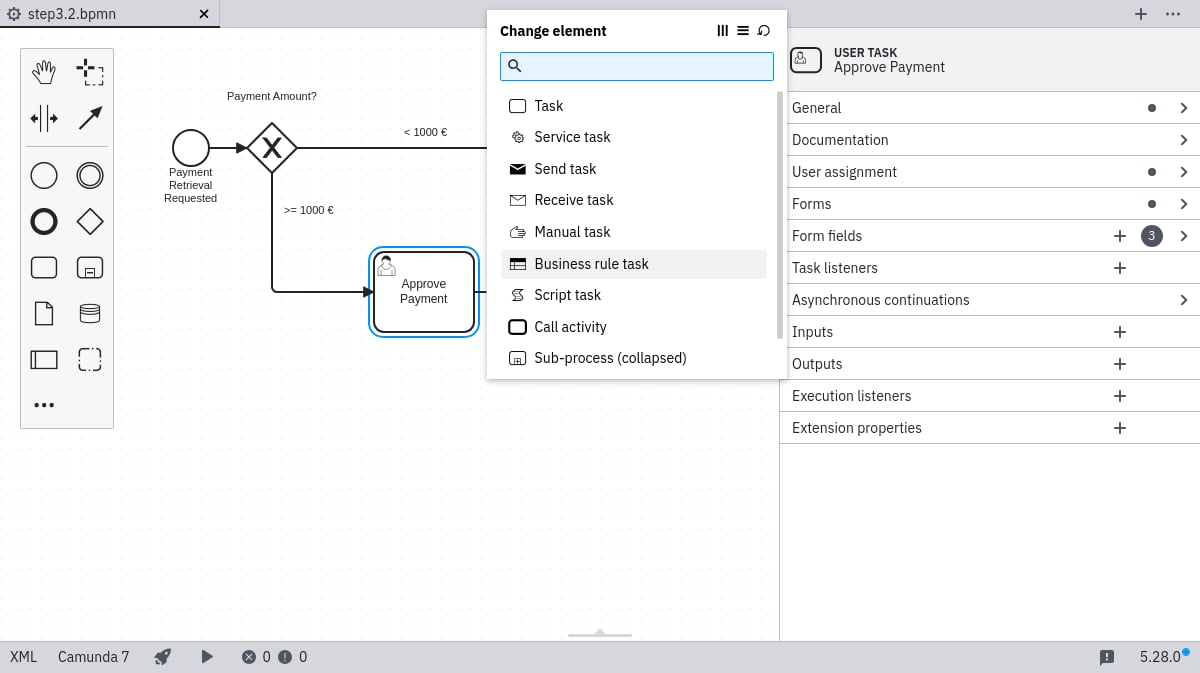
Open your Payment Retrieval process in the Camunda Modeler. Select the *Approve Payment* task and change its type to *Business Rule Task* via the wrench menu.
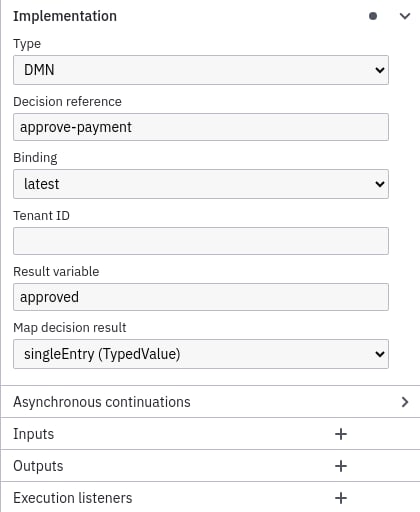
 Configure the task properties:
* **Implementation:** `DMN`
* **Decision Ref:** `approve-payment`
* **Result Variable:** `approved`
* **Map Decision Result:** `singleEntry`
Configure the task properties:
* **Implementation:** `DMN`
* **Decision Ref:** `approve-payment`
* **Result Variable:** `approved`
* **Map Decision Result:** `singleEntry`
 Deploy the updated process using the deploy button.
## Create a DMN table
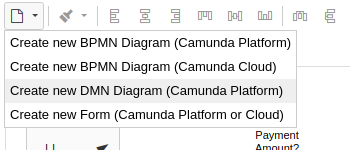
Create a new DMN diagram via **File > New File > DMN Diagram**.
Deploy the updated process using the deploy button.
## Create a DMN table
Create a new DMN diagram via **File > New File > DMN Diagram**.
 Name the decision element *Approve Payment* with ID `approve-payment` (matching your BPMN Decision Ref).
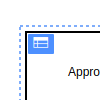
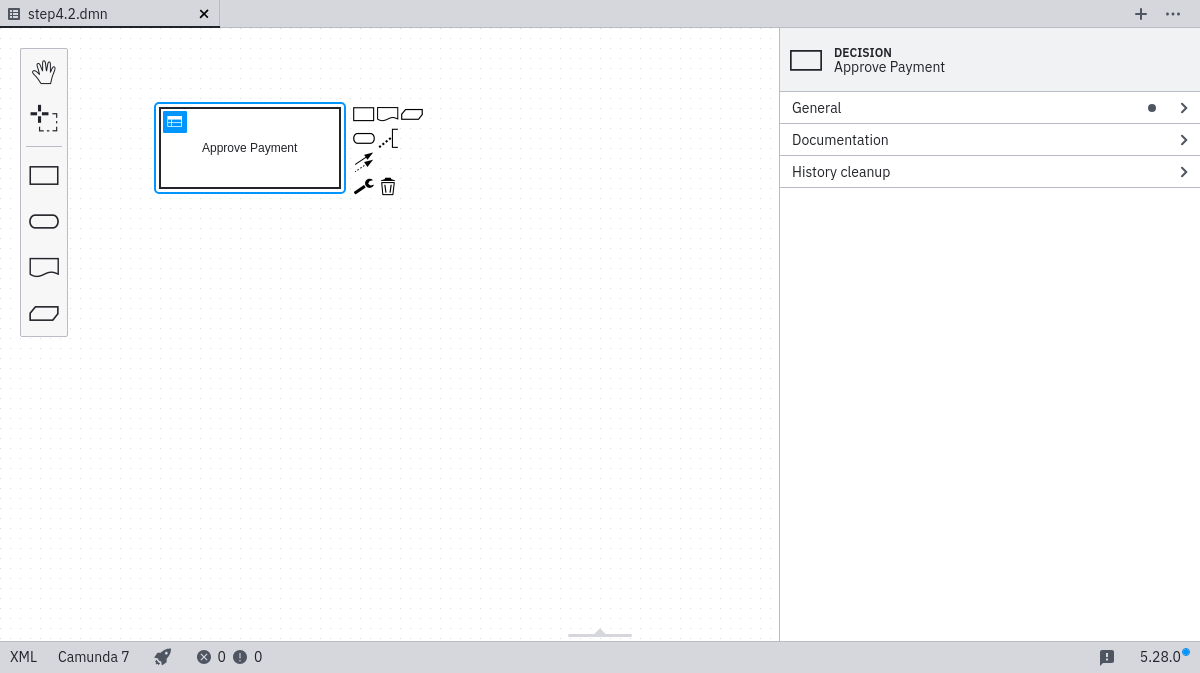 Click the table button to generate a new DMN table.
 ## Specify the DMN table
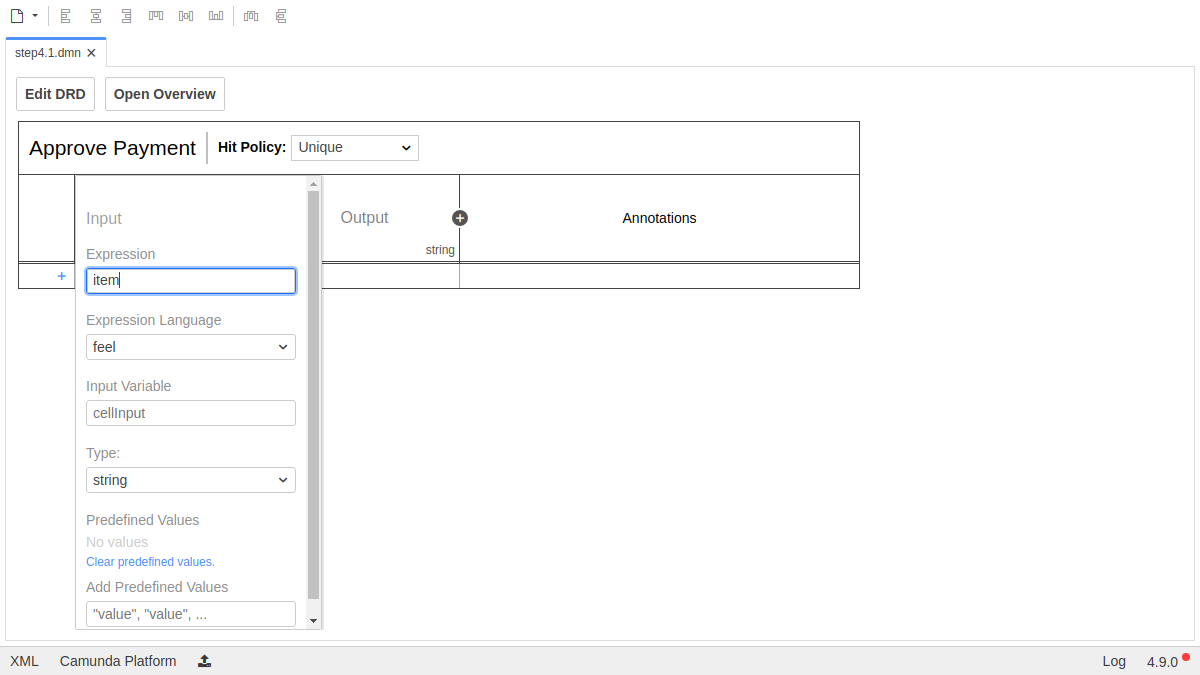
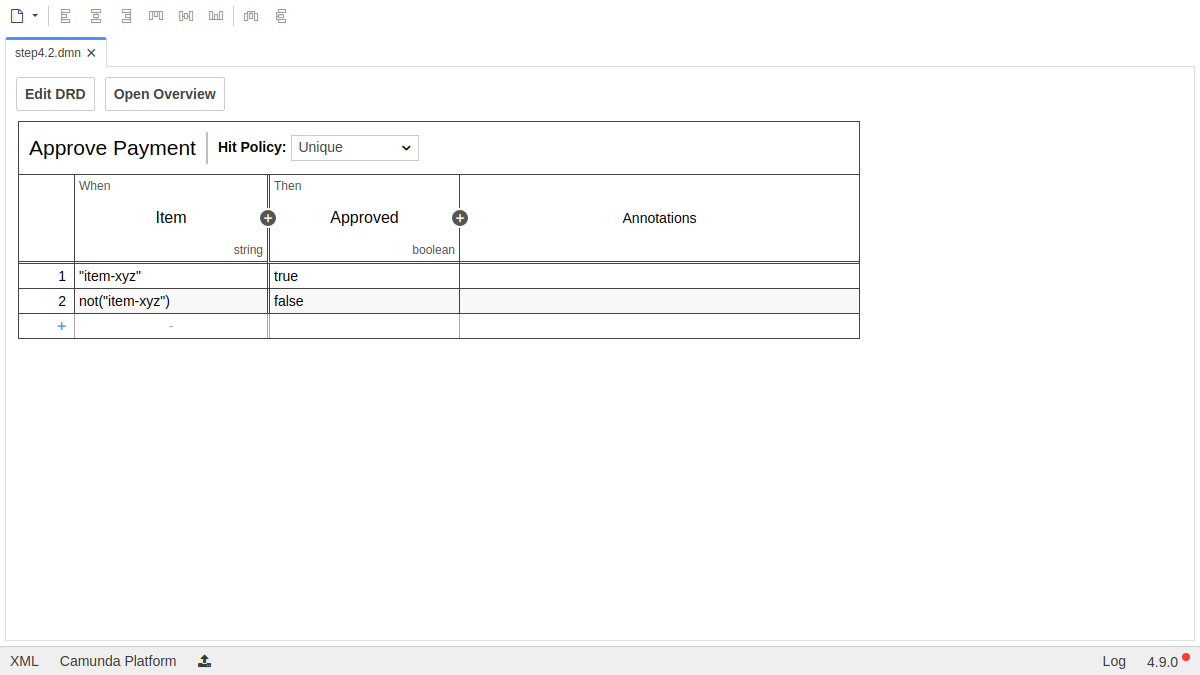
Double-click **Input** to configure:
* **Input Label:** `Item`
* **Input Expression:** `item`
## Specify the DMN table
Double-click **Input** to configure:
* **Input Label:** `Item`
* **Input Expression:** `item`
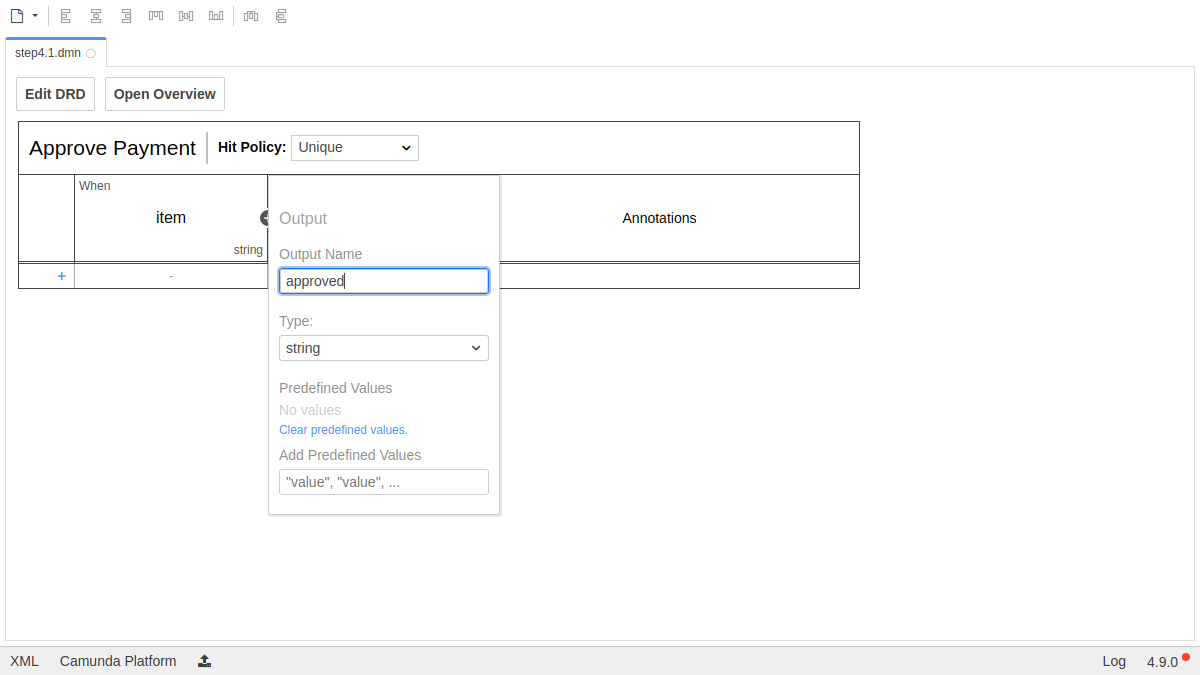
 Configure the output column:
* **Output Label:** `Approved`
* **Output Name:** `approved`
Configure the output column:
* **Output Label:** `Approved`
* **Output Name:** `approved`
 Add rules using the plus icon and set the output column data type to `boolean`.
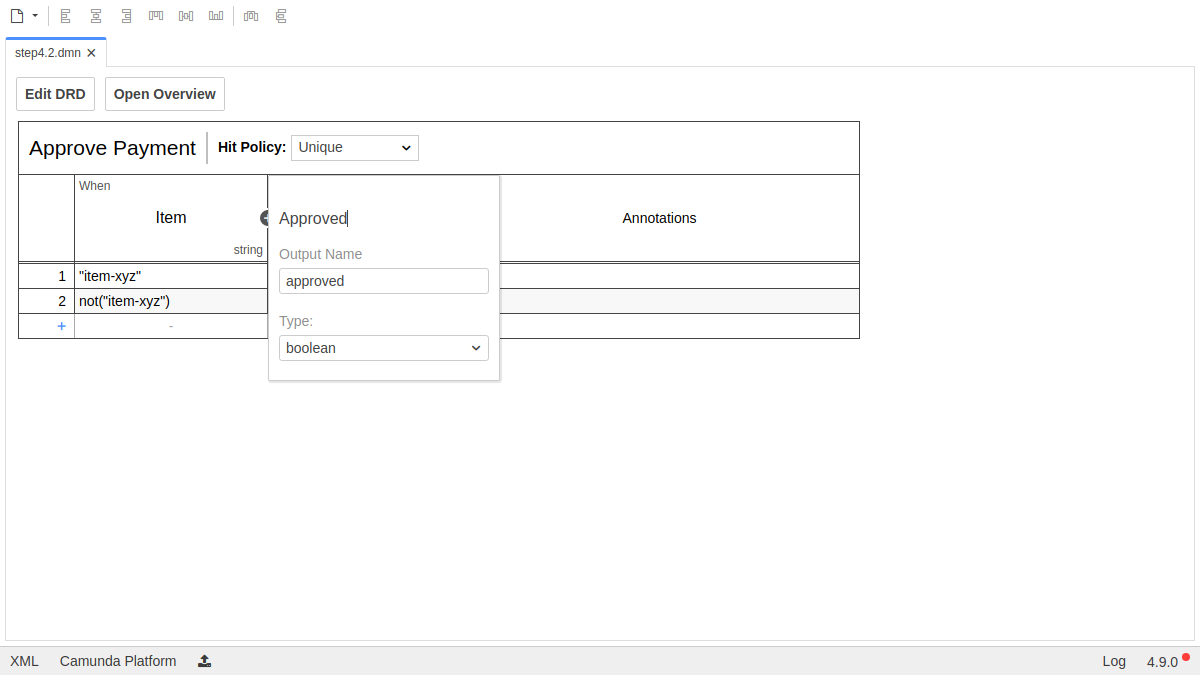 Your completed table should resemble:
 ## Deploy the DMN table
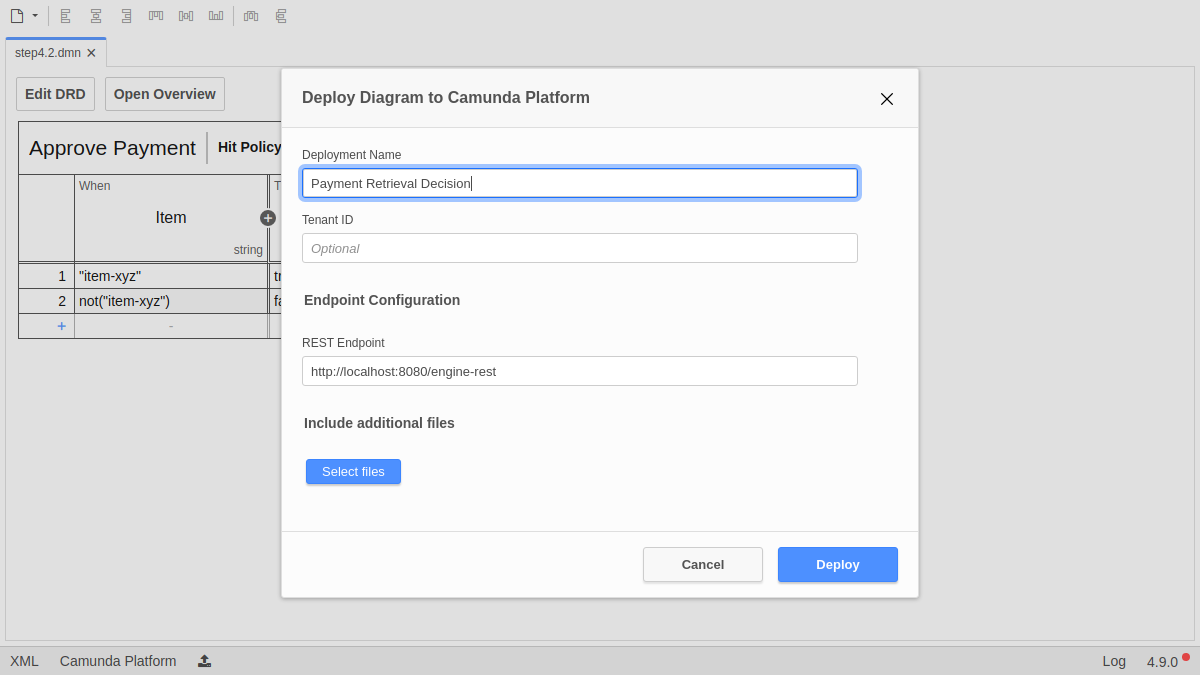
Click **Deploy** in the Modeler. Provide the deployment name *Payment Retrieval Decision* and confirm.
## Deploy the DMN table
Click **Deploy** in the Modeler. Provide the deployment name *Payment Retrieval Decision* and confirm.
 ## Verify the deployment with Cockpit
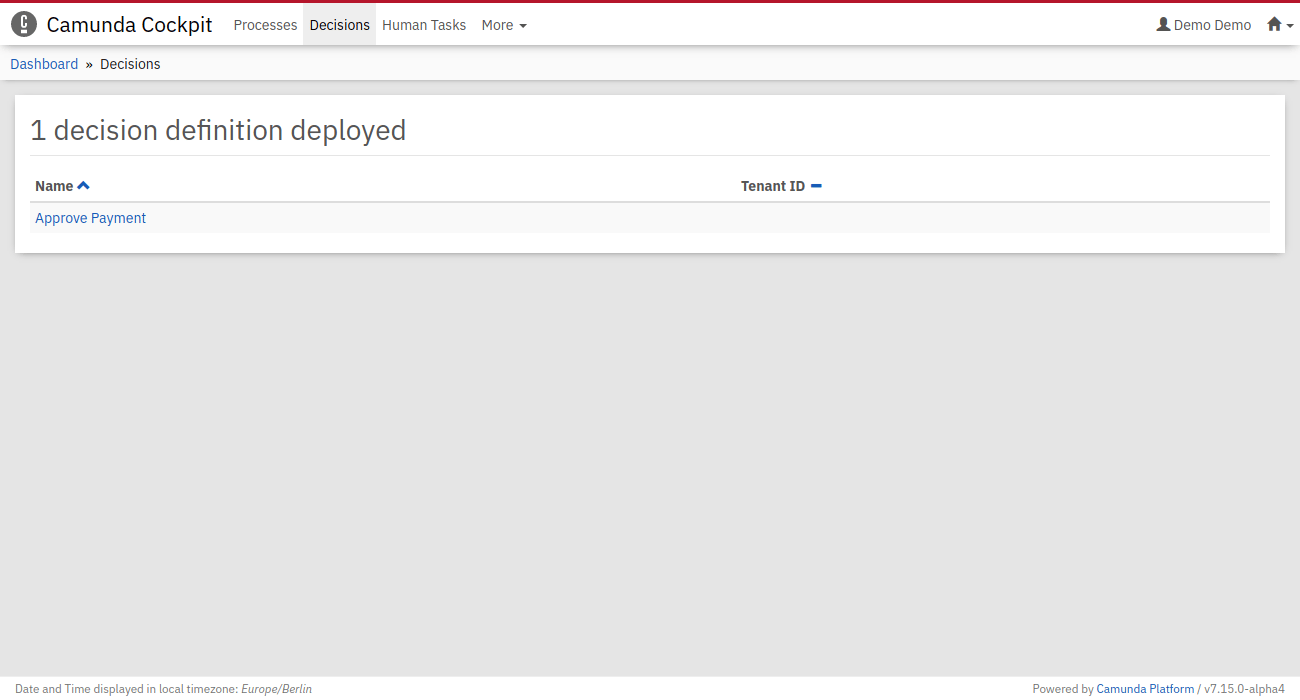
Navigate to `http://localhost:8080/camunda/app/cockpit/` and log in with `demo` / `demo`. Open the *Decisions* section to confirm *Approve Payment* appears as a deployed decision definition.
## Verify the deployment with Cockpit
Navigate to `http://localhost:8080/camunda/app/cockpit/` and log in with `demo` / `demo`. Open the *Decisions* section to confirm *Approve Payment* appears as a deployed decision definition.
 ## Inspect with Cockpit and Tasklist
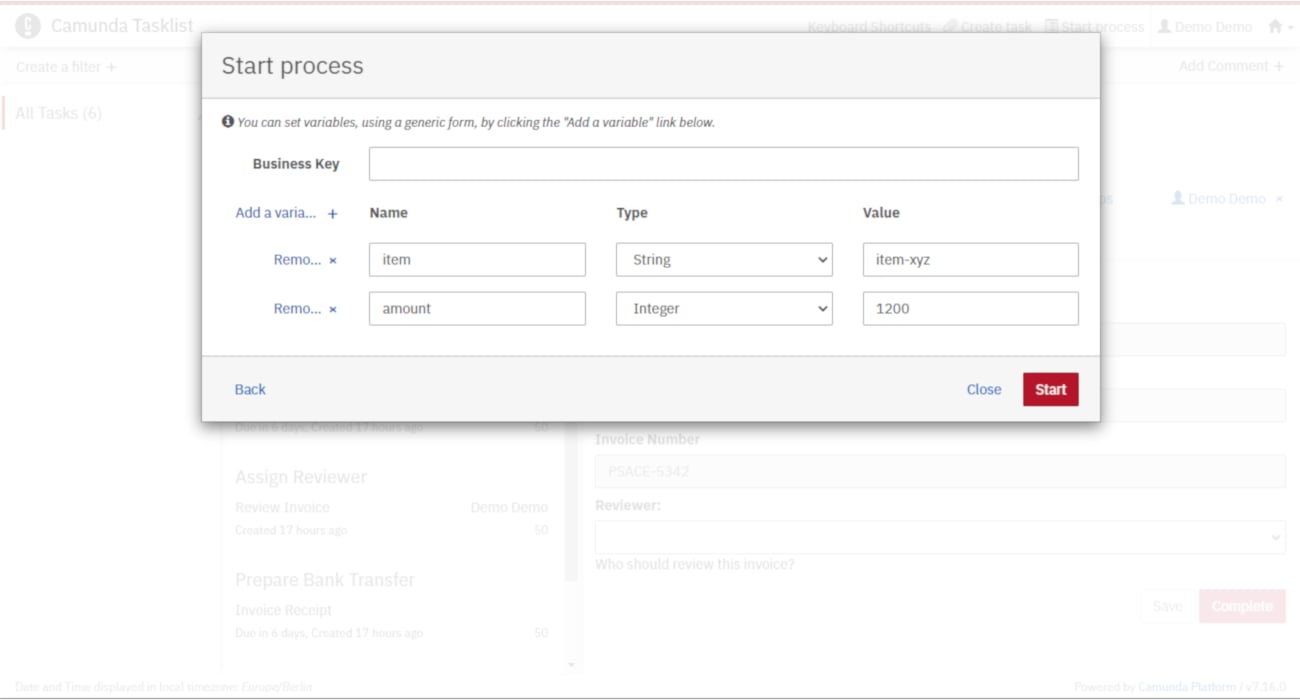
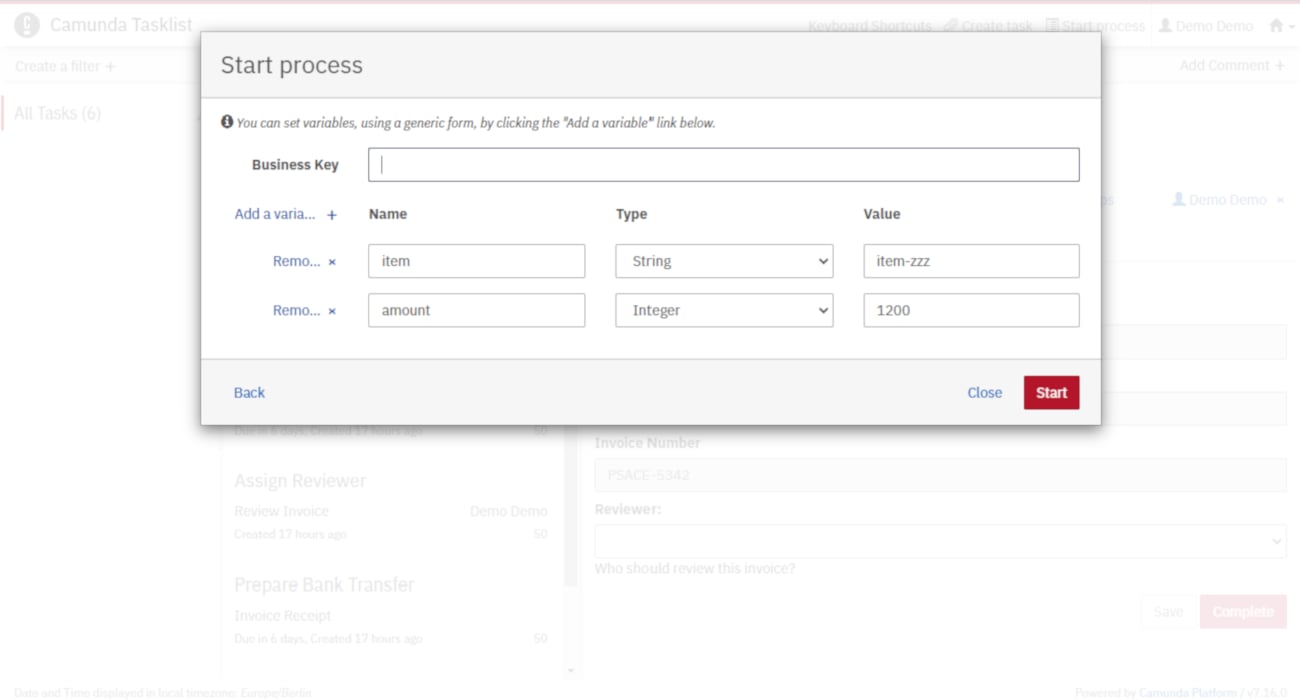
Open Tasklist at `http://localhost:8080/camunda/app/tasklist/`. Start two Payment Retrieval instances with different inputs to observe routing variations based on the DMN evaluation.
## Inspect with Cockpit and Tasklist
Open Tasklist at `http://localhost:8080/camunda/app/tasklist/`. Start two Payment Retrieval instances with different inputs to observe routing variations based on the DMN evaluation.
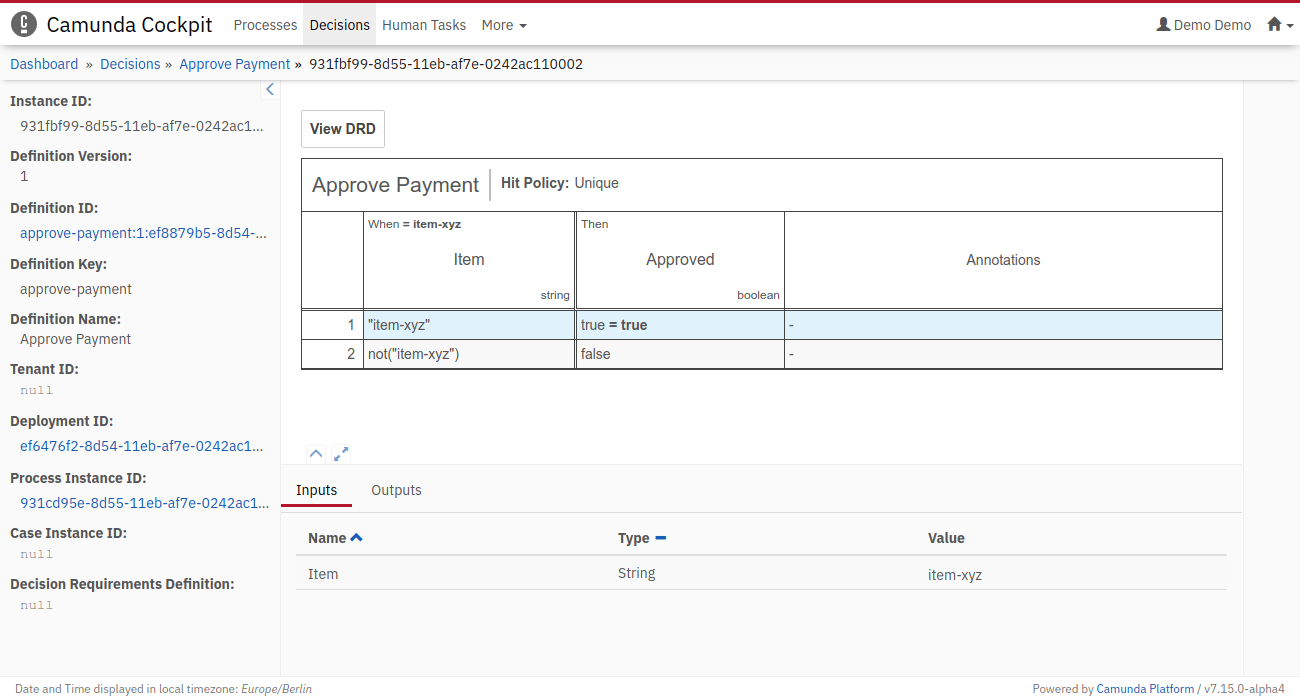
 Review the executed decision instances in Cockpit's *Decisions* section:
 ## Success!
You've completed the quick start. For next steps, explore the [ASEE Flow documentation](/introduction).
**Catch up: get the sources of Step-5**
```bash theme={null}
git clone https://github.com/aseeflow/aseeflow-get-started-quickstart.git
git checkout -f Step-5
```
Or [download as a `.zip`](https://github.com/aseeflow/aseeflow-get-started-quickstart/archive/Step-5.zip).
## Success!
You've completed the quick start. For next steps, explore the [ASEE Flow documentation](/introduction).
**Catch up: get the sources of Step-5**
```bash theme={null}
git clone https://github.com/aseeflow/aseeflow-get-started-quickstart.git
git checkout -f Step-5
```
Or [download as a `.zip`](https://github.com/aseeflow/aseeflow-get-started-quickstart/archive/Step-5.zip).