> ## Documentation Index
> Fetch the complete documentation index at: https://docs.aseeflow.org/llms.txt
> Use this file to discover all available pages before exploring further.
# Add Gateways to the Process
This tutorial demonstrates how to make a process more flexible using BPMN 2.0 exclusive gateways, routing execution based on dynamic conditions.
## Add two gateways
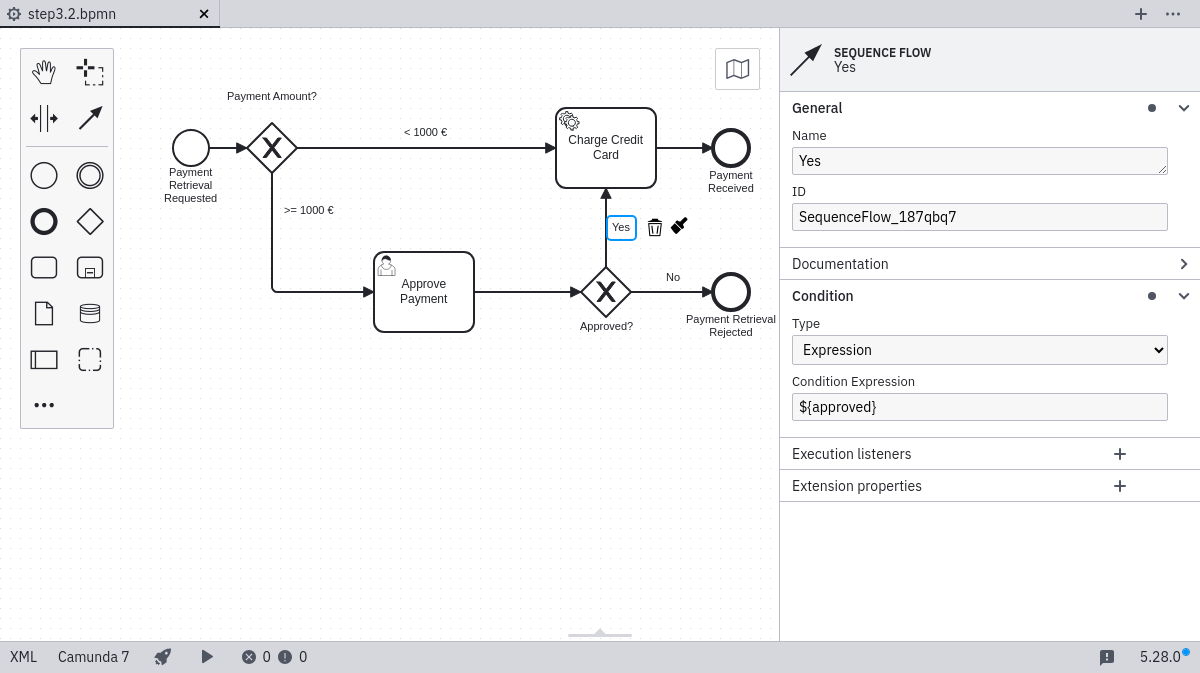
Open your process in the Camunda Modeler. Insert a gateway (diamond shape) between the start event and the service task. Position a second gateway after the user task. Adjust the sequence flows to connect these elements appropriately.
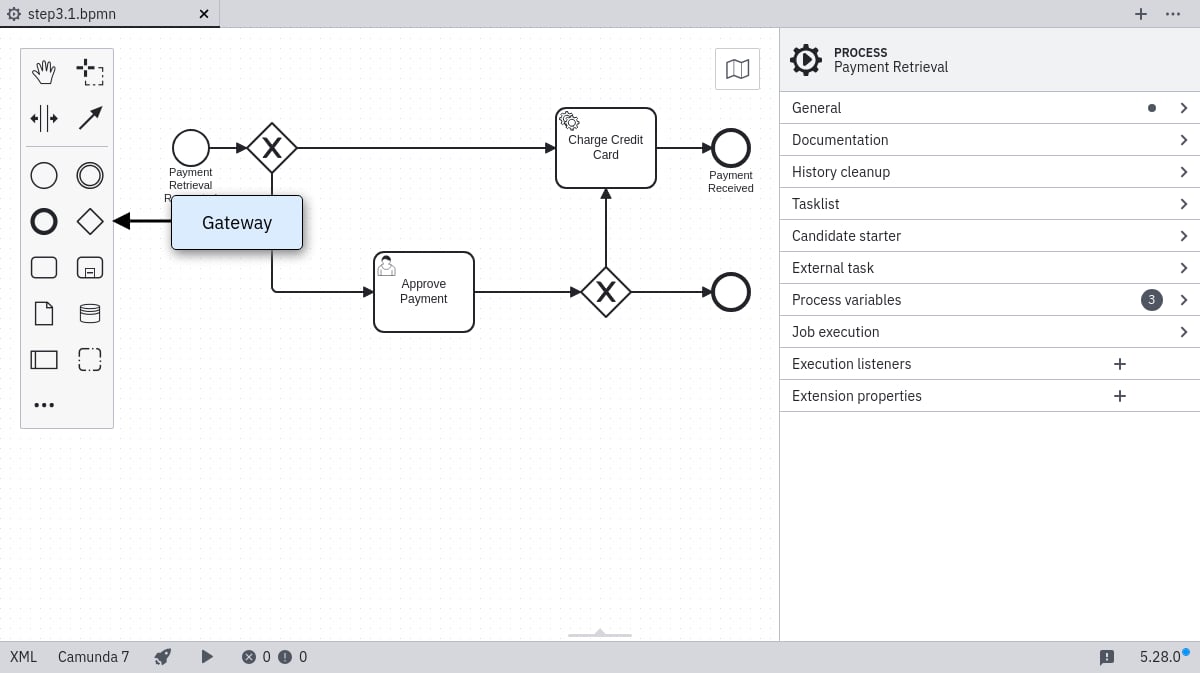 Name the new elements clearly:
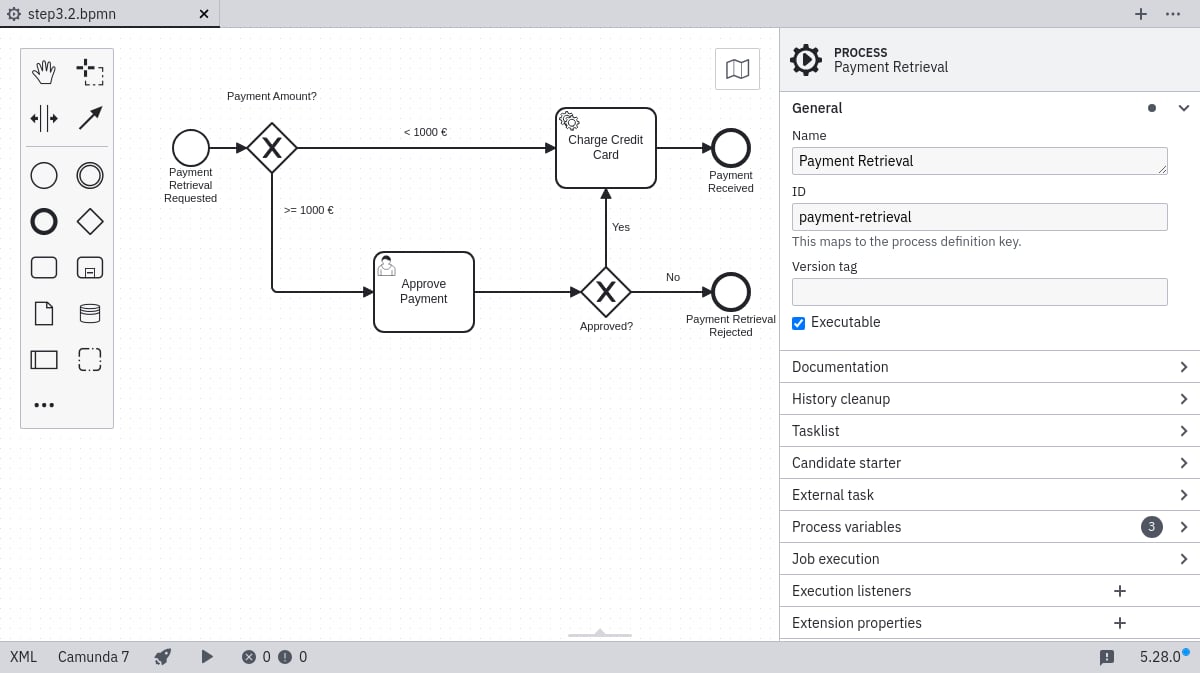 ## Configure the gateways
Select each outgoing sequence flow and configure its condition in the properties panel:
**`<1000 €` flow** — set Condition Type to *Expression* and enter `${amount<1000}`:
## Configure the gateways
Select each outgoing sequence flow and configure its condition in the properties panel:
**`<1000 €` flow** — set Condition Type to *Expression* and enter `${amount<1000}`:
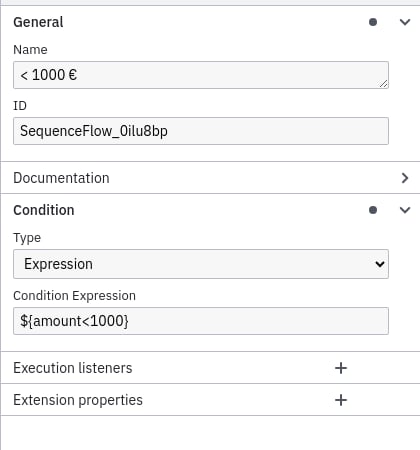 **`>=1000 €` flow** — `${amount>=1000}`:
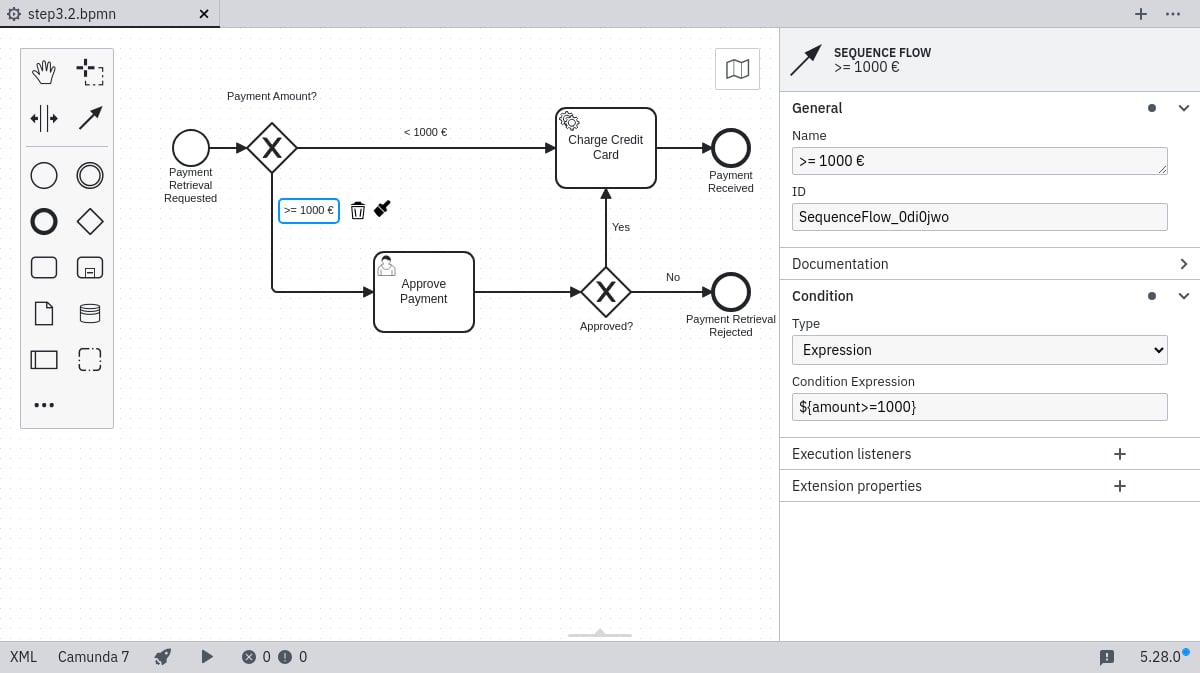 **`Yes` flow** — `${approved}`:
 **`No` flow** — `${!approved}`:
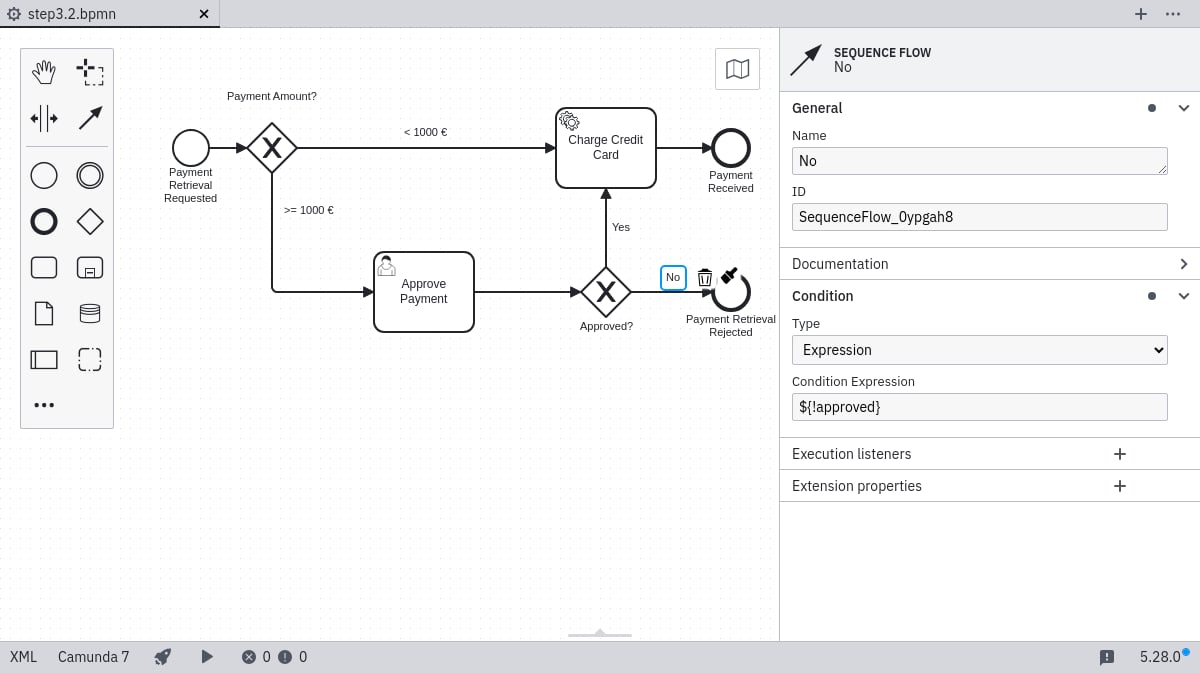 These conditions use the [Unified Expression Language](/user-guide/process-engine/expression-language) to evaluate the gateway.
## Deploy the process
Use the deploy button in the Camunda Modeler to publish your updated process.
## Work on the task
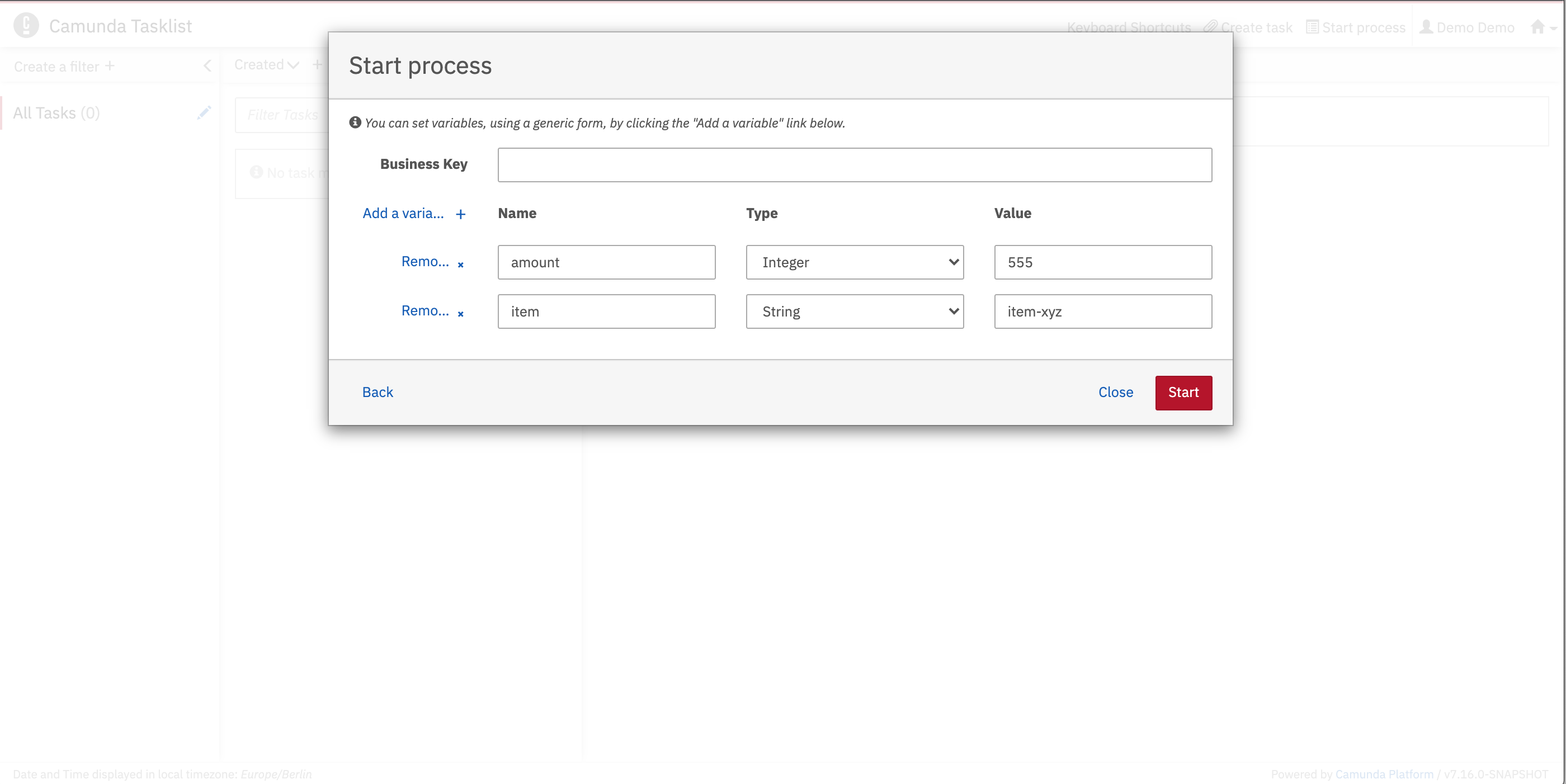
Navigate to Tasklist at `http://localhost:8080/camunda/app/tasklist/` and authenticate with the demo credentials. Start a new instance and set variables via the generic form, using an amount ≥ 1000 to trigger the approval task.
These conditions use the [Unified Expression Language](/user-guide/process-engine/expression-language) to evaluate the gateway.
## Deploy the process
Use the deploy button in the Camunda Modeler to publish your updated process.
## Work on the task
Navigate to Tasklist at `http://localhost:8080/camunda/app/tasklist/` and authenticate with the demo credentials. Start a new instance and set variables via the generic form, using an amount ≥ 1000 to trigger the approval task.
 Complete the task by checking the *approved* checkbox. Test various scenarios, including rejecting payments and creating instances with amounts under 1000.
## Next step
Continue to [decision automation](/get-started/quick-start/decision-automation) to learn about adding business rules.
Complete the task by checking the *approved* checkbox. Test various scenarios, including rejecting payments and creating instances with amounts under 1000.
## Next step
Continue to [decision automation](/get-started/quick-start/decision-automation) to learn about adding business rules.