> ## Documentation Index
> Fetch the complete documentation index at: https://docs.aseeflow.org/llms.txt
> Use this file to discover all available pages before exploring further.
# Process Definition View
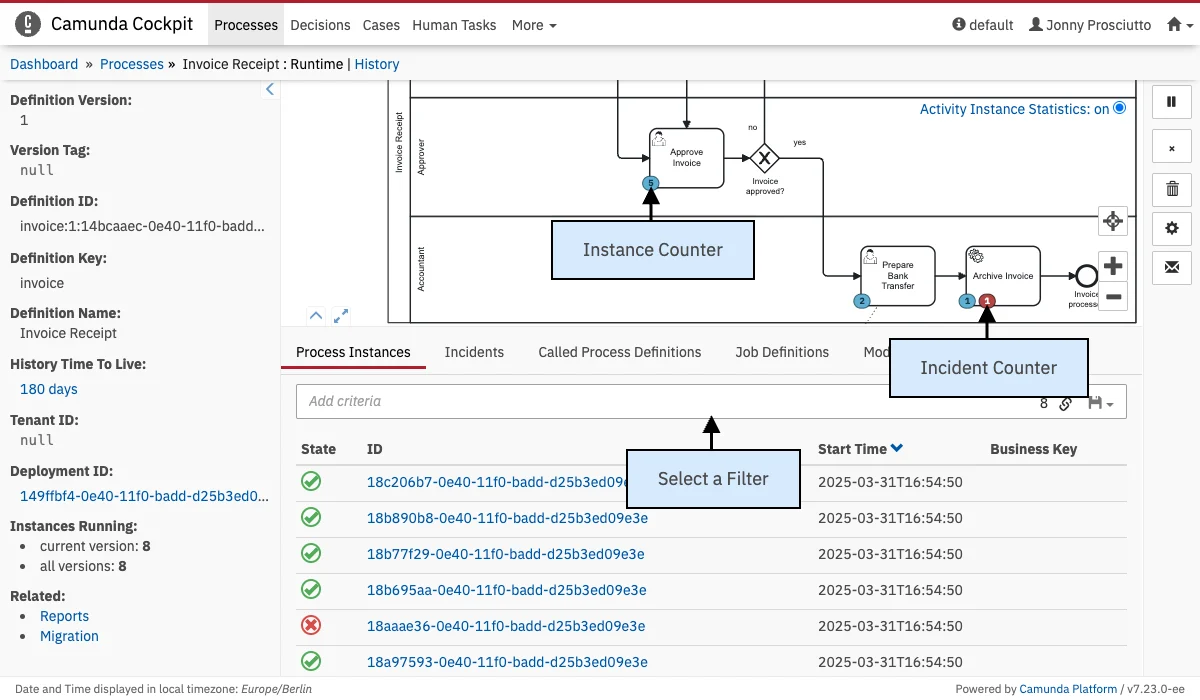
The process definition view provides you with information about the definition and the status of a process. On the left side you can easily survey the versions of the process and how many instances of the versions are running. Incidents of all running process instances are displayed together with an instance counter label in the corresponding rendered diagram. So it is easy to locate [failed activities][failed-activities] in the process. Use the mouse to navigate through the diagram. By pressing the CTRL key while turning the mouse wheel you can zoom in and out. Hold the left mouse button to pan the diagram in the desired direction. Furthermore, you can maximize the diagram view or the detailed information panel by clicking on, respectively, the button or the button, at the bottom left of the diagram view.
In the `Process Instances` tab all running instances are listed in a tabular view. Besides information about start time, business key and state you can select an instance by ID and go down to the [process instance view][process-instance-view].
The `Called Process Definitions` tab displays the called child processes.
You can learn more about navigating called process definitions and this tab in the section about [Call Activity Navigation][call-activity-navigation].
In the column *Called Process Definition* the names of the called sub processes are listed.
Click on the name to display the process in the process definition view.
Please note that a filter called Parent is automatically set for the process so that you only see the instances that belong to the parent process.
In the *Activity* column you can select the instance that is calling the child process.
The `Job Definitions` tab displays the job definitions that are linked to this process definition. Observe the name of the activity, the type of job, the configuration and the state thereof. You can also suspend and re-activate the job definition (see [Job Definition Suspension][job-definition-suspension] for more information). It is also possible to [set the priority of jobs](/webapps/cockpit/bpmn/process-definition-view#set-job-priority).
[call-activity-navigation]: /webapps/cockpit/bpmn/process-definition-view#call-activity-navigation
[failed-activities]: /webapps/cockpit/bpmn/failed-jobs
[process-instance-view]: /webapps/cockpit/bpmn/process-instance-view
[job-definition-suspension]: /webapps/cockpit/bpmn/suspension#job-definition-suspension
## Filter
The filter function on the bottom of the Process Definition View in the `Process Instances` tab allows you to find certain instances by filtering for variables, business keys, activity IDs or date and time. In addition, you can filter for the process definition version by selecting the version of a process on the left side of the Process Definition View. Beyond that you can combine different filters as logical *AND* relation. Filter expressions on variables must be specified as `variableName OPERATOR value` where the *operator* may be one of the following terms: `=`, `!=`, `>`, `>=`, `<`, `<=`, `like`. Apart from the `like` operator, the operator expressions do not have to be separated by spaces.
The `like` operator is for string variables only. You can use `%` as wildcard in the *value* expression. String and date values must be properly enclosed in quotes `" "`.
**Complex Data Types**
Please be aware that this feature does not support complex data types.
Furthermore, you can copy a link to the current filter query to your clipboard by clicking on the button and you can save filter queries to your local browser storage by clicking on the button and inserting a name in the drop down menu that appears. You can then retrieve the filter query by clicking on the button and selecting the chosen name in the drop down menu.
### Runtime View
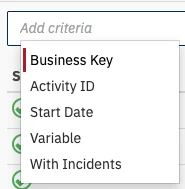
Add a filter to the process definition view. Select a filter for variables, the start date and time, activity ID or the business key of process instances.
**Business Key**
Add a filter for process instances by business key.
**Start Date and Time**
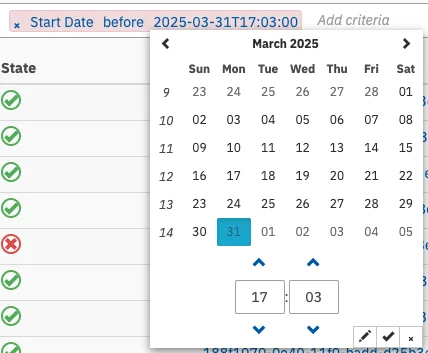
Add a filter for process instances by start date. Please note that the date must be set in accordance to the [ISO 8601](http://en.wikipedia.org/wiki/ISO_8601) standard.
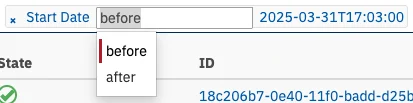
Choose between `before` and `after` to filter for instances that were started before or after the given date. For example, click on `before` to obtain the selection.
**String variable**
Add a filter for process instances by filtering for a `string` value. Please note that you should **not** encase the value in quotation marks.
**Boolean variable**
Add a filter for process instances by filtering for a `boolean` value.
**Numeric variable**
Add a filter for process instances by filtering for a `numeric` (double, integer, long or short) value.
**Filtering for completed and running process instances**
Add a filter for process instances by filtering for already completed or still running process instances.
**End Date and Time**
Add a filter for process instances by end date. Please note that the date must be set in accordance to the [ISO 8601](http://en.wikipedia.org/wiki/ISO_8601) standard and that this option is only available in the [process definition history view][process-definition-history-view]. Again choose between `before` and `after` to filter for instances that were ended before or after the given date. For example, click on `before` to obtain the selection..
[process-definition-history-view]: /webapps/cockpit/bpmn/process-history-views#process-definition-history-view
## Set Job priority
You can change the job priority by overriding the priority specified in the BPMN 2.0 XML. To do so, click on the *(cog icon)* icon in the `Job Definitions` tab. In the opened dialog you can override the job priority. If an overridden priority is already set, you can clear it to use the priority specified in the XML again. It is also possible to include existing jobs when changing the priority.
By using the *(cog icon)* button to the right of the process diagram, you can set the job priority of all jobs contained in the process definition at once.
## Call Activity Navigation
You can navigate from a process that contains Call Activities to its respectively called process definitions.
Hover over a Call Activity in the BPMN diagram to display a link in the upper right corner of the Call Activity.
**Limitation**
When a to be called process is referenced via a process variable or an expression, the called process
can only be determined at runtime. For these types of call activities, the diagram shows a greyed out overlay, unless
there is currently a process instance running at that call activity.
Additionally, you can use the called process definitions tab to get an overview of which call activity
calls which process definition.
We differentiate between three states:
* *Referenced*: the called process definition can be derived without any runtime information.
* *Running and referenced*: the called process definition can be derived without any runtime
information and a call activity in this process is currently calling it.
* *Running*: There is currently a process instance calling this process definition.
However, the called process definition can only be resolved at runtime and is only valid for a particular process instance.
For more drill down options on call activities you can check out the [process instance view][process-instance-view]
and the [process history views][process-history-views].
[process-history-views]: /webapps/cockpit/bpmn/process-history-views
 The process definition view provides you with information about the definition and the status of a process. On the left side you can easily survey the versions of the process and how many instances of the versions are running. Incidents of all running process instances are displayed together with an instance counter label in the corresponding rendered diagram. So it is easy to locate [failed activities][failed-activities] in the process. Use the mouse to navigate through the diagram. By pressing the CTRL key while turning the mouse wheel you can zoom in and out. Hold the left mouse button to pan the diagram in the desired direction. Furthermore, you can maximize the diagram view or the detailed information panel by clicking on, respectively, the button or the button, at the bottom left of the diagram view.
In the `Process Instances` tab all running instances are listed in a tabular view. Besides information about start time, business key and state you can select an instance by ID and go down to the [process instance view][process-instance-view].
The `Called Process Definitions` tab displays the called child processes.
You can learn more about navigating called process definitions and this tab in the section about [Call Activity Navigation][call-activity-navigation].
In the column *Called Process Definition* the names of the called sub processes are listed.
Click on the name to display the process in the process definition view.
Please note that a filter called Parent is automatically set for the process so that you only see the instances that belong to the parent process.
In the *Activity* column you can select the instance that is calling the child process.
The `Job Definitions` tab displays the job definitions that are linked to this process definition. Observe the name of the activity, the type of job, the configuration and the state thereof. You can also suspend and re-activate the job definition (see [Job Definition Suspension][job-definition-suspension] for more information). It is also possible to [set the priority of jobs](/webapps/cockpit/bpmn/process-definition-view#set-job-priority).
[call-activity-navigation]: /webapps/cockpit/bpmn/process-definition-view#call-activity-navigation
[failed-activities]: /webapps/cockpit/bpmn/failed-jobs
[process-instance-view]: /webapps/cockpit/bpmn/process-instance-view
[job-definition-suspension]: /webapps/cockpit/bpmn/suspension#job-definition-suspension
## Filter
The filter function on the bottom of the Process Definition View in the `Process Instances` tab allows you to find certain instances by filtering for variables, business keys, activity IDs or date and time. In addition, you can filter for the process definition version by selecting the version of a process on the left side of the Process Definition View. Beyond that you can combine different filters as logical *AND* relation. Filter expressions on variables must be specified as `variableName OPERATOR value` where the *operator* may be one of the following terms: `=`, `!=`, `>`, `>=`, `<`, `<=`, `like`. Apart from the `like` operator, the operator expressions do not have to be separated by spaces.
The `like` operator is for string variables only. You can use `%` as wildcard in the *value* expression. String and date values must be properly enclosed in quotes `" "`.
The process definition view provides you with information about the definition and the status of a process. On the left side you can easily survey the versions of the process and how many instances of the versions are running. Incidents of all running process instances are displayed together with an instance counter label in the corresponding rendered diagram. So it is easy to locate [failed activities][failed-activities] in the process. Use the mouse to navigate through the diagram. By pressing the CTRL key while turning the mouse wheel you can zoom in and out. Hold the left mouse button to pan the diagram in the desired direction. Furthermore, you can maximize the diagram view or the detailed information panel by clicking on, respectively, the button or the button, at the bottom left of the diagram view.
In the `Process Instances` tab all running instances are listed in a tabular view. Besides information about start time, business key and state you can select an instance by ID and go down to the [process instance view][process-instance-view].
The `Called Process Definitions` tab displays the called child processes.
You can learn more about navigating called process definitions and this tab in the section about [Call Activity Navigation][call-activity-navigation].
In the column *Called Process Definition* the names of the called sub processes are listed.
Click on the name to display the process in the process definition view.
Please note that a filter called Parent is automatically set for the process so that you only see the instances that belong to the parent process.
In the *Activity* column you can select the instance that is calling the child process.
The `Job Definitions` tab displays the job definitions that are linked to this process definition. Observe the name of the activity, the type of job, the configuration and the state thereof. You can also suspend and re-activate the job definition (see [Job Definition Suspension][job-definition-suspension] for more information). It is also possible to [set the priority of jobs](/webapps/cockpit/bpmn/process-definition-view#set-job-priority).
[call-activity-navigation]: /webapps/cockpit/bpmn/process-definition-view#call-activity-navigation
[failed-activities]: /webapps/cockpit/bpmn/failed-jobs
[process-instance-view]: /webapps/cockpit/bpmn/process-instance-view
[job-definition-suspension]: /webapps/cockpit/bpmn/suspension#job-definition-suspension
## Filter
The filter function on the bottom of the Process Definition View in the `Process Instances` tab allows you to find certain instances by filtering for variables, business keys, activity IDs or date and time. In addition, you can filter for the process definition version by selecting the version of a process on the left side of the Process Definition View. Beyond that you can combine different filters as logical *AND* relation. Filter expressions on variables must be specified as `variableName OPERATOR value` where the *operator* may be one of the following terms: `=`, `!=`, `>`, `>=`, `<`, `<=`, `like`. Apart from the `like` operator, the operator expressions do not have to be separated by spaces.
The `like` operator is for string variables only. You can use `%` as wildcard in the *value* expression. String and date values must be properly enclosed in quotes `" "`.
 Add a filter to the process definition view. Select a filter for variables, the start date and time, activity ID or the business key of process instances.
**Business Key**
Add a filter to the process definition view. Select a filter for variables, the start date and time, activity ID or the business key of process instances.
**Business Key**
 Add a filter for process instances by business key.
**Start Date and Time**
Add a filter for process instances by business key.
**Start Date and Time**
 Add a filter for process instances by start date. Please note that the date must be set in accordance to the [ISO 8601](http://en.wikipedia.org/wiki/ISO_8601) standard.
 Choose between `before` and `after` to filter for instances that were started before or after the given date. For example, click on `before` to obtain the selection.
**String variable**
Choose between `before` and `after` to filter for instances that were started before or after the given date. For example, click on `before` to obtain the selection.
**String variable**
 Add a filter for process instances by filtering for a `string` value. Please note that you should **not** encase the value in quotation marks.
**Boolean variable**
Add a filter for process instances by filtering for a `string` value. Please note that you should **not** encase the value in quotation marks.
**Boolean variable**
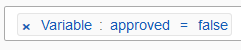 Add a filter for process instances by filtering for a `boolean` value.
**Numeric variable**
Add a filter for process instances by filtering for a `boolean` value.
**Numeric variable**
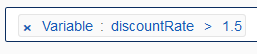 Add a filter for process instances by filtering for a `numeric` (double, integer, long or short) value.
**Filtering for completed and running process instances**
Add a filter for process instances by filtering for a `numeric` (double, integer, long or short) value.
**Filtering for completed and running process instances**
 Add a filter for process instances by filtering for already completed or still running process instances.
**End Date and Time**
Add a filter for process instances by filtering for already completed or still running process instances.
**End Date and Time**
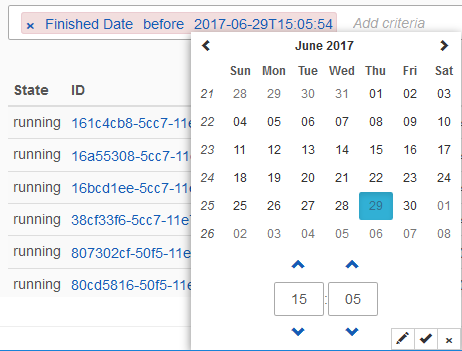 Add a filter for process instances by end date. Please note that the date must be set in accordance to the [ISO 8601](http://en.wikipedia.org/wiki/ISO_8601) standard and that this option is only available in the [process definition history view][process-definition-history-view]. Again choose between `before` and `after` to filter for instances that were ended before or after the given date. For example, click on `before` to obtain the selection..
[process-definition-history-view]: /webapps/cockpit/bpmn/process-history-views#process-definition-history-view
## Set Job priority
Add a filter for process instances by end date. Please note that the date must be set in accordance to the [ISO 8601](http://en.wikipedia.org/wiki/ISO_8601) standard and that this option is only available in the [process definition history view][process-definition-history-view]. Again choose between `before` and `after` to filter for instances that were ended before or after the given date. For example, click on `before` to obtain the selection..
[process-definition-history-view]: /webapps/cockpit/bpmn/process-history-views#process-definition-history-view
## Set Job priority
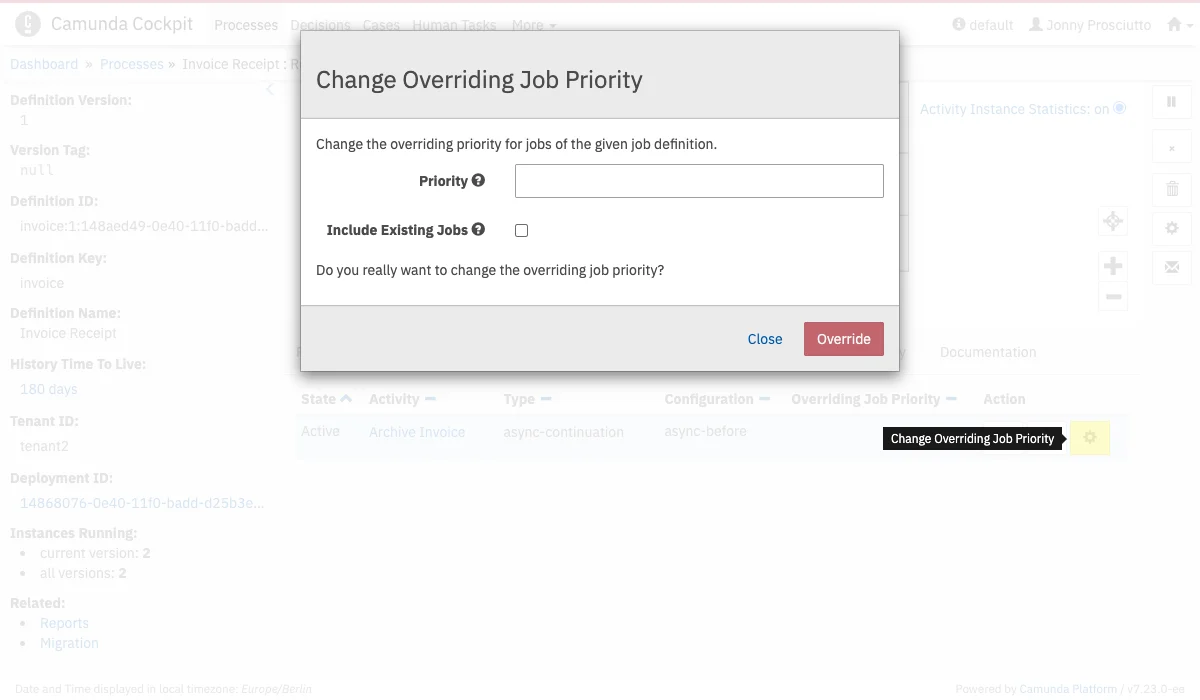 You can change the job priority by overriding the priority specified in the BPMN 2.0 XML. To do so, click on the *(cog icon)* icon in the `Job Definitions` tab. In the opened dialog you can override the job priority. If an overridden priority is already set, you can clear it to use the priority specified in the XML again. It is also possible to include existing jobs when changing the priority.
By using the *(cog icon)* button to the right of the process diagram, you can set the job priority of all jobs contained in the process definition at once.
## Call Activity Navigation
You can navigate from a process that contains Call Activities to its respectively called process definitions.
Hover over a Call Activity in the BPMN diagram to display a link in the upper right corner of the Call Activity.
You can change the job priority by overriding the priority specified in the BPMN 2.0 XML. To do so, click on the *(cog icon)* icon in the `Job Definitions` tab. In the opened dialog you can override the job priority. If an overridden priority is already set, you can clear it to use the priority specified in the XML again. It is also possible to include existing jobs when changing the priority.
By using the *(cog icon)* button to the right of the process diagram, you can set the job priority of all jobs contained in the process definition at once.
## Call Activity Navigation
You can navigate from a process that contains Call Activities to its respectively called process definitions.
Hover over a Call Activity in the BPMN diagram to display a link in the upper right corner of the Call Activity.
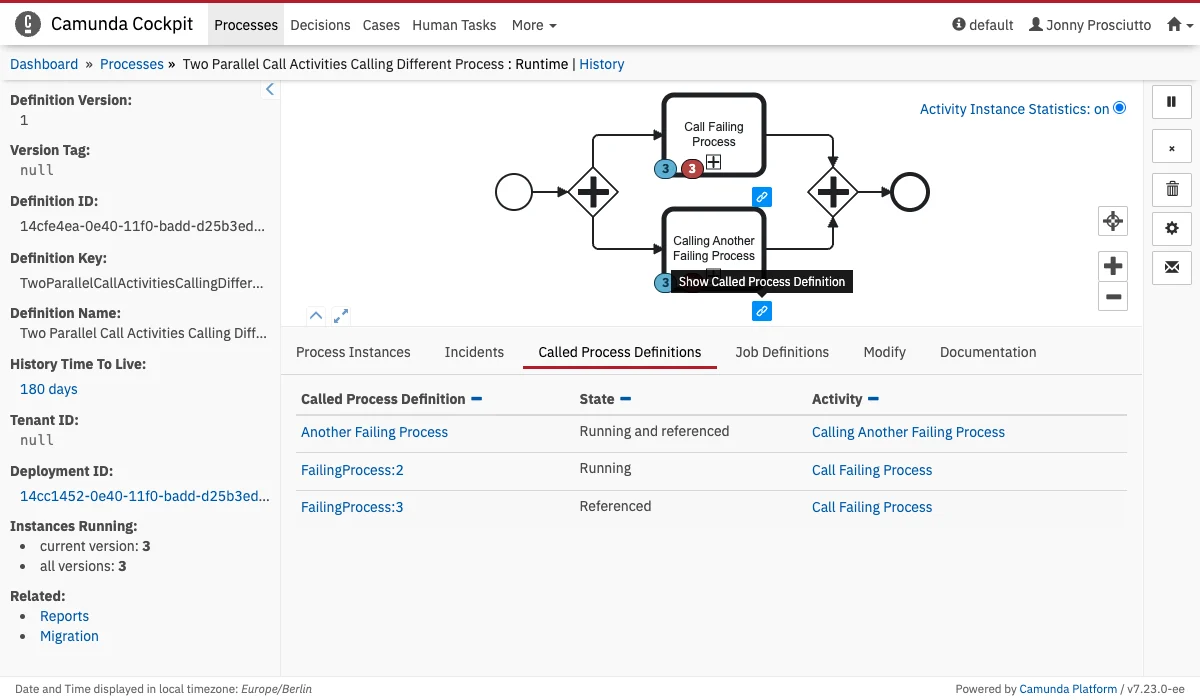 For more drill down options on call activities you can check out the [process instance view][process-instance-view]
and the [process history views][process-history-views].
[process-history-views]: /webapps/cockpit/bpmn/process-history-views
For more drill down options on call activities you can check out the [process instance view][process-instance-view]
and the [process history views][process-history-views].
[process-history-views]: /webapps/cockpit/bpmn/process-history-views