> ## Documentation Index
> Fetch the complete documentation index at: https://docs.aseeflow.org/llms.txt
> Use this file to discover all available pages before exploring further.
# Cockpit Plugins
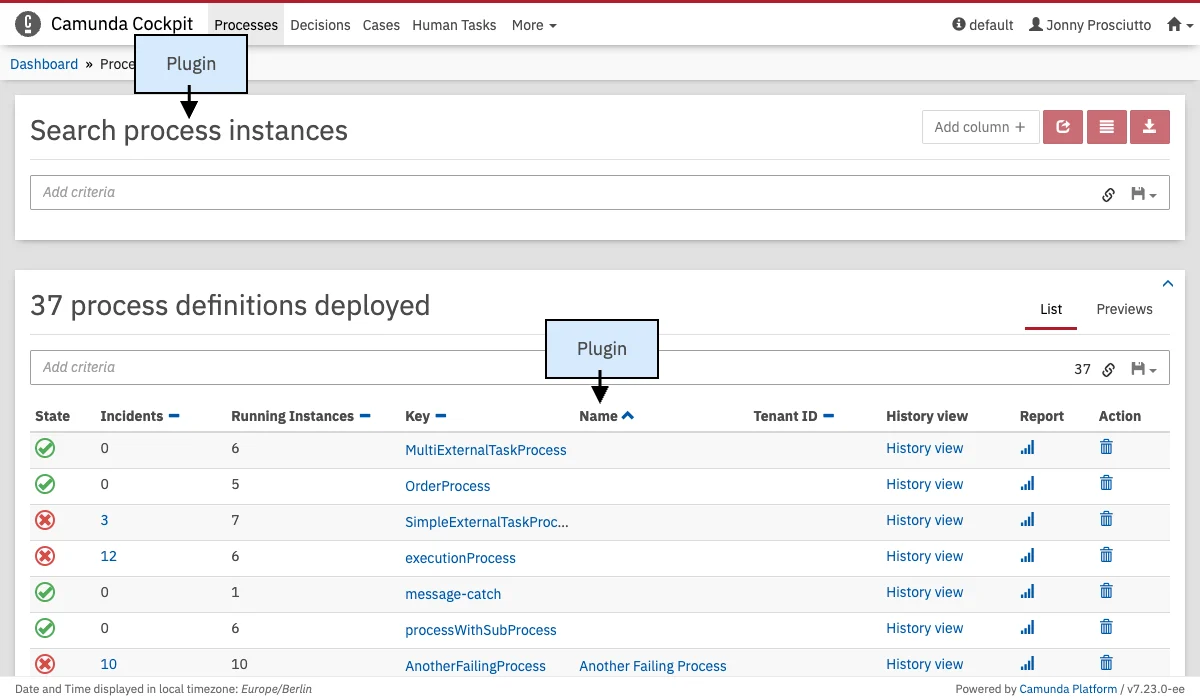
Cockpit defines a plugin concept to add own functionality without being forced to extend or hack the Cockpit web application. You can add plugins at various plugin points, e.g., the processes dashboard as shown in the following example:
 ## The Nature of a Cockpit Plugin
A Cockpit plugin is a maven jar project that is included in the Cockpit webapplication as a library dependency. It provides a server-side and a client-side extension to Cockpit.
On the server-side, it can extend Cockpit with custom SQL queries and JAX-RS resource classes. Queries (defined via [MyBatis](http://www.mybatis.org/)) may be used to squeeze additional intel out of an engine database or to execute custom engine operations. JAX-RS resources on the other hand extend the Cockpit API and expose data to the client-side part of the plugin.
On the client-side a plugin may include Javascript modules to extend the Cockpit webapplication. Via those modules a plugin provides custom views.
### File structure
The basic skeleton of a Cockpit plugin looks as follows:
```
cockpit-plugin/
├── src/
| ├── main/
| | ├── java/
| | | └── org/my/plugin/
| | | ├── db/
| | | | └── MyDto.java (5)
| | | ├── resource/
| | | | ├── MyPluginRootResource.java (3)
| | | | └── ... (4)
| | | └── MyPlugin.java (1)
| | └── resources/
| | ├── META-INF/services/
| | | └── org.camunda.bpm.cockpit.plugin.spi.CockpitPlugin (2)
| | ├── org/my/plugin/queries/ (6)
| | | └── sample.xml
| | └── plugin-webapp/MyPlugin/ (7)
| | └── app/
| | ├── plugin.js (8)
| | ├── plugin.css (9)
| | └── ...
| └── test/
| ├── java/
| | └── org/my/plugin/
| | └── MyPluginTest.java
| └── resources/
| └── camunda.cfg.xml
└── pom.xml
```
As runtime relevant resource it defines
1. a plugin main class
2. a `META-INF/services` entry that publishes the plugin to Cockpit
3. a plugin root [JAX-RS](https://jax-rs-spec.java.net/) resource that wires the server-side API.
When you want to include a frontend module in your plugin, you can use `AbstractCockpitPluginRootResource` as the plug-in resources base class.
This allows you to serve static client-side resources under the `/static` path.
Per convention, these resources must reside in a `/plugin-webapp/$plugin_id` directory absolute to the classpath root.
* the plugin root resource has to explicitly declare the assets that are allowed to be served via the REST API.
You can declare your assets by overriding the `AbstractAppPluginRootResource#getAllowedAssets()` method in your root resource.
Undeclared assets won't be served.
The default implementation contains two predefined assets: `app/plugin.js` and `app/plugin.css`.
4. other resources that are part of the server-side API
5. data transfer objects used by the resources
6. mapping files that provide additional Cockpit queries as [MyBatis](http://www.mybatis.org/) mappings
7. resource directory from which client-side plugin assets are served as static files
8. a js file that exports a frontend module. This file must be named `plugin.js` and be located in the `app` directory of the plugin asset directory
9. a css file that contains the style definitions for the client-side plugin. This file must be named `plugin.css` and be located in the `app` directory of the plugin asset directory
**Related Example**
[How to develop a Cockpit plugin](https://github.com/camunda/camunda-bpm-examples/tree/master/cockpit/cockpit-fullstack-count-processes)
### Structure of a Frontend Module
A frontend module always follows the same structure. This is how a sample `plugin.js` could look like:
```Javascript theme={null}
export default {
id: "customPlugin",
pluginPoint: "cockpit.dashboard",
priority: 5,
render: container => {
container.innerHTML = "Hello World!";
}
};
```
This file can also be included standalone as a [custom script](/webapps/cockpit/extend/configuration#custom-scripts).
**Important notes about the structure**
1. The default export is either one plugin or an array of plugins. Only the default export will be considered in Cockpit.
2. The render function must not have a return value.
#### Attributes in Detail
* `id`: A string which defines this plugin. Should be unique across the application. This can be used to exclude plugins, see [Plugin exclusion](#plugin-exclusion-client-side).
* `pluginPoint`: A string which describes where the plugin is rendered. This also defines which parameters are passed into the render function, see the [plugin point reference](#plugin-points)
* `priority`: Number, describes in which order the plugins at the same pluginPoint will be mounted. For certain Plugin points (like `cockpit.navigation`), a negative priority hides the entry in a dropdown. How this is handled depends on the Plugin Point.
* `render`: Function, the heart of your Plugin. Arguments are (`DOMNode`|`BPMNioViewerInstance`, additionalData (`Object`)). Using the DOM node, you can render your plugin into the DOM.\
The second argument contains API endpoints and CSRF cookie information, as well as constants like a `processDefinitionId`. The `api` key is always present and contains
* `engine`: the engine name
* `CSRFToken`: the current CSRF token for your requests
* `baseApi`, `adminApi`, `cockpitApi`, `engineApi`: The paths to different API endpoints. The engineApi corresponds to the [Rest Api](/reference/rest)
The details of which data is passed into the plugin can be found at the [plugin point reference](#plugin-points).
* `result`: Function, only available in data plugins. Argument is a (`Promise`).
* `unmount`: Optional function which is called when the Plugin is unmounted. Use this to cleanup any listeners you or your Framework might have registered.
* `properties`: Optional object which contains all additional configuration for the plugin point, such as labels.
## Plugin Exclusion (Client Side)
You can exclude some plugins from the interface by adding a `cam-exclude-plugins`
attribute to the HTML `base` tag of the page loading the interface.
The content of the attribute is a comma separated list formatted like: `:`.
If the feature ID is not provided, the whole plugin will be excluded.
### Excluding a Complete Plugin
This example will completely deactivate the action buttons on the right side of the process instance view.
```html theme={null}
```
### Excluding a Plugin Feature
In this example we deactivate the cancel action in the Cockpit process instance view and disable the job retry action button:
```html theme={null}
```
## Plugin points
In this section you will find all Cockpit plugin points.
To configure where you place your plugin, enter the ID into the `pluginPoint` attribute of you frontend module.
Plugin Points describe where a Plugin will be rendered and define which additional data is passed into the second argument of the render function.
For more information on creating and configuring your own plugin, please see [How to develop a Cockpit plugin](https://github.com/camunda/camunda-bpm-examples/tree/master/cockpit/cockpit-fullstack-count-processes).
### Data
**Data Plugin Points** have a `#result` function that gets the response data as a promise of a called REST endpoint passed.
The `#result` function is called when the respective HTTP request is performed.
The first argument of the `#result` function is a (`Promise`).
#### Login Data
**Name:** `cockit.login.data`\
**REST Endpoint:** `POST /camunda/api/admin/auth/user/default/login/cockpit`
When a user clicks on the **Login** button of the login form, the plugin points `#result` function is called.
Your [Login Plugin](#login) can react to the data that this data plugin will retrieve.
This plugin point is available for all web apps. Just change the canonical app name for the respective webapp (`tasklist.login.data`, `admin.login.data`, `welcome.login.data`).
### Route
**Name:** `cockpit.route`
This plugin points properties contain the attribute `path`, which stands for the hashRoute for this page. This will be rendered when the user navigates in the browser to the url, e.g. `#/my-path`.
```Javascript theme={null}
properties: {
path: "/my-path"
}
```
### Navigation
## The Nature of a Cockpit Plugin
A Cockpit plugin is a maven jar project that is included in the Cockpit webapplication as a library dependency. It provides a server-side and a client-side extension to Cockpit.
On the server-side, it can extend Cockpit with custom SQL queries and JAX-RS resource classes. Queries (defined via [MyBatis](http://www.mybatis.org/)) may be used to squeeze additional intel out of an engine database or to execute custom engine operations. JAX-RS resources on the other hand extend the Cockpit API and expose data to the client-side part of the plugin.
On the client-side a plugin may include Javascript modules to extend the Cockpit webapplication. Via those modules a plugin provides custom views.
### File structure
The basic skeleton of a Cockpit plugin looks as follows:
```
cockpit-plugin/
├── src/
| ├── main/
| | ├── java/
| | | └── org/my/plugin/
| | | ├── db/
| | | | └── MyDto.java (5)
| | | ├── resource/
| | | | ├── MyPluginRootResource.java (3)
| | | | └── ... (4)
| | | └── MyPlugin.java (1)
| | └── resources/
| | ├── META-INF/services/
| | | └── org.camunda.bpm.cockpit.plugin.spi.CockpitPlugin (2)
| | ├── org/my/plugin/queries/ (6)
| | | └── sample.xml
| | └── plugin-webapp/MyPlugin/ (7)
| | └── app/
| | ├── plugin.js (8)
| | ├── plugin.css (9)
| | └── ...
| └── test/
| ├── java/
| | └── org/my/plugin/
| | └── MyPluginTest.java
| └── resources/
| └── camunda.cfg.xml
└── pom.xml
```
As runtime relevant resource it defines
1. a plugin main class
2. a `META-INF/services` entry that publishes the plugin to Cockpit
3. a plugin root [JAX-RS](https://jax-rs-spec.java.net/) resource that wires the server-side API.
When you want to include a frontend module in your plugin, you can use `AbstractCockpitPluginRootResource` as the plug-in resources base class.
This allows you to serve static client-side resources under the `/static` path.
Per convention, these resources must reside in a `/plugin-webapp/$plugin_id` directory absolute to the classpath root.
* the plugin root resource has to explicitly declare the assets that are allowed to be served via the REST API.
You can declare your assets by overriding the `AbstractAppPluginRootResource#getAllowedAssets()` method in your root resource.
Undeclared assets won't be served.
The default implementation contains two predefined assets: `app/plugin.js` and `app/plugin.css`.
4. other resources that are part of the server-side API
5. data transfer objects used by the resources
6. mapping files that provide additional Cockpit queries as [MyBatis](http://www.mybatis.org/) mappings
7. resource directory from which client-side plugin assets are served as static files
8. a js file that exports a frontend module. This file must be named `plugin.js` and be located in the `app` directory of the plugin asset directory
9. a css file that contains the style definitions for the client-side plugin. This file must be named `plugin.css` and be located in the `app` directory of the plugin asset directory
**Related Example**
[How to develop a Cockpit plugin](https://github.com/camunda/camunda-bpm-examples/tree/master/cockpit/cockpit-fullstack-count-processes)
### Structure of a Frontend Module
A frontend module always follows the same structure. This is how a sample `plugin.js` could look like:
```Javascript theme={null}
export default {
id: "customPlugin",
pluginPoint: "cockpit.dashboard",
priority: 5,
render: container => {
container.innerHTML = "Hello World!";
}
};
```
This file can also be included standalone as a [custom script](/webapps/cockpit/extend/configuration#custom-scripts).
**Important notes about the structure**
1. The default export is either one plugin or an array of plugins. Only the default export will be considered in Cockpit.
2. The render function must not have a return value.
#### Attributes in Detail
* `id`: A string which defines this plugin. Should be unique across the application. This can be used to exclude plugins, see [Plugin exclusion](#plugin-exclusion-client-side).
* `pluginPoint`: A string which describes where the plugin is rendered. This also defines which parameters are passed into the render function, see the [plugin point reference](#plugin-points)
* `priority`: Number, describes in which order the plugins at the same pluginPoint will be mounted. For certain Plugin points (like `cockpit.navigation`), a negative priority hides the entry in a dropdown. How this is handled depends on the Plugin Point.
* `render`: Function, the heart of your Plugin. Arguments are (`DOMNode`|`BPMNioViewerInstance`, additionalData (`Object`)). Using the DOM node, you can render your plugin into the DOM.\
The second argument contains API endpoints and CSRF cookie information, as well as constants like a `processDefinitionId`. The `api` key is always present and contains
* `engine`: the engine name
* `CSRFToken`: the current CSRF token for your requests
* `baseApi`, `adminApi`, `cockpitApi`, `engineApi`: The paths to different API endpoints. The engineApi corresponds to the [Rest Api](/reference/rest)
The details of which data is passed into the plugin can be found at the [plugin point reference](#plugin-points).
* `result`: Function, only available in data plugins. Argument is a (`Promise`).
* `unmount`: Optional function which is called when the Plugin is unmounted. Use this to cleanup any listeners you or your Framework might have registered.
* `properties`: Optional object which contains all additional configuration for the plugin point, such as labels.
## Plugin Exclusion (Client Side)
You can exclude some plugins from the interface by adding a `cam-exclude-plugins`
attribute to the HTML `base` tag of the page loading the interface.
The content of the attribute is a comma separated list formatted like: `:`.
If the feature ID is not provided, the whole plugin will be excluded.
### Excluding a Complete Plugin
This example will completely deactivate the action buttons on the right side of the process instance view.
```html theme={null}
```
### Excluding a Plugin Feature
In this example we deactivate the cancel action in the Cockpit process instance view and disable the job retry action button:
```html theme={null}
```
## Plugin points
In this section you will find all Cockpit plugin points.
To configure where you place your plugin, enter the ID into the `pluginPoint` attribute of you frontend module.
Plugin Points describe where a Plugin will be rendered and define which additional data is passed into the second argument of the render function.
For more information on creating and configuring your own plugin, please see [How to develop a Cockpit plugin](https://github.com/camunda/camunda-bpm-examples/tree/master/cockpit/cockpit-fullstack-count-processes).
### Data
**Data Plugin Points** have a `#result` function that gets the response data as a promise of a called REST endpoint passed.
The `#result` function is called when the respective HTTP request is performed.
The first argument of the `#result` function is a (`Promise`).
#### Login Data
**Name:** `cockit.login.data`\
**REST Endpoint:** `POST /camunda/api/admin/auth/user/default/login/cockpit`
When a user clicks on the **Login** button of the login form, the plugin points `#result` function is called.
Your [Login Plugin](#login) can react to the data that this data plugin will retrieve.
This plugin point is available for all web apps. Just change the canonical app name for the respective webapp (`tasklist.login.data`, `admin.login.data`, `welcome.login.data`).
### Route
**Name:** `cockpit.route`
This plugin points properties contain the attribute `path`, which stands for the hashRoute for this page. This will be rendered when the user navigates in the browser to the url, e.g. `#/my-path`.
```Javascript theme={null}
properties: {
path: "/my-path"
}
```
### Navigation
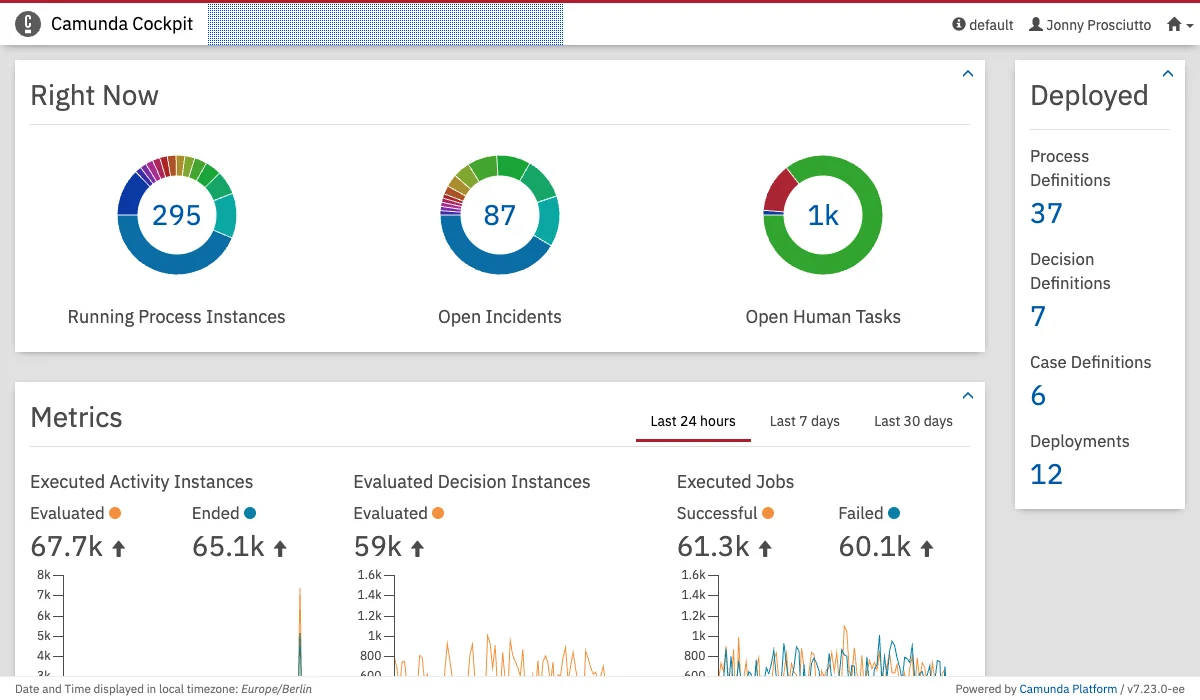 **Name:** `cockpit.navigation`
This plugin point can be used in conjunction with a `cockpit.route` plugin or for shortcuts to existing pages. Negative priority will hide the entry in a drop-down.
This plugin points properties contain the attribute `path`, which matches the location to highlight the active menu entry when the user is on a certain page. The value can be a regex. If no `path` is set, the menu entry will never be highlighted.
```Javascript theme={null}
properties: {
path: "/my-path"
}
```
### Login
**Name:** `cockpit.login`
**Name:** `cockpit.navigation`
This plugin point can be used in conjunction with a `cockpit.route` plugin or for shortcuts to existing pages. Negative priority will hide the entry in a drop-down.
This plugin points properties contain the attribute `path`, which matches the location to highlight the active menu entry when the user is on a certain page. The value can be a regex. If no `path` is set, the menu entry will never be highlighted.
```Javascript theme={null}
properties: {
path: "/my-path"
}
```
### Login
**Name:** `cockpit.login`
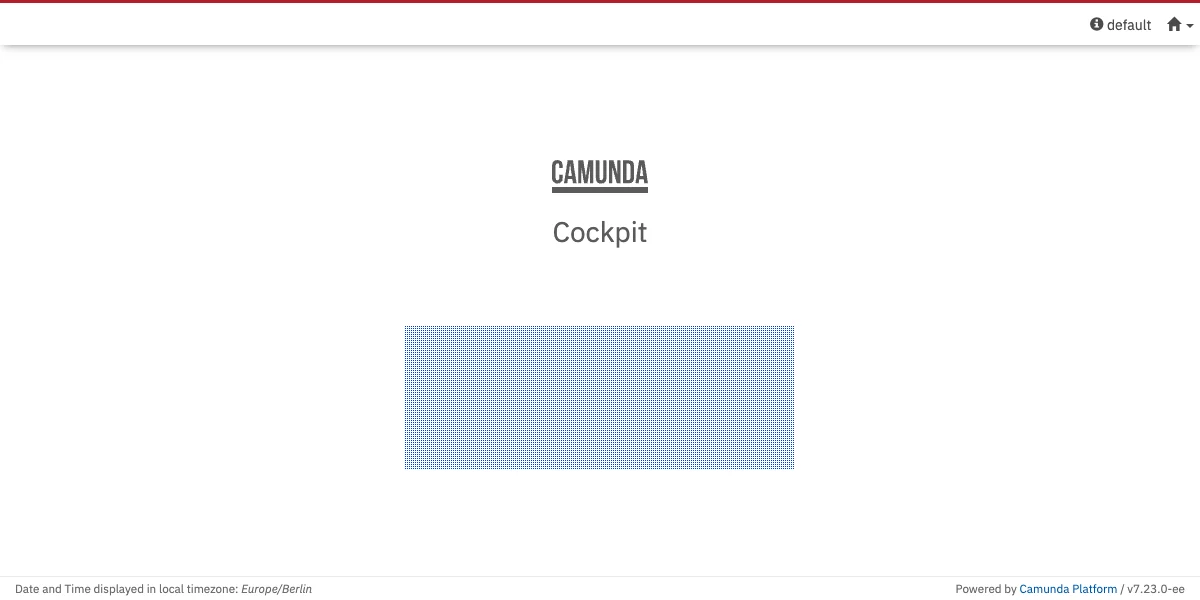 The `cockpit.login` plugin point allows to add your custom views at the place where the web app renders the login form.
This plugin point is available for all web apps. Just change the canonical app name for the respective webapp (`tasklist.login`, `admin.login`, `welcome.login`).
### Dashboard
**Name:** `cockpit.dashboard`
The `cockpit.login` plugin point allows to add your custom views at the place where the web app renders the login form.
This plugin point is available for all web apps. Just change the canonical app name for the respective webapp (`tasklist.login`, `admin.login`, `welcome.login`).
### Dashboard
**Name:** `cockpit.dashboard`
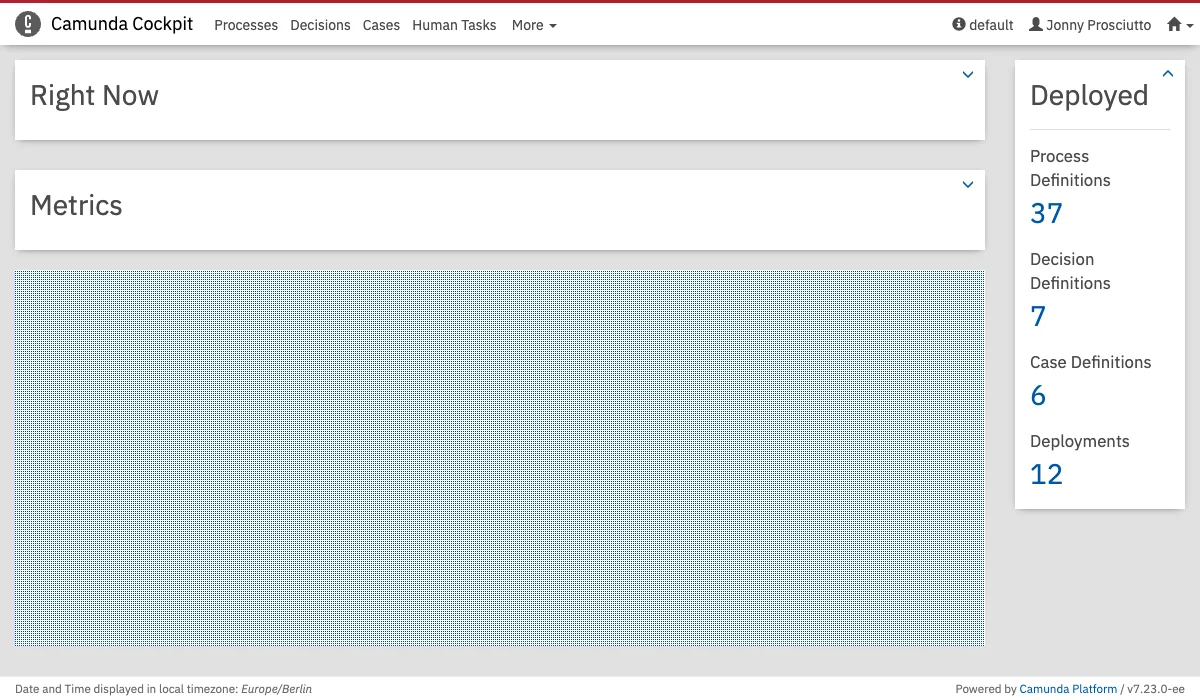 The `cockpit.dashboard` plugin point will allow to add your custom views at the bottom of the dashboard.
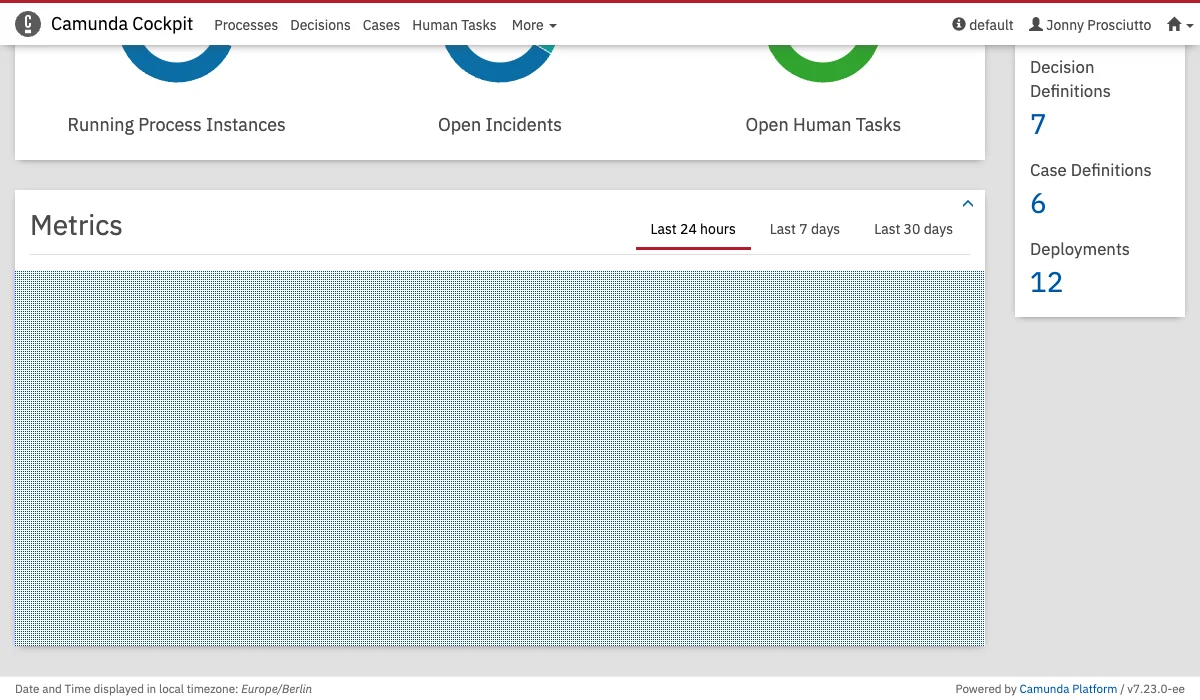
### Metrics
**Name:** `cockpit.dashboard.metrics`
The `cockpit.dashboard` plugin point will allow to add your custom views at the bottom of the dashboard.
### Metrics
**Name:** `cockpit.dashboard.metrics`
 ### Processes Dashboard
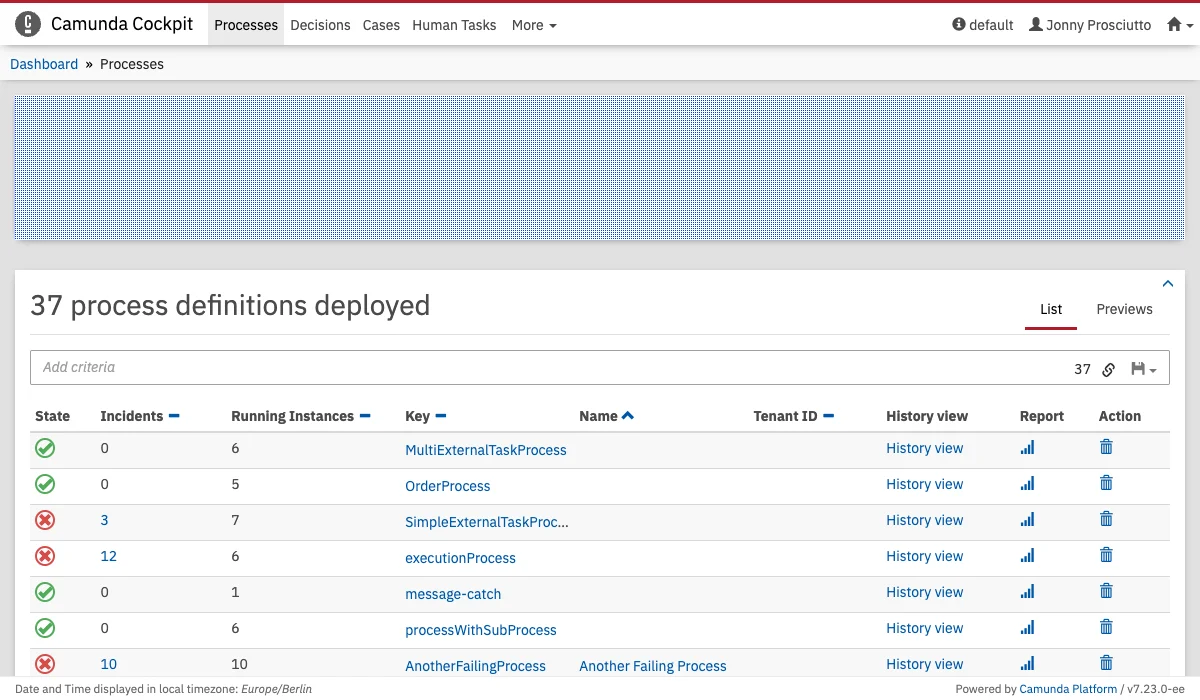
**Name:** `cockpit.processes.dashboard`
### Processes Dashboard
**Name:** `cockpit.processes.dashboard`
 ### Decisions Dashboard
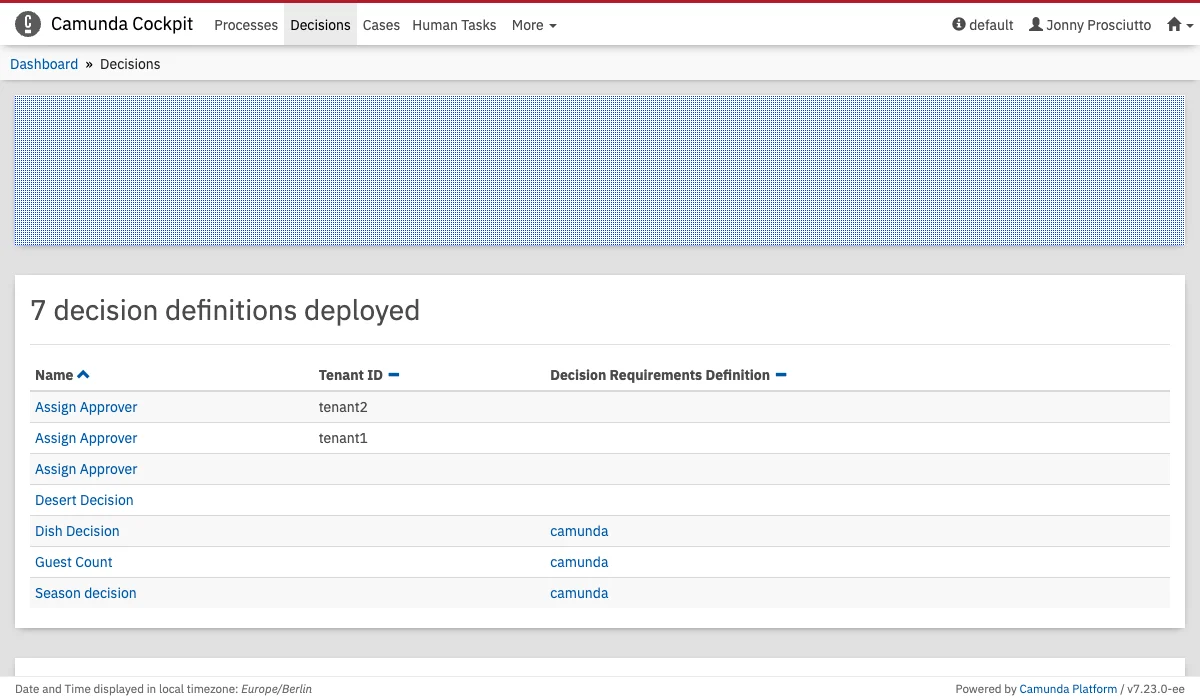
**Name:** `cockpit.decisions.dashboard`
### Decisions Dashboard
**Name:** `cockpit.decisions.dashboard`
 ### Cases Dashboard
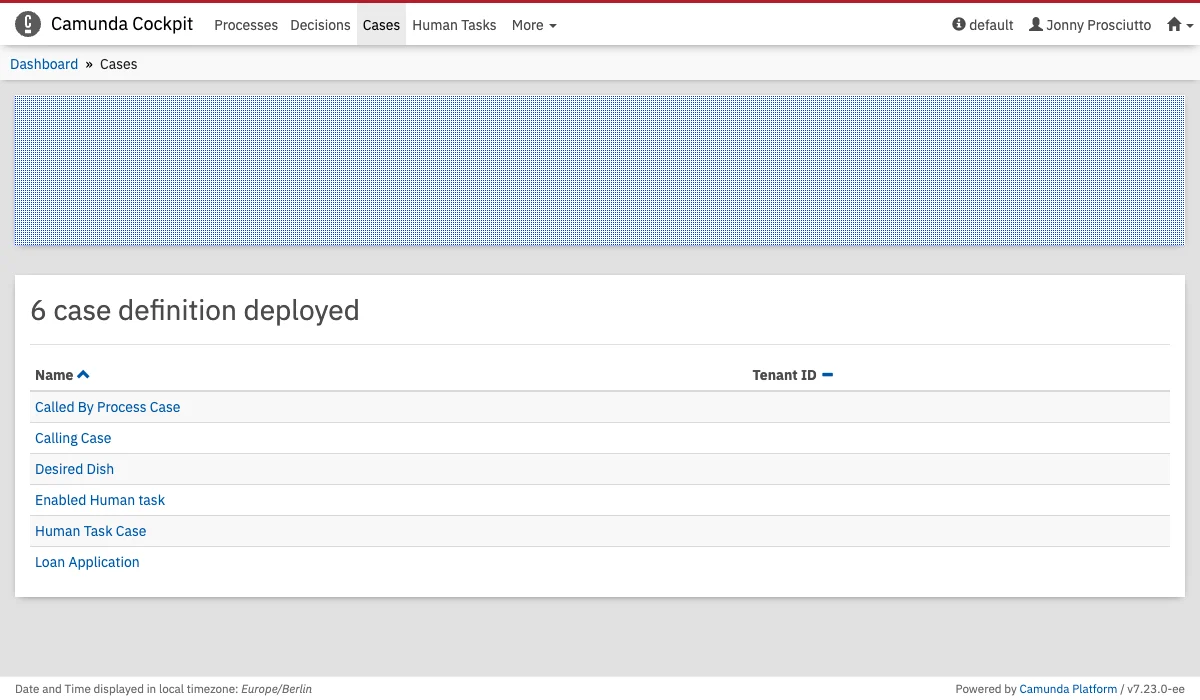
**Name:** `cockpit.cases.dashboard`
### Cases Dashboard
**Name:** `cockpit.cases.dashboard`
 ### Process Definition Runtime Tab
**Name:** `cockpit.processDefinition.runtime.tab`
### Process Definition Runtime Tab
**Name:** `cockpit.processDefinition.runtime.tab`
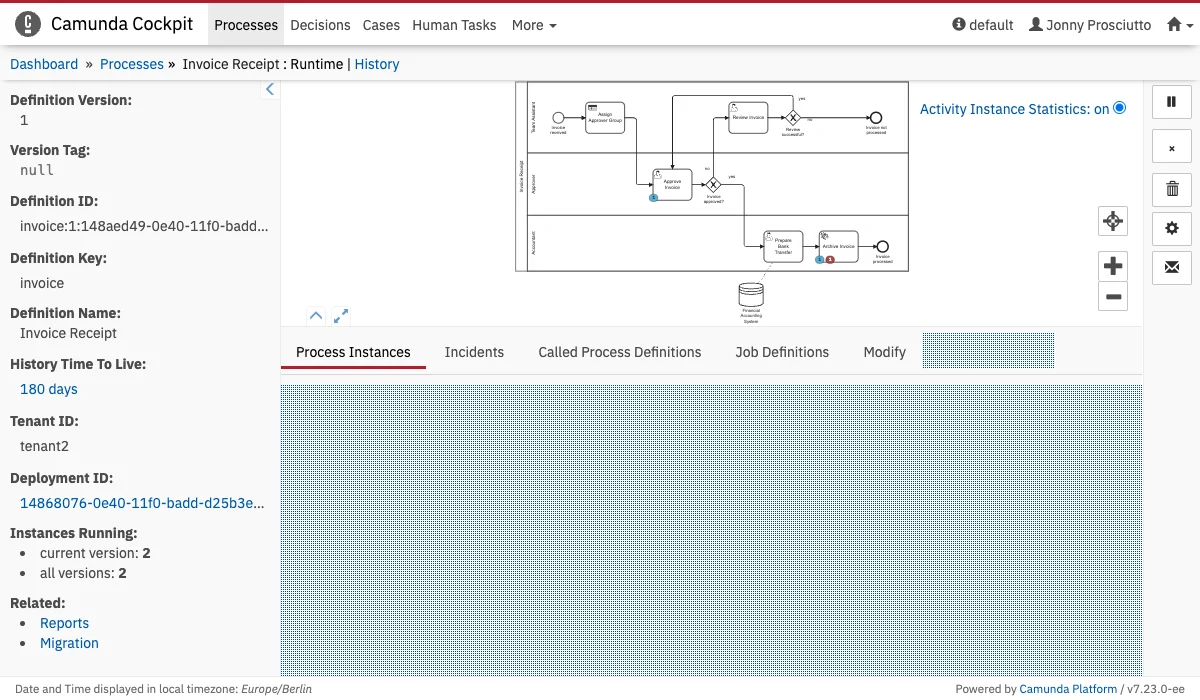 This plugin points properties contain the attribute `label`, which will be rendered in the navigation even when the plugin is not selected.
```Javascript theme={null}
properties: {
label: "My Plugin"
}
```
This additional data is passed into the render function:
* `processDefinitionId`
### Process Instance Runtime Tab
**Name:** `cockpit.processInstance.runtime.tab`
This plugin points properties contain the attribute `label`, which will be rendered in the navigation even when the plugin is not selected.
```Javascript theme={null}
properties: {
label: "My Plugin"
}
```
This additional data is passed into the render function:
* `processDefinitionId`
### Process Instance Runtime Tab
**Name:** `cockpit.processInstance.runtime.tab`
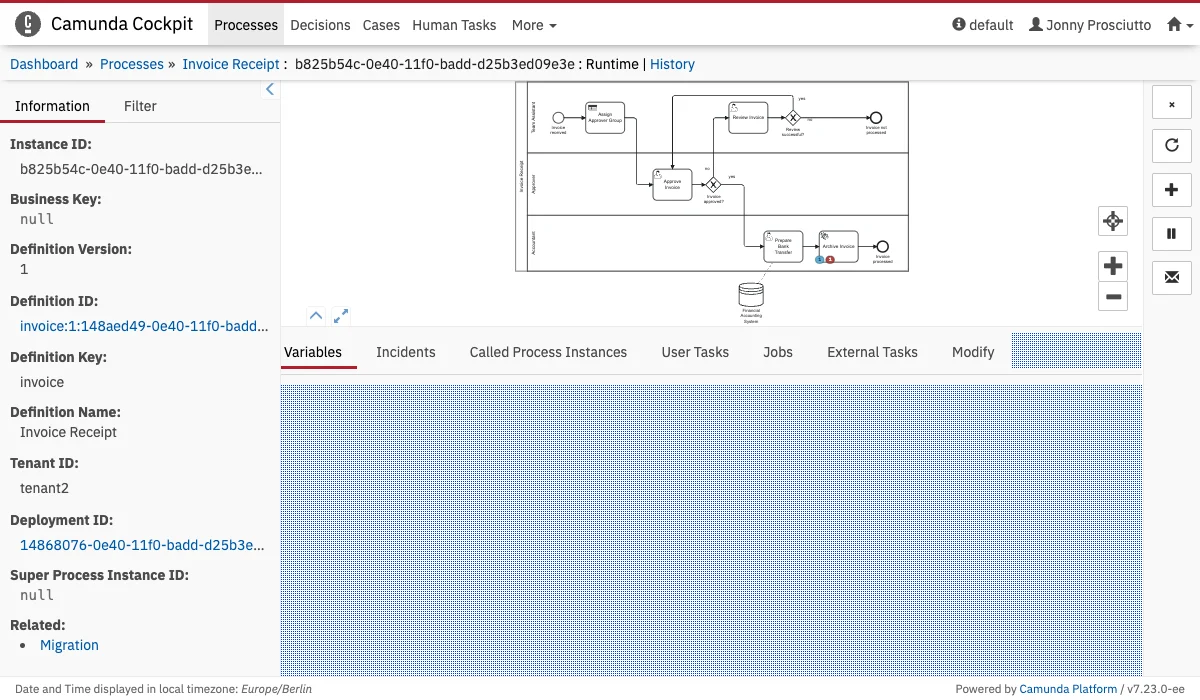 This plugin points properties contain the attribute `label`, which will be rendered in the navigation even when the plugin is not selected.
```Javascript theme={null}
properties: {
label: "My Plugin"
}
```
This additional data is passed into the render function:
* `processInstanceId`
### Process Definition Runtime Action
**Name:** `cockpit.processDefinition.runtime.action`
This plugin points properties contain the attribute `label`, which will be rendered in the navigation even when the plugin is not selected.
```Javascript theme={null}
properties: {
label: "My Plugin"
}
```
This additional data is passed into the render function:
* `processInstanceId`
### Process Definition Runtime Action
**Name:** `cockpit.processDefinition.runtime.action`
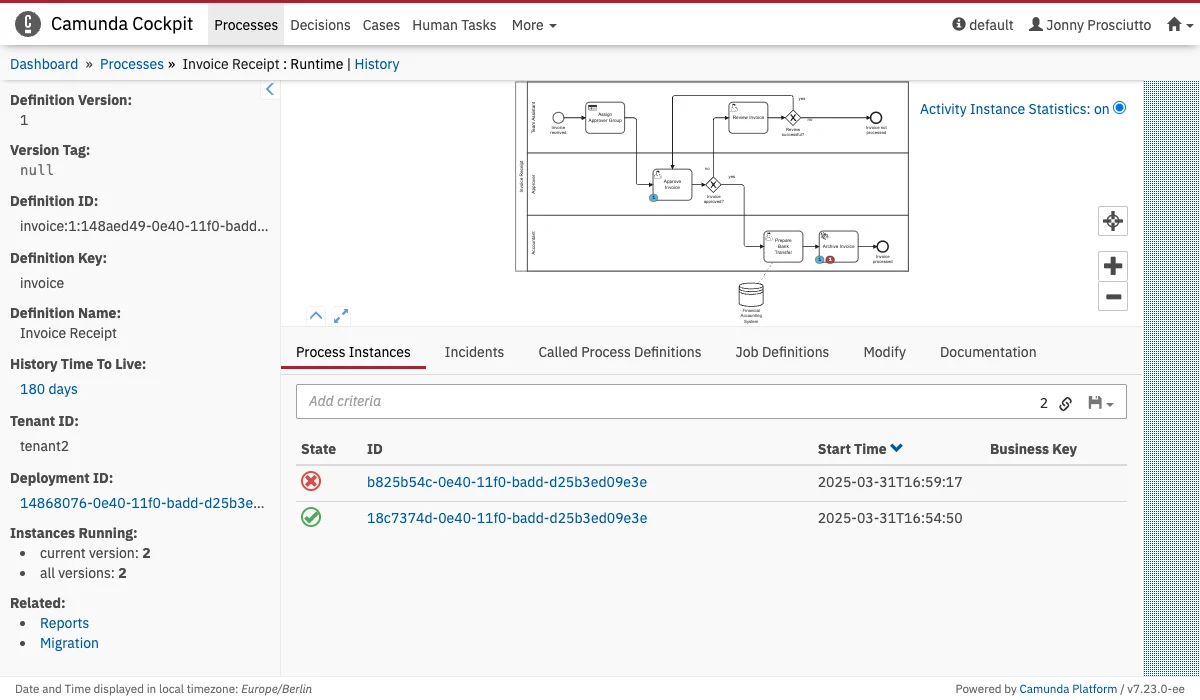 This additional data is passed into the render function:
* `processDefinitionId`
### Process Instance Runtime Action
**Name:** `cockpit.processInstance.runtime.action`
This additional data is passed into the render function:
* `processDefinitionId`
### Process Instance Runtime Action
**Name:** `cockpit.processInstance.runtime.action`
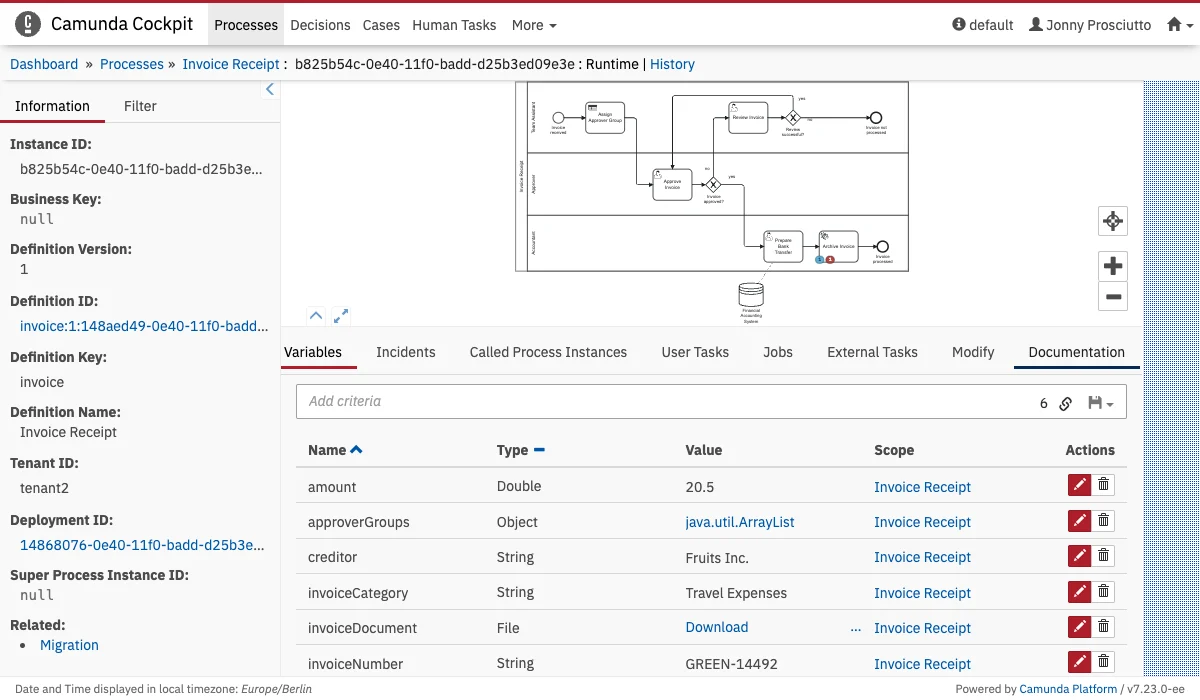 This additional data is passed into the render function:
* `processInstanceId`
### Process Definition View
**Name:** `cockpit.processDefinition.view`
This additional data is passed into the render function:
* `processInstanceId`
### Process Definition View
**Name:** `cockpit.processDefinition.view`
 ### Process Instance View
**Name:** `cockpit.processInstance.view`
### Process Instance View
**Name:** `cockpit.processInstance.view`
 ### Process Definition Diagram Overlay
**Name:** `cockpit.processDefinition.diagram.plugin`
### Process Definition Diagram Overlay
**Name:** `cockpit.processDefinition.diagram.plugin`
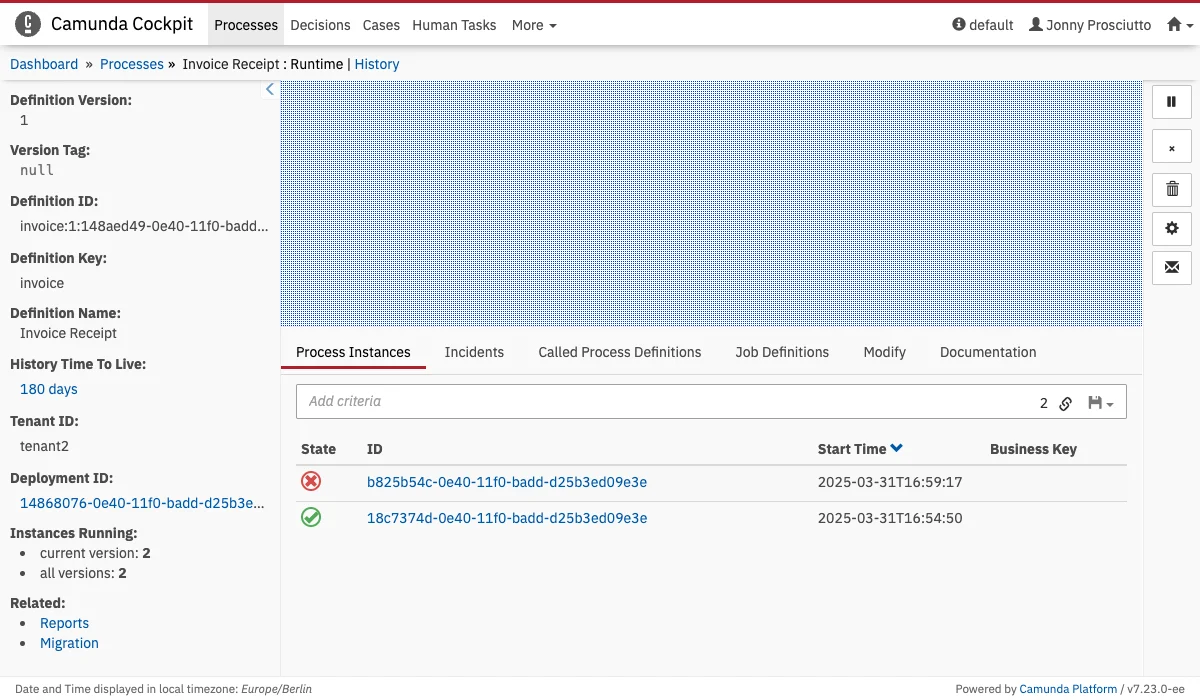 Diagram overlay plugins are a little different from other plugins.
This plugin point does not receive a DOM node to render into but an instance of the Diagram viewer to create an overlay.
```Javascript theme={null}
export default {
id: "myOverlay",
pluginPoint: "cockpit.processDefinition.diagram.plugin",
priority: 0,
render: (viewer, {processDefinitionId}) => {
viewer.get("overlays").add(
// ...
)
}
};
```
This additional data is passed into the render function:
* `processDefinitionId`
### Process Instance Diagram Overlay
**Name:** `cockpit.processInstance.diagram.plugin`
Diagram overlay plugins are a little different from other plugins.
This plugin point does not receive a DOM node to render into but an instance of the Diagram viewer to create an overlay.
```Javascript theme={null}
export default {
id: "myOverlay",
pluginPoint: "cockpit.processDefinition.diagram.plugin",
priority: 0,
render: (viewer, {processDefinitionId}) => {
viewer.get("overlays").add(
// ...
)
}
};
```
This additional data is passed into the render function:
* `processDefinitionId`
### Process Instance Diagram Overlay
**Name:** `cockpit.processInstance.diagram.plugin`
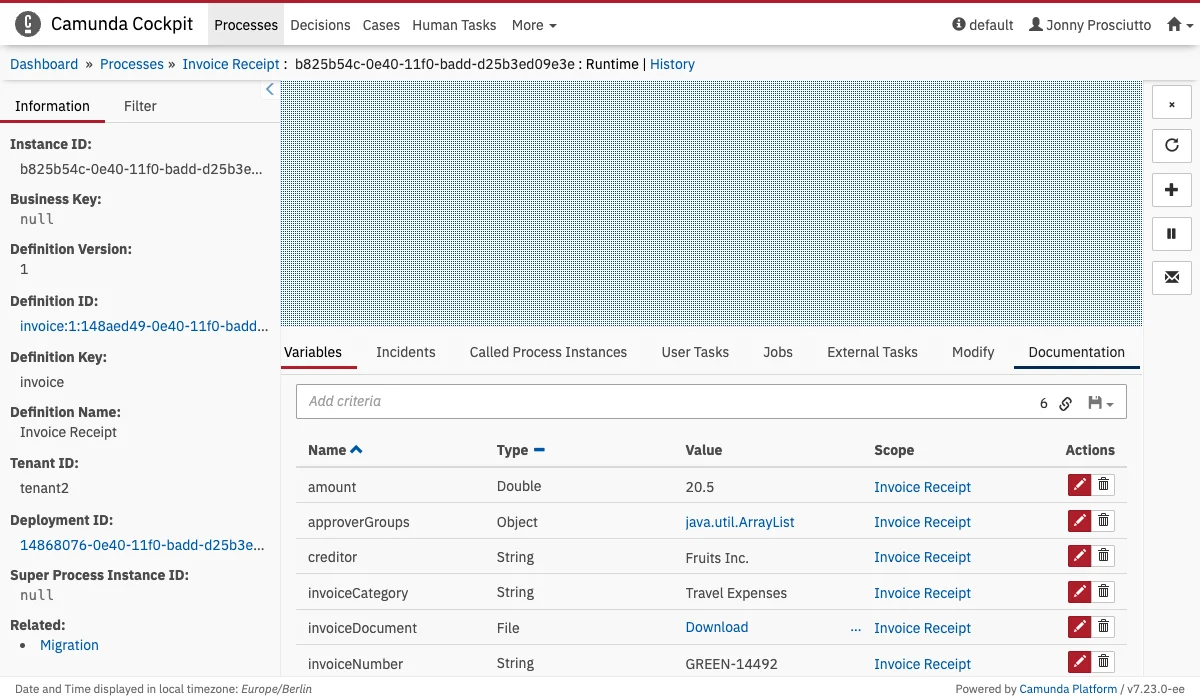 Diagram overlay plugins are a little different from other plugins.
This plugin point does not receive a DOM node to render into but an instance of the Diagram viewer to create an overlay. See [Process Definition Diagram Overlay](#process-definition-diagram-overlay) for an example.
This additional data is passed into the render function:
* `processInstanceId`
### Job Definition Action
**Name:** `cockpit.jobDefinition.action`
Diagram overlay plugins are a little different from other plugins.
This plugin point does not receive a DOM node to render into but an instance of the Diagram viewer to create an overlay. See [Process Definition Diagram Overlay](#process-definition-diagram-overlay) for an example.
This additional data is passed into the render function:
* `processInstanceId`
### Job Definition Action
**Name:** `cockpit.jobDefinition.action`
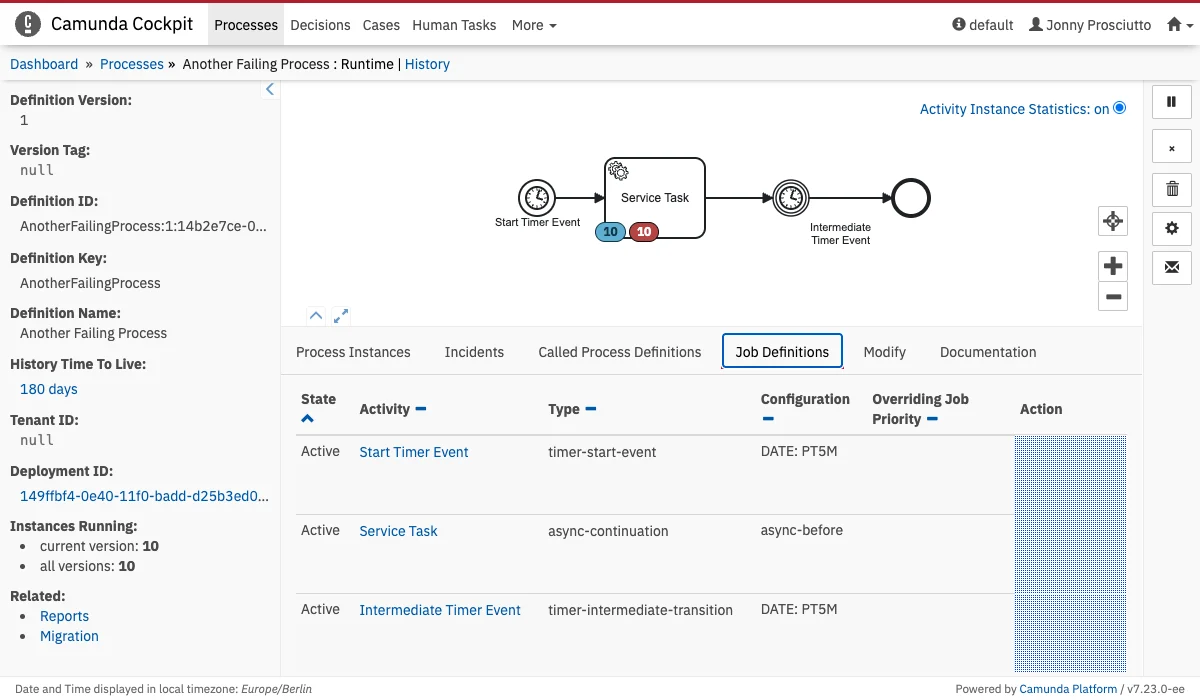 This additional data is passed into the render function:
* `jobDefinitionId`
### Decision Definition Tab
**Name:** `cockpit.decisionDefinition.tab`
This additional data is passed into the render function:
* `jobDefinitionId`
### Decision Definition Tab
**Name:** `cockpit.decisionDefinition.tab`
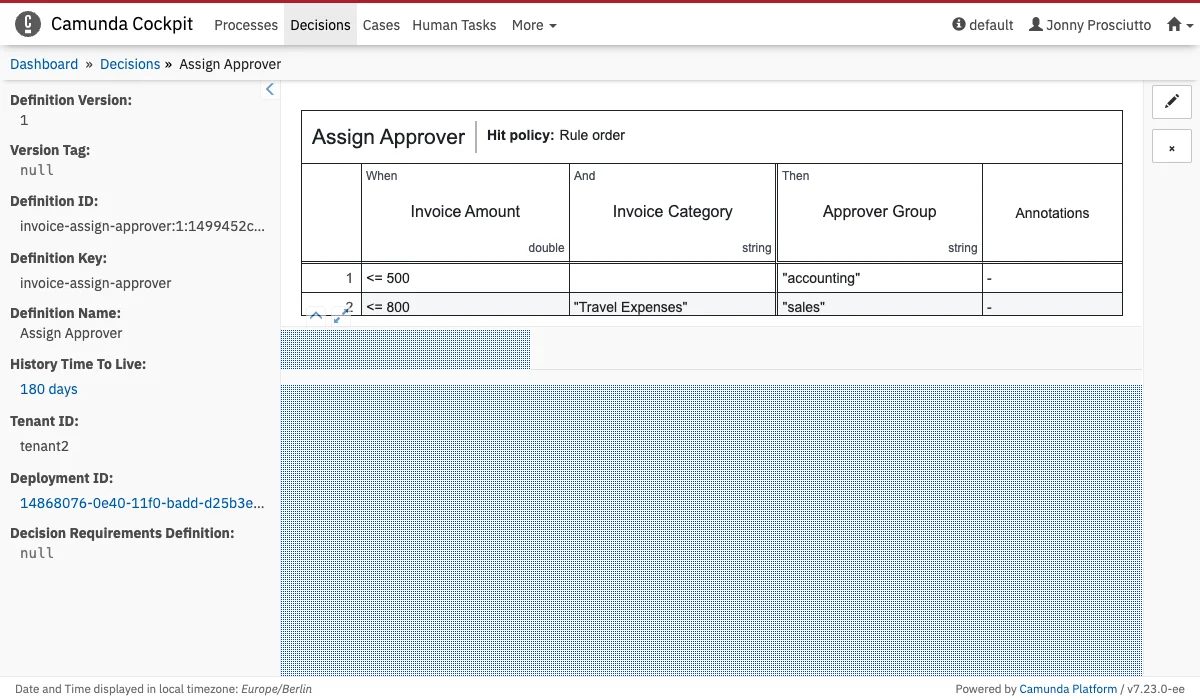 This plugin points properties contain the attribute `label`, which will be rendered in the navigation even when the plugin is not selected.
```Javascript theme={null}
properties: {
label: "My Plugin"
}
```
This additional data is passed into the render function:
* `decisionDefinitionId`
### Decision Definition Action
**Name:** `cockpit.decisionDefinition.action`
This plugin points properties contain the attribute `label`, which will be rendered in the navigation even when the plugin is not selected.
```Javascript theme={null}
properties: {
label: "My Plugin"
}
```
This additional data is passed into the render function:
* `decisionDefinitionId`
### Decision Definition Action
**Name:** `cockpit.decisionDefinition.action`
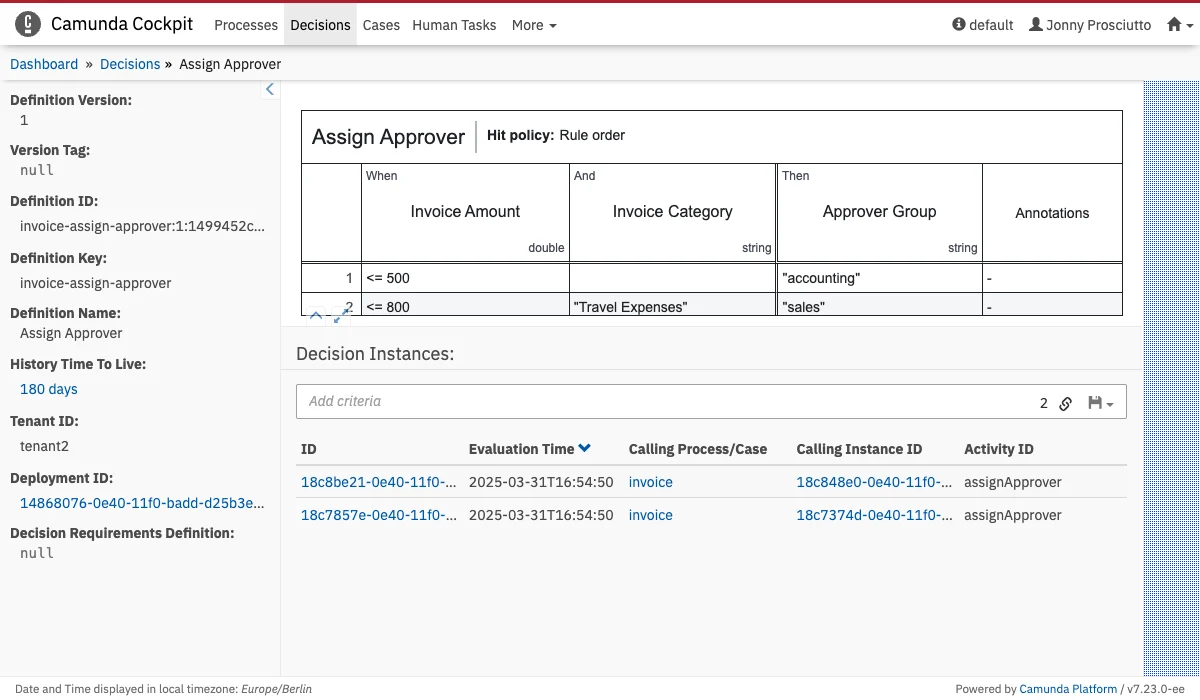 This additional data is passed into the render function:
* `decisionDefinitionId`
### Decision Definition Table
**Name:** `cockpit.decisionDefinition.table`
This additional data is passed into the render function:
* `decisionDefinitionId`
### Decision Definition Table
**Name:** `cockpit.decisionDefinition.table`
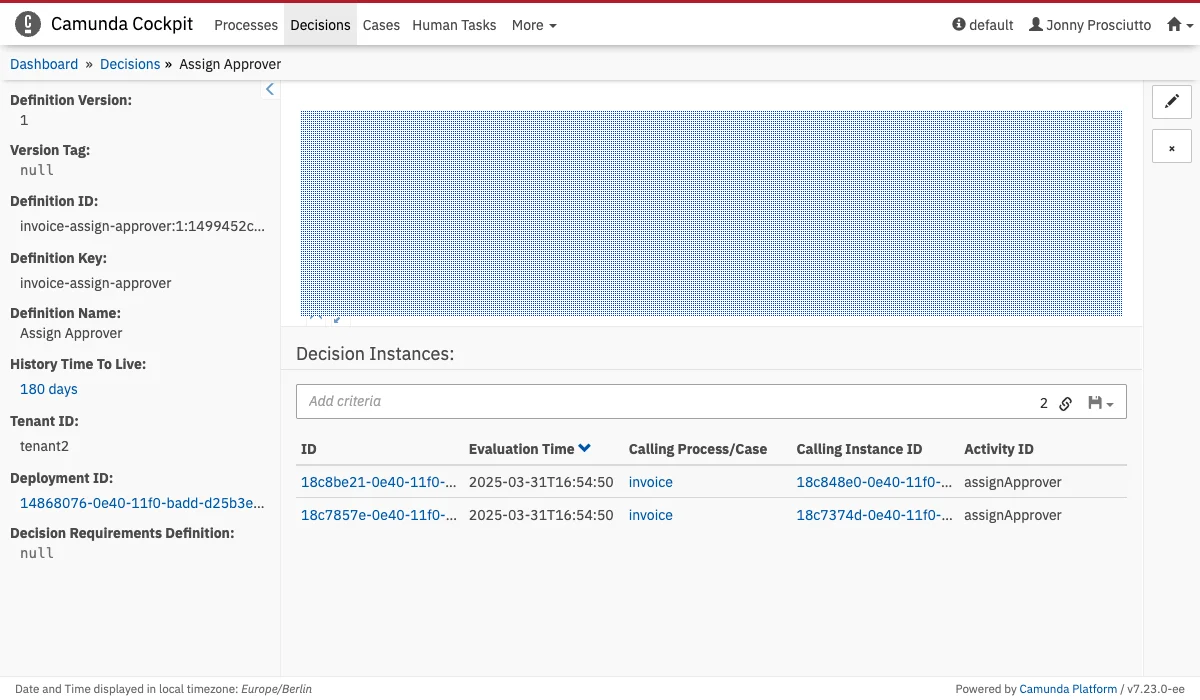 Diagram overlay plugins are a little different from other plugins.
This plugin point does not receive a DOM node to render into but an instance of the Diagram viewer to create an overlay. See [Process Definition Diagram Overlay](#process-definition-diagram-overlay) for an example.
This additional data is passed into the render function:
* `decisionDefinitionId`
### Decision Instance Tab
**Name:** `cockpit.decisionInstance.tab`
Diagram overlay plugins are a little different from other plugins.
This plugin point does not receive a DOM node to render into but an instance of the Diagram viewer to create an overlay. See [Process Definition Diagram Overlay](#process-definition-diagram-overlay) for an example.
This additional data is passed into the render function:
* `decisionDefinitionId`
### Decision Instance Tab
**Name:** `cockpit.decisionInstance.tab`
 This plugin points properties contain the attribute `label`, which will be rendered in the navigation even when the plugin is not selected.
```Javascript theme={null}
properties: {
label: "My Plugin"
}
```
This additional data is passed into the render function:
* `decisionInstanceId`
### Decision Instance Action
**Name:** `cockpit.decisionInstance.action`
This plugin points properties contain the attribute `label`, which will be rendered in the navigation even when the plugin is not selected.
```Javascript theme={null}
properties: {
label: "My Plugin"
}
```
This additional data is passed into the render function:
* `decisionInstanceId`
### Decision Instance Action
**Name:** `cockpit.decisionInstance.action`
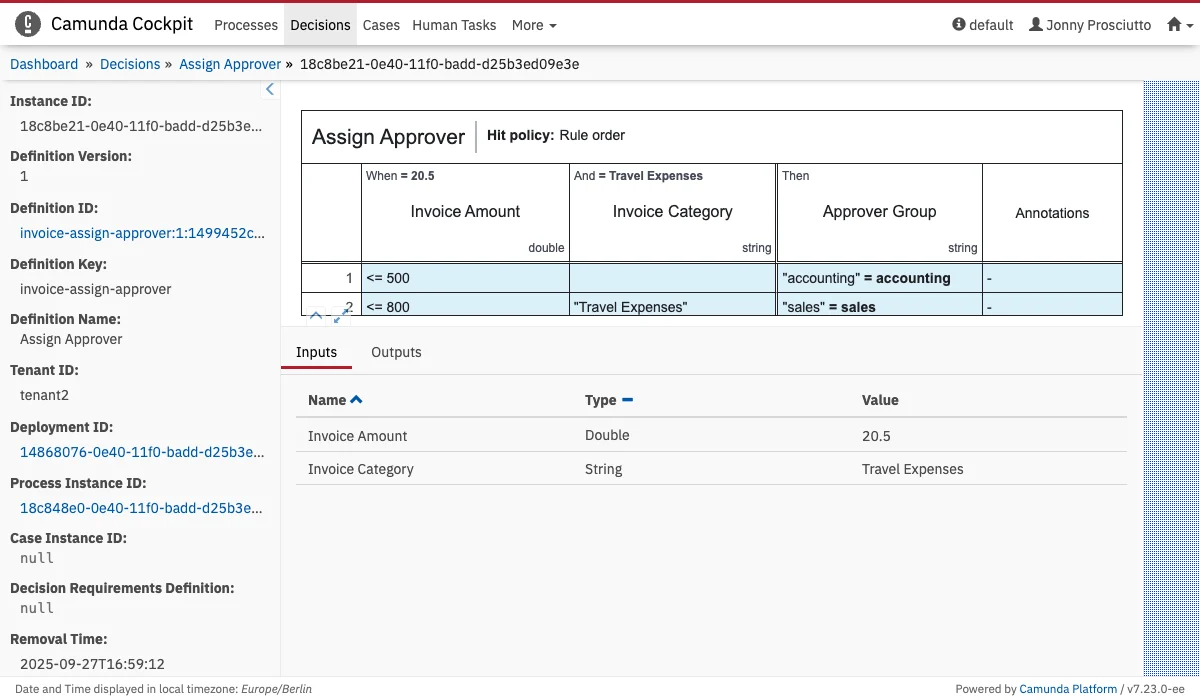 This additional data is passed into the render function:
* `decisionInstanceId`
### Decision Instance Table
**Name:** `cockpit.decisionInstance.table`
This additional data is passed into the render function:
* `decisionInstanceId`
### Decision Instance Table
**Name:** `cockpit.decisionInstance.table`
 Diagram overlay plugins are a little different from other plugins.
This plugin point does not receive a DOM node to render into but an instance of the Diagram viewer to create an overlay. See [Process Definition Diagram Overlay](#process-definition-diagram-overlay) for an example.
This additional data is passed into the render function:
* `decisionInstanceId`
### Case Definition Tab
**Name:** `cockpit.caseDefinition.tab`
Diagram overlay plugins are a little different from other plugins.
This plugin point does not receive a DOM node to render into but an instance of the Diagram viewer to create an overlay. See [Process Definition Diagram Overlay](#process-definition-diagram-overlay) for an example.
This additional data is passed into the render function:
* `decisionInstanceId`
### Case Definition Tab
**Name:** `cockpit.caseDefinition.tab`
 This plugin points properties contain the attribute `label`, which will be rendered in the navigation even when the plugin is not selected.
```Javascript theme={null}
properties: {
label: "My Plugin"
}
```
This additional data is passed into the render function:
* `decisionInstanceId`
### Case Definition Action
**Name:** `cockpit.caseDefinition.action`
This plugin points properties contain the attribute `label`, which will be rendered in the navigation even when the plugin is not selected.
```Javascript theme={null}
properties: {
label: "My Plugin"
}
```
This additional data is passed into the render function:
* `decisionInstanceId`
### Case Definition Action
**Name:** `cockpit.caseDefinition.action`
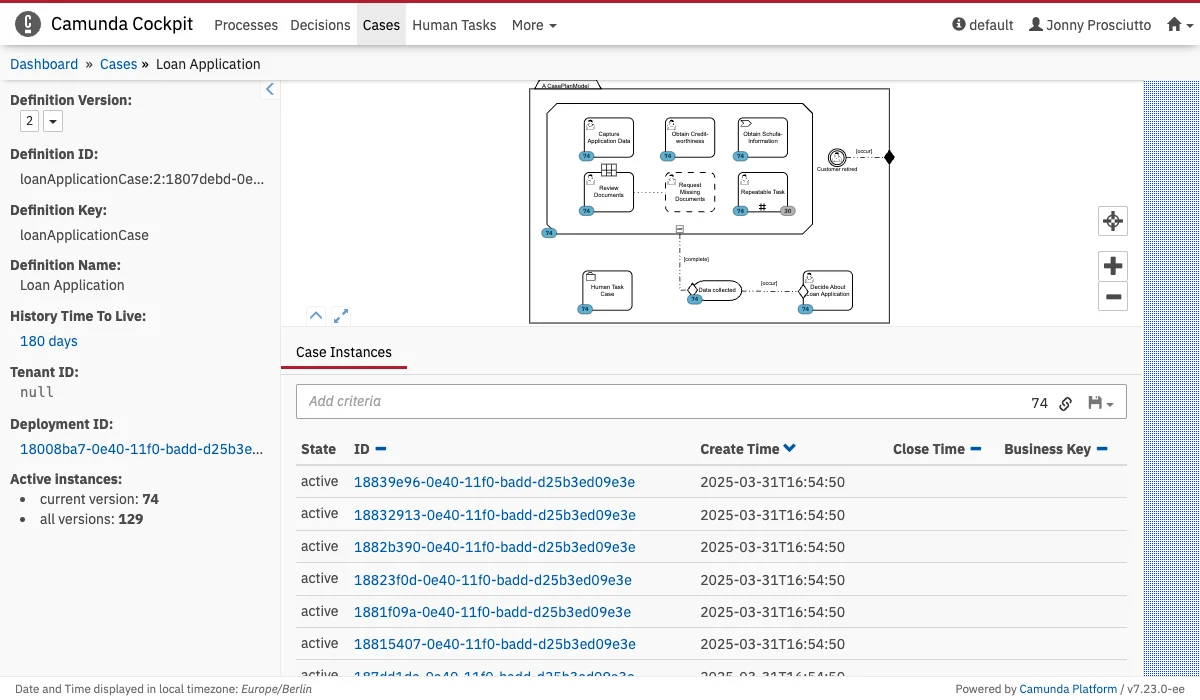 This plugin points properties contain the attribute `label`, which will be rendered in the navigation even when the plugin is not selected.
```Javascript theme={null}
properties: {
label: "My Plugin"
}
```
This additional data is passed into the render function:
* `caseDefinitionId`
### Case Definition Diagram Overlay
**Name:** `cockpit.caseDefinition.diagram.overlay`
This plugin points properties contain the attribute `label`, which will be rendered in the navigation even when the plugin is not selected.
```Javascript theme={null}
properties: {
label: "My Plugin"
}
```
This additional data is passed into the render function:
* `caseDefinitionId`
### Case Definition Diagram Overlay
**Name:** `cockpit.caseDefinition.diagram.overlay`
 ### Case Definition Diagram Plugin
**Name:** `cockpit.caseDefinition.diagram.plugin`
Diagram overlay plugins are a little different from other plugins.
This plugin point does not receive a DOM node to render into but an instance of the Diagram viewer to create an overlay. See [Process Definition Diagram Overlay](#process-definition-diagram-overlay) for an example.
This additional data is passed into the render function:
* `caseDefinitionId`
### Case Instance Tab
**Name:** `cockpit.caseInstance.tab`
### Case Definition Diagram Plugin
**Name:** `cockpit.caseDefinition.diagram.plugin`
Diagram overlay plugins are a little different from other plugins.
This plugin point does not receive a DOM node to render into but an instance of the Diagram viewer to create an overlay. See [Process Definition Diagram Overlay](#process-definition-diagram-overlay) for an example.
This additional data is passed into the render function:
* `caseDefinitionId`
### Case Instance Tab
**Name:** `cockpit.caseInstance.tab`
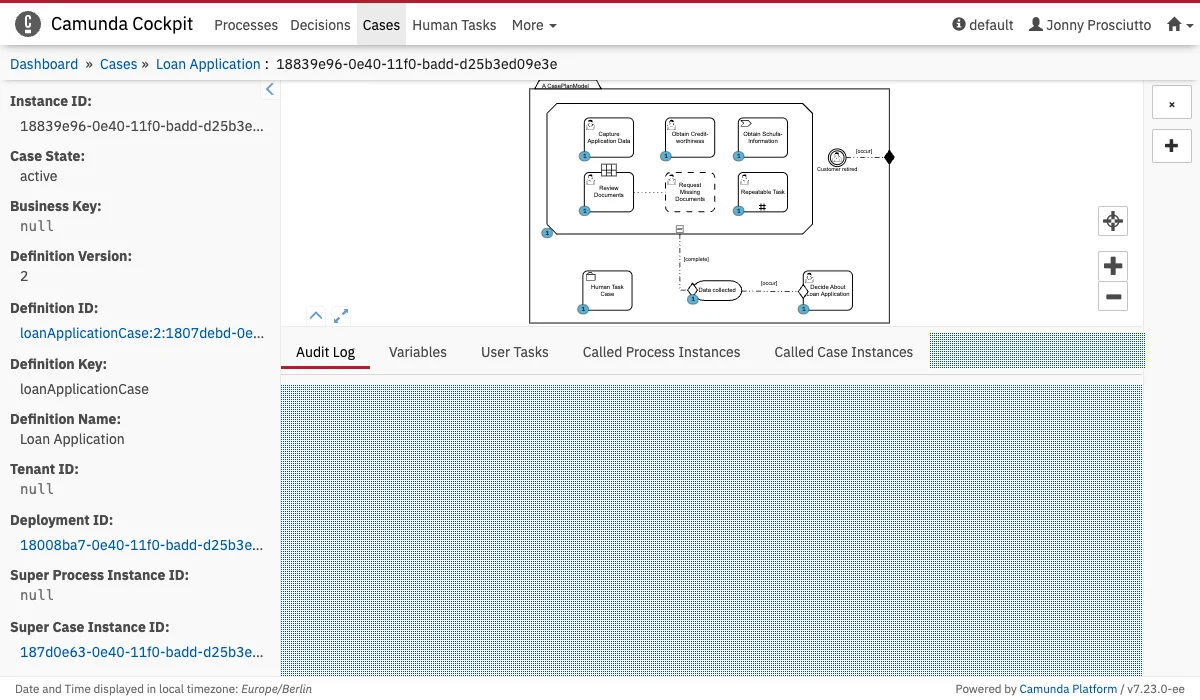 This plugin points properties contain the attribute `label`, which will be rendered in the navigation even when the plugin is not selected.
```Javascript theme={null}
properties: {
label: "My Plugin"
}
```
This additional data is passed into the render function:
* `caseInstanceId`
### Case Instance Action
**Name:** `cockpit.caseInstance.action`
This plugin points properties contain the attribute `label`, which will be rendered in the navigation even when the plugin is not selected.
```Javascript theme={null}
properties: {
label: "My Plugin"
}
```
This additional data is passed into the render function:
* `caseInstanceId`
### Case Instance Action
**Name:** `cockpit.caseInstance.action`
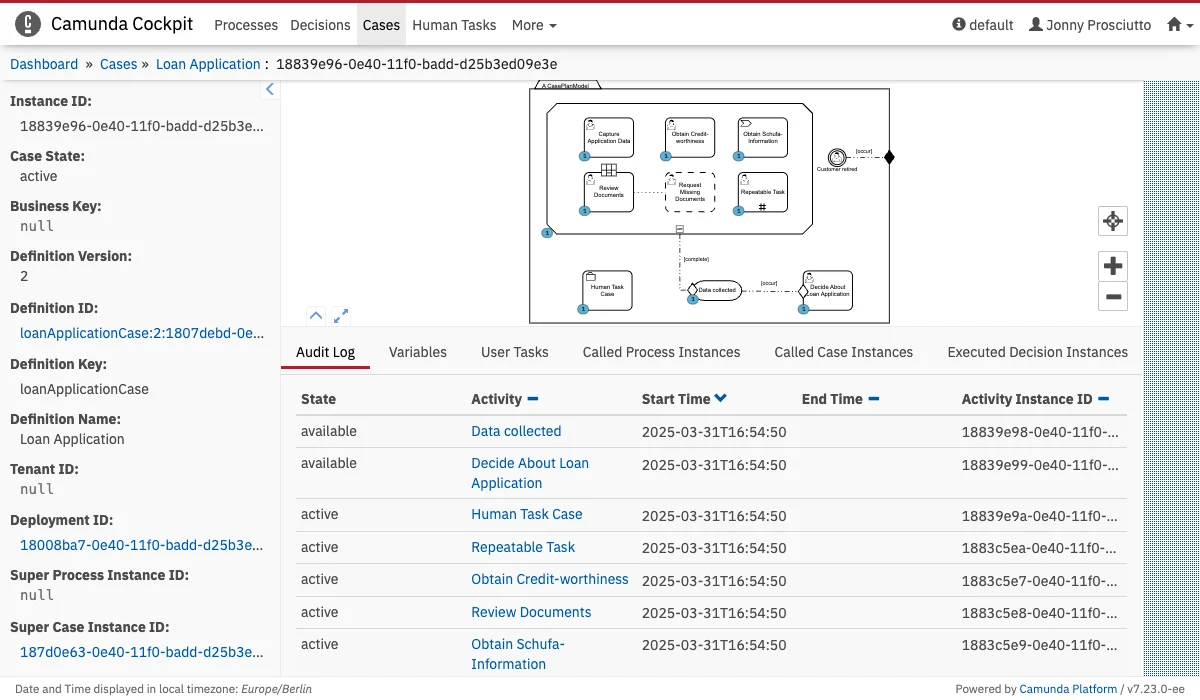 This additional data is passed into the render function:
* `caseInstanceId`
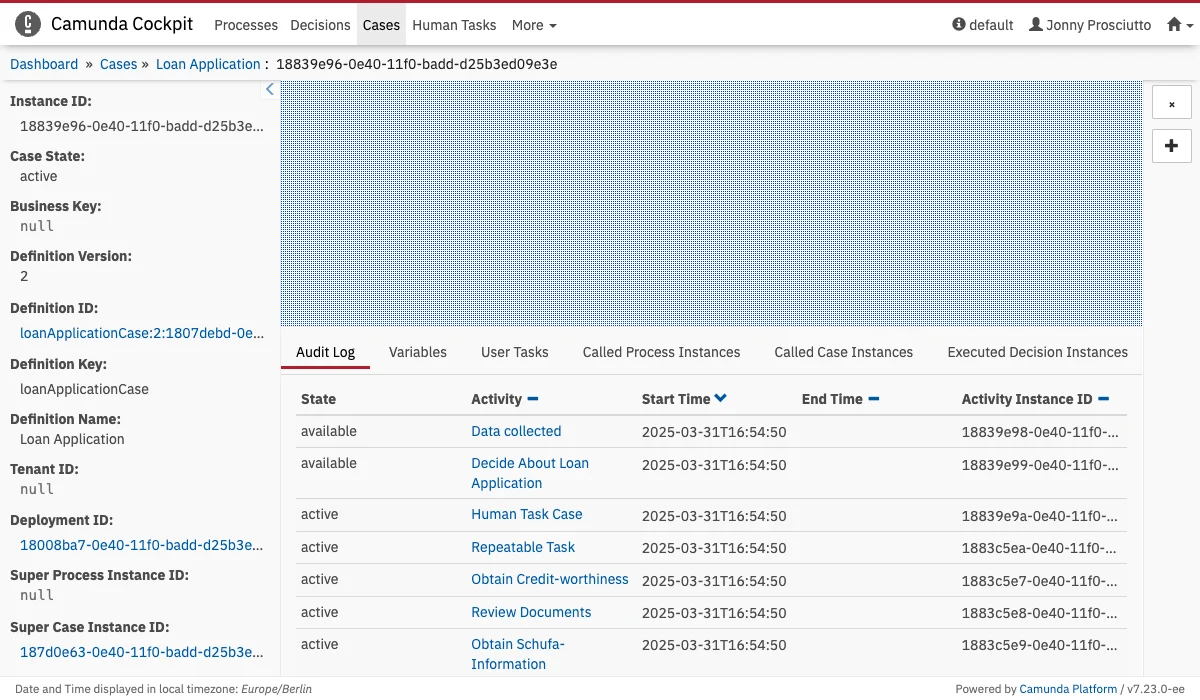
### Case Instance Diagram Overlay
**Name:** `cockpit.caseInstance.diagram.overlay`
This additional data is passed into the render function:
* `caseInstanceId`
### Case Instance Diagram Overlay
**Name:** `cockpit.caseInstance.diagram.overlay`
 ### Case Instance Diagram Plugin
**Name:** `cockpit.caseInstance.diagram.plugin`
Diagram overlay plugins are a little different from other plugins.
This plugin point does not receive a DOM node to render into but an instance of the Diagram viewer to create an overlay. See [Process Definition Diagram Overlay](#process-definition-diagram-overlay) for an example.
This additional data is passed into the render function:
* `caseDefinitionId`
* `caseInstanceId`
### Repository Resource Action
**Name:** `cockpit.repository.resource.action`
### Case Instance Diagram Plugin
**Name:** `cockpit.caseInstance.diagram.plugin`
Diagram overlay plugins are a little different from other plugins.
This plugin point does not receive a DOM node to render into but an instance of the Diagram viewer to create an overlay. See [Process Definition Diagram Overlay](#process-definition-diagram-overlay) for an example.
This additional data is passed into the render function:
* `caseDefinitionId`
* `caseInstanceId`
### Repository Resource Action
**Name:** `cockpit.repository.resource.action`
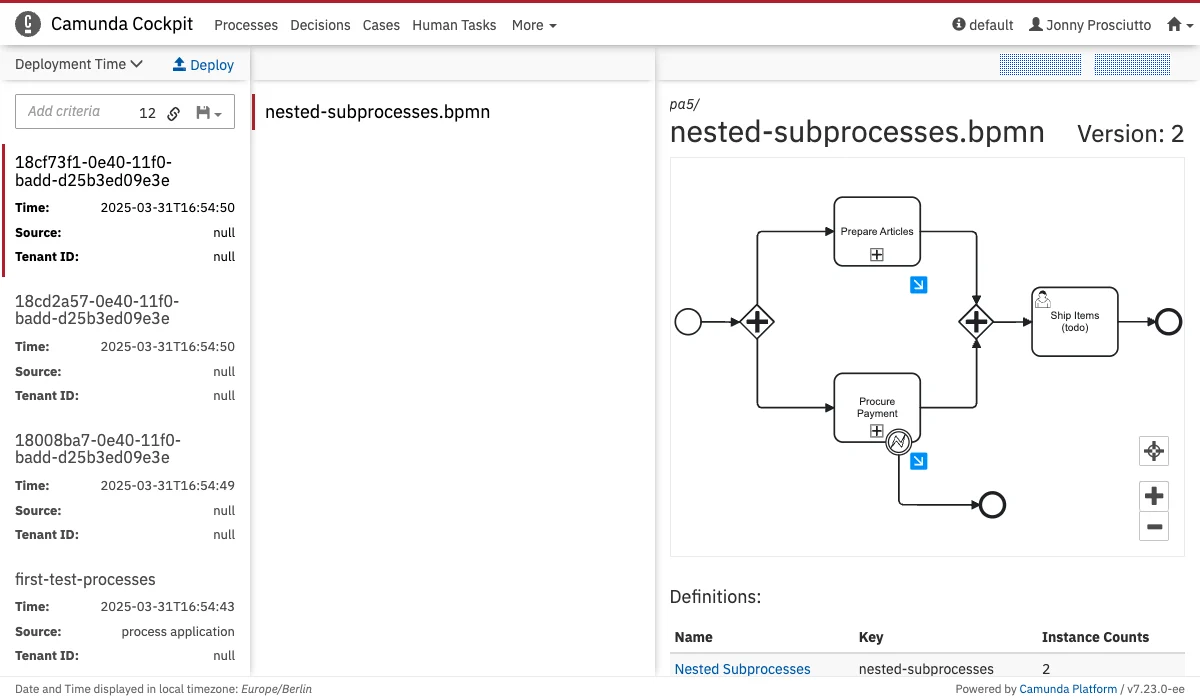 This additional data is passed into the render function:
* `deploymentId`
* `resourceId`
### Repository Resource Detail
**Name:** `cockpit.repository.resource.detail`
This additional data is passed into the render function:
* `deploymentId`
* `resourceId`
### Repository Resource Detail
**Name:** `cockpit.repository.resource.detail`
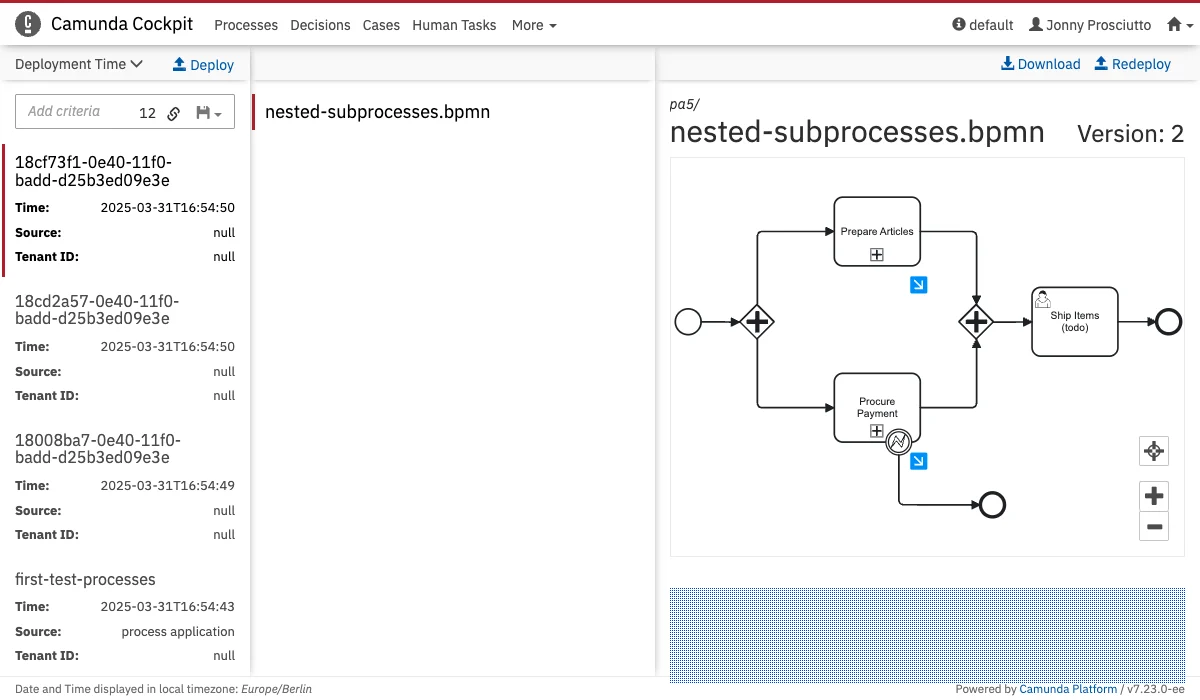 This additional data is passed into the render function:
* `deploymentId`
* `resourceId`
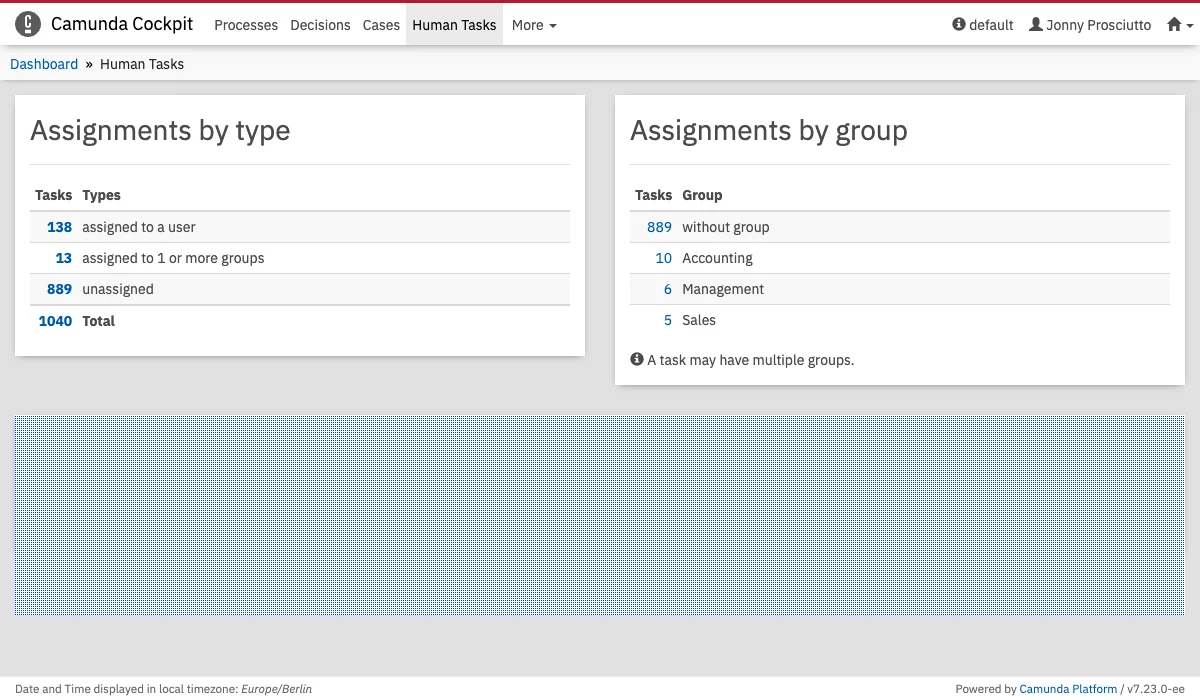
### Open Task Dashboard
**Name:** `cockpit.tasks.dashboard`
This additional data is passed into the render function:
* `deploymentId`
* `resourceId`
### Open Task Dashboard
**Name:** `cockpit.tasks.dashboard`
 ### Report View
**Name:** `cockpit.report`
This plugin points properties contain the attribute `label`, which will be rendered in the navigation even when the plugin is not selected.
```Javascript theme={null}
properties: {
label: "My Plugin"
}
```
### Batch Operation
**Name:** `cockpit.batch.operation`
### Report View
**Name:** `cockpit.report`
This plugin points properties contain the attribute `label`, which will be rendered in the navigation even when the plugin is not selected.
```Javascript theme={null}
properties: {
label: "My Plugin"
}
```
### Batch Operation
**Name:** `cockpit.batch.operation`
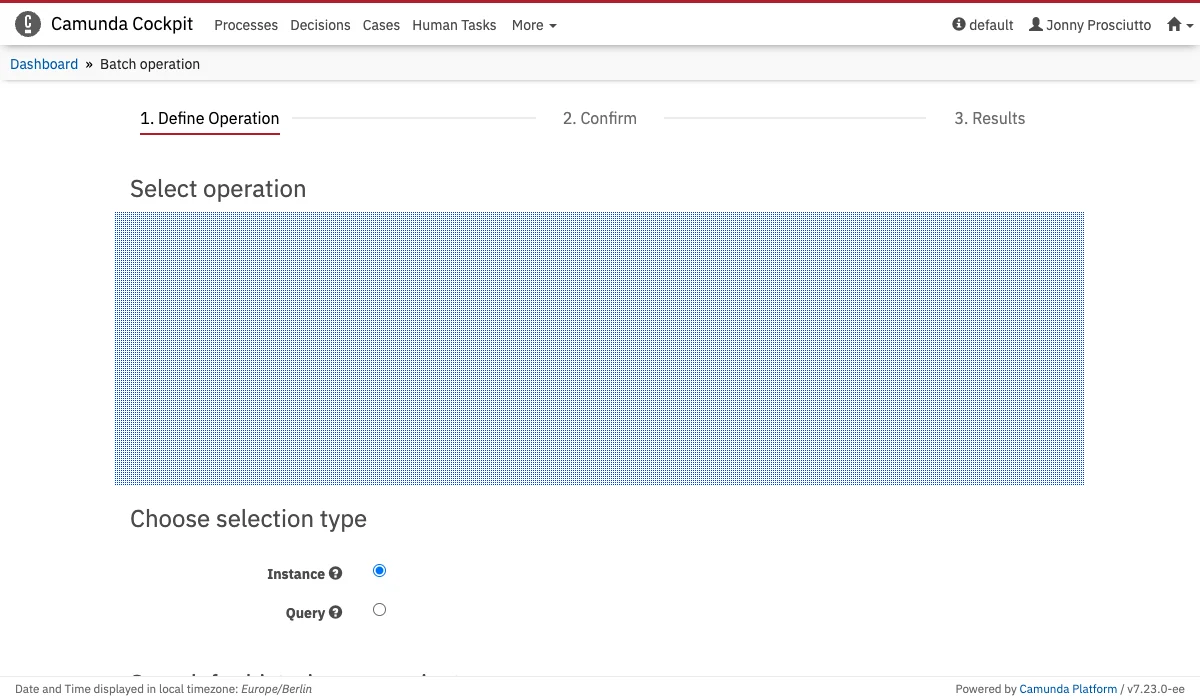 The render function can be used to create a form for custom payloads to your batch operation.
A simple batch operation without a payload could look like this:
```javascript theme={null}
export default {
id: "my-batch-plugin",
pluginPoint: "cockpit.batch.operation",
priority: 0,
render: () => {},
properties: {
// Defines which instances the search field will be showing
searchType: "process" || "decision" || "batch",
// A function which returns the endpoint and the payload of the batch operation. The argument contains either the search query or the selected IDs.
// 'api' contains the engine API endpoints. See "Attributes in Detail" for more information.
onSubmit: function({ query, ids, api }) {
// The return value must contain the endpoint and the payload object.
return {
endpoint: "/my/custom/batch/endpoint",
payload: {}
};
},
// These labels are required
labels: {
dropdownLabel: "Title in the Dropdown menu",
sentenceLabel: "e.g. 'modify'",
passiveLabel: "e.g. 'modified'",
searchHtml: "an HTML string to be displayed over the search bar"
}
}
};
```
### Incident Action
**Name:** `cockpit.incident.action`
The render function can be used to create a form for custom payloads to your batch operation.
A simple batch operation without a payload could look like this:
```javascript theme={null}
export default {
id: "my-batch-plugin",
pluginPoint: "cockpit.batch.operation",
priority: 0,
render: () => {},
properties: {
// Defines which instances the search field will be showing
searchType: "process" || "decision" || "batch",
// A function which returns the endpoint and the payload of the batch operation. The argument contains either the search query or the selected IDs.
// 'api' contains the engine API endpoints. See "Attributes in Detail" for more information.
onSubmit: function({ query, ids, api }) {
// The return value must contain the endpoint and the payload object.
return {
endpoint: "/my/custom/batch/endpoint",
payload: {}
};
},
// These labels are required
labels: {
dropdownLabel: "Title in the Dropdown menu",
sentenceLabel: "e.g. 'modify'",
passiveLabel: "e.g. 'modified'",
searchHtml: "an HTML string to be displayed over the search bar"
}
}
};
```
### Incident Action
**Name:** `cockpit.incident.action`
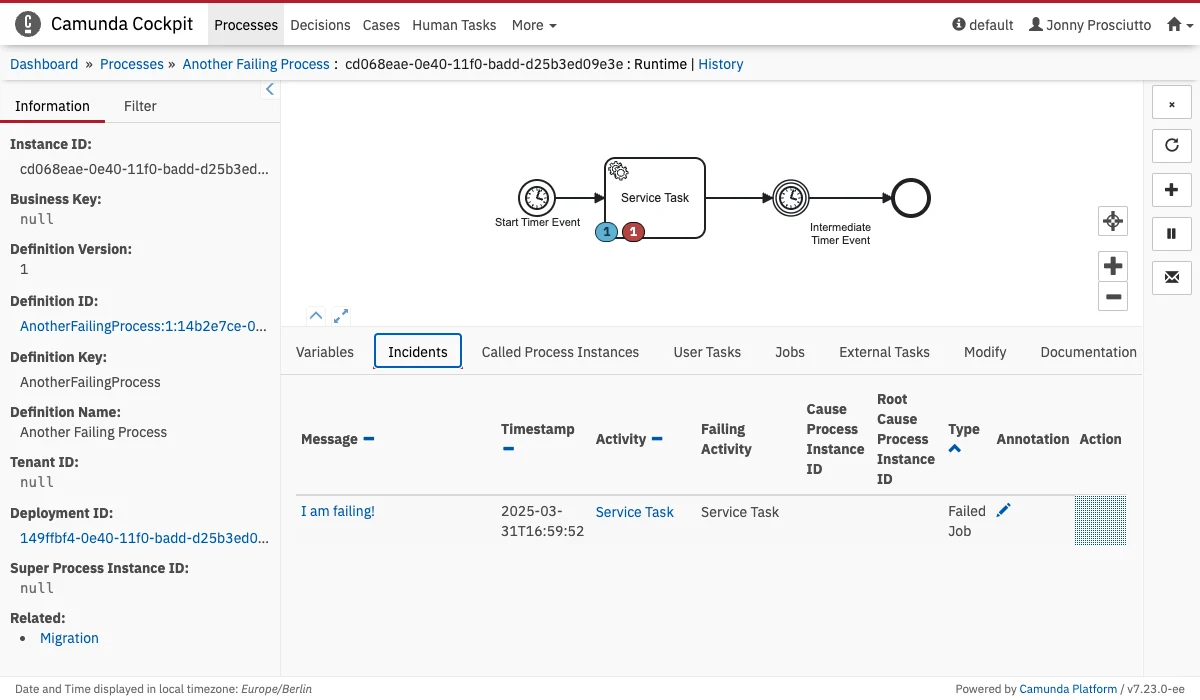 This additional data is passed into the render function:
* `incidentId`
This additional data is passed into the render function:
* `incidentId`