

Prerequisites
- IDE or code editor of your choice (in this example, we’ll use Visual Studio Code.)
- Access to ASEE Flow Modeler.
- Access to GitHub for our tutorial example.
- Java 17
- Maven
If needed, you can obtain a license key and start a 30-day trial of ASEE Flow Enterprise Edition.
Set up
To get started, take the following steps:- Clone our example repository, where we’ll take part in assisting some mock revolutions.
- Open the repo in your preferred IDE.
- Within
src > main > java, clickApplication.javaand run the application in your terminal to ensure it functions properly with your environment. - After the application successfully runs, open your browser and visit http://localhost:8080/. You can log in with the username and password
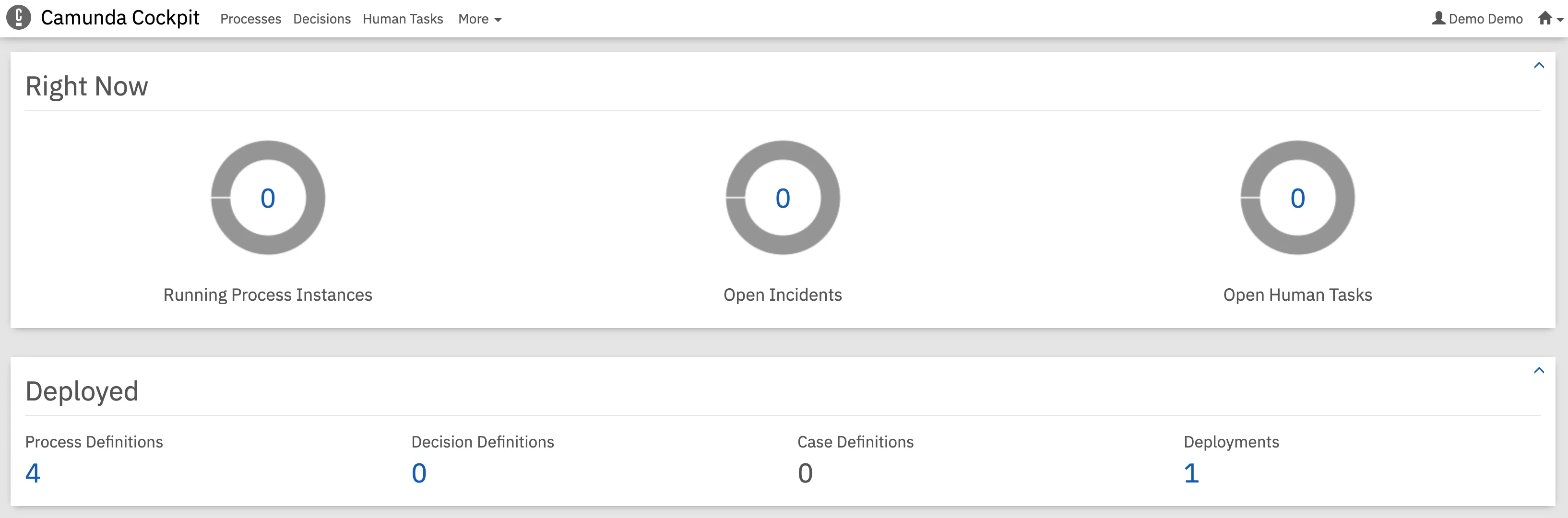
demo. Click Cockpit, where you’ll notice the four appropriate process instances are running from our application.
Migration
To officially begin migrating from ASEE Flow Community Edition to the Enterprise Edition, take the following steps:- Return to the example repository you cloned in your preferred IDE.
- Run the
Application.javaapplication. - Navigate to your
pom.xmlfile. - Add
-eeto the version. For example,<version>7.16.0-ee</version>. You’ll need to make these changes below the followingartifactIds:camunda-bom,camunda-bpm-spring-boot-starter-rest,camunda-bpm-spring-boot-starter-webapp(you’ll also adjust this particular artifactID itself tocamunda-bpm-spring-boot-starter-webapp-ee.) - We need to tell it where to find these new dependencies. Therefore, we’ll add the locations of the repositories at the end of the dependencies in the
pom.xmlfile as follows: - Add the username and password you received when you were granted a license to your Maven settings. To do this, go the Maven
configfile, usually located at${user.home}/.m2/settings.xml. Then, add your information similar to the following:
- In your terminal, run
mvn clean installto remove the old content and add the new content. - Go back to
Application.javaand run Java once more to see the changes complete.
Add your license key
Now that you’ve made the physical adjustments in your IDE to update to Enterprise Edition, let’s make a few final changes in ASEE Flow 7.- Return to http://localhost:8080/ and refresh the page.
- If you don’t see the version
7.23-eein the bottom corner, clear your browser cache. - Enter your credentials once more to update. You’ll notice you’re updated successfully when you reopen Cockpit and see a request message in the middle of the page for a license key.
- Click Enter your license key now.
- Paste your license key into the prompted text field, or if you haven’t already, obtain a license key and start a 30-day trial of ASEE Flow Enterprise Edition.
- Click Save Key.