

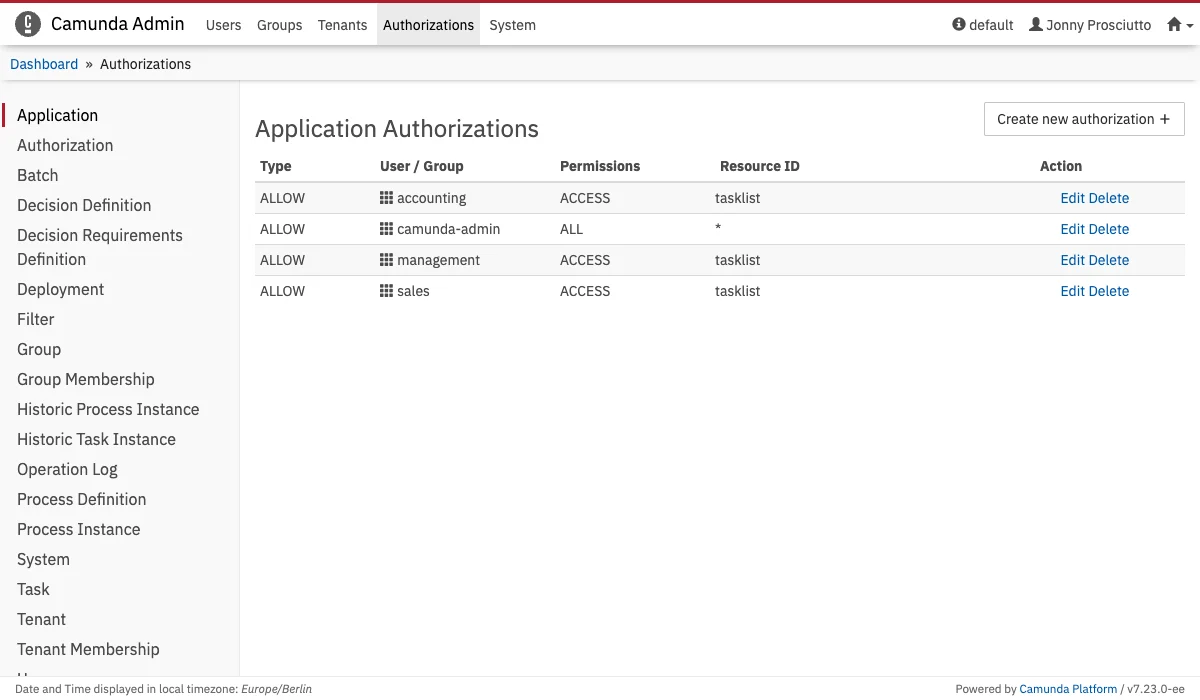
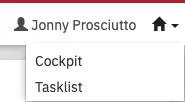
Accessing the Authorization Management menuThe Authorization Management menu is only usable by users which are granted with Read permission for authorizations.
Grant Basic Permissions
In this use case we’ll grant some basic permissions. To start out we’ll need some users and a group. Create two users in the users menu, create a group called support in the groups menu and add the new users to the group in the users menu.Application Access
Set the authorizations for the new group and the created users. First you have to define which application the members of your new group have access to. Select the Application menu and create a newApplication Authorization rule. The group members should be able to access Tasklist, so add the following rule:


Filter Access
Currently the users in the support group can only see the predefined filters in Tasklist. We want the group members to haveREAD access to another filter, so we create a rule for that filter:

ACT_RU_FILTER. See this section for more information about filters.
Member Visibility
Depending on the users authorization, Tasklist will show you information about your colleagues and groups. Currently you can only see the group folder support but not your colleague. To change that, log in to the admin application as administrator, enter the Users Authorization menu and create the following rules:
Application-Specific Permissions
This use case demonstrates how to give a group access to Cockpit, but restrict them toREAD access. We will use the support group that we created in the previous example.
To limit the access we have to know which resources are accessible in Cockpit so that we can set the proper permissions for them.
Of the predefined resources at the moment this would be:
- Process Definition
- Process Instance
- Task


READ permission for every resource id (indicated by the asterisk) for the group, e.g., in the screenshot for all process definitions.
Now every user of the support group can access Cockpit and see everything that is inside without being able to change anything (unless the user has special permissions himself, because those take precedence over group permissions).
Now that we have one group that can see everything in Cockpit, we want to have another group managing one single process.
Restrict Process Permissions
Not every process has to be managed by every user/group and with regards to different organizational levels, not every group should be aware of every process present in the process engine. Therefore it might be necessary to restrict the access of users/groups to certain processes. In this use case we want to give the group accounting, which we will assume is already present and has access to Cockpit (see Application-Specific Permission and Application Access), full access to the “invoice” process and only to this process. For groups and users to be able to see process definitions they need at leastREAD permission for the “Process Definition” resource. To see running process instances the same permission is required for the “Process Instance” resource.

Create a User with All Permissions
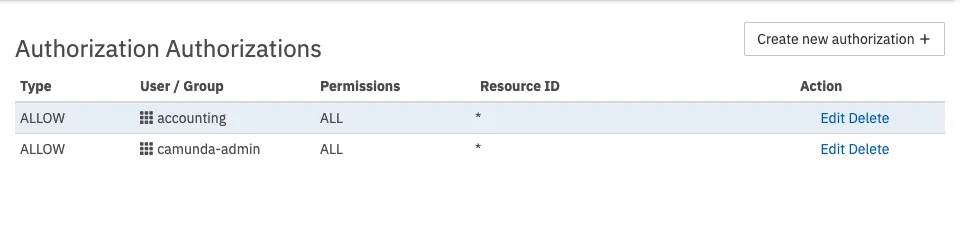
During the setup you had to create one administrator account. In a real-world scenario it could be beneficial to have a second administrator account to manage the users. Basically, an administrator is a user with theALL permission for every possible resource and resource id. For example, to grant the accounting group all permissions for authorizations the following entry has to be made:
- If you kept the group camunda-admin in your application, you can add the user to this group.
- If you use the Administrator Authorization Plugin, you can configure the plugin to grant the user or a certain group all permissions.
- You can create your own administrator group (also see Groups), grant it all permissions and assign a user to it.
- Grant one specific user all permissions.
Grant Permission to Start Processes from Tasklist
Processes are started from Tasklist. For a user or group to be able to start processes we need, again, a certain combination of permissions. In this use case we want to give the accounting group the permission to start the invoice process from Tasklist.

READ and CREATE_INSTANCE permission for the invoice process to be able to see the process definition and create instances in Tasklist.

CREATE permission for process instances. The CREATE permission is necessary for the group to be able to create new process instances. The resource id references the generated process instance ids, therefore we use the asterisk, because we can’t know the generated id in advance.
Now that we know how to start a process, we may want to restrict permissions to certain running processes.
Grant Permission for Single Process Instance
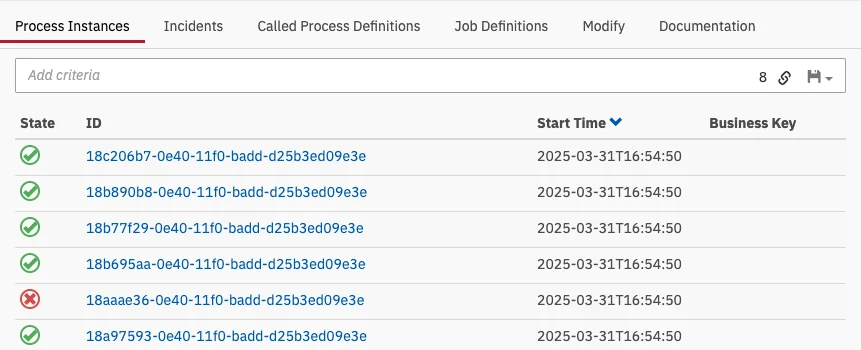
It is possible to restrict a group’s/user’s permissions to a single process instance, i.e., after the process ends, the group/user will not be able to change any other running process instances. We will use the accounting group again in this example. We assume that the group has access to Cockpit (also see Application Access) and that a process with the name and key OrderProcess is present.
READ permission for the process definition.

Grant Permission for Single Tasks
Since several groups can participate in a process, it could be useful to restrict certain tasks to certain people/groups. For this example, we will reuse the accounting group and the invoice process from the previous sections. At least we need one running instance of the process.
READ permission for filters so that tasks will be displayed in Tasklist.

READ and UPDATE permissions.
Those are the most common use cases for possible combinations of resources, permissions and resource ids.