

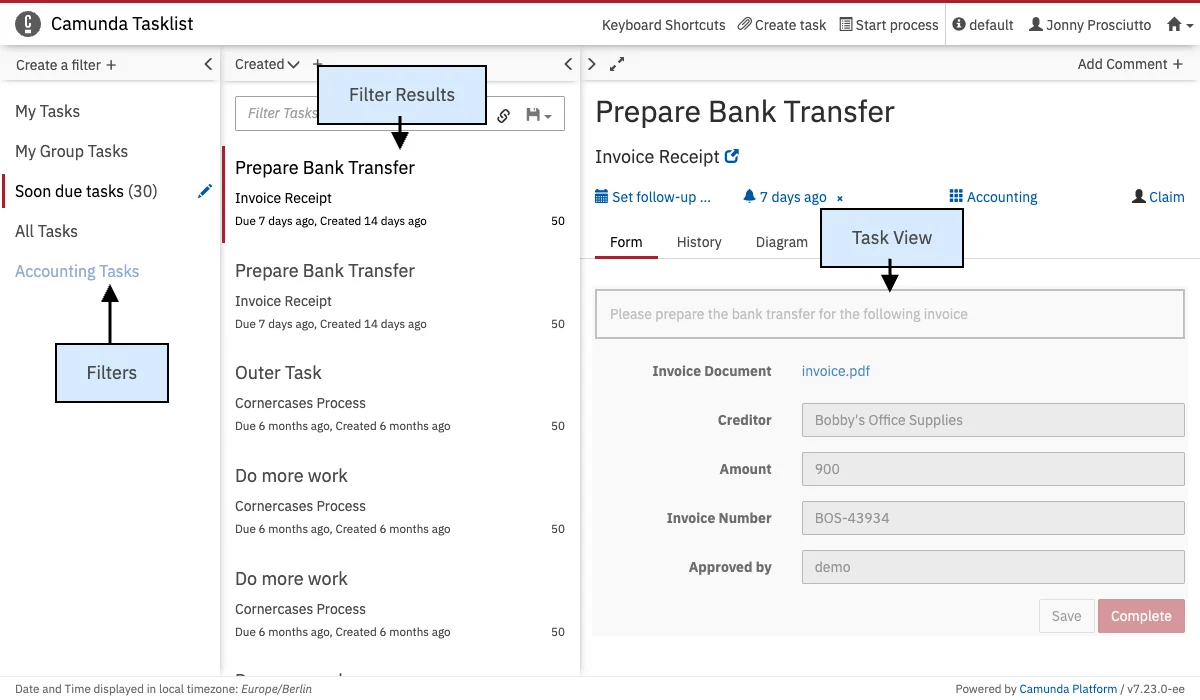
Toggle view

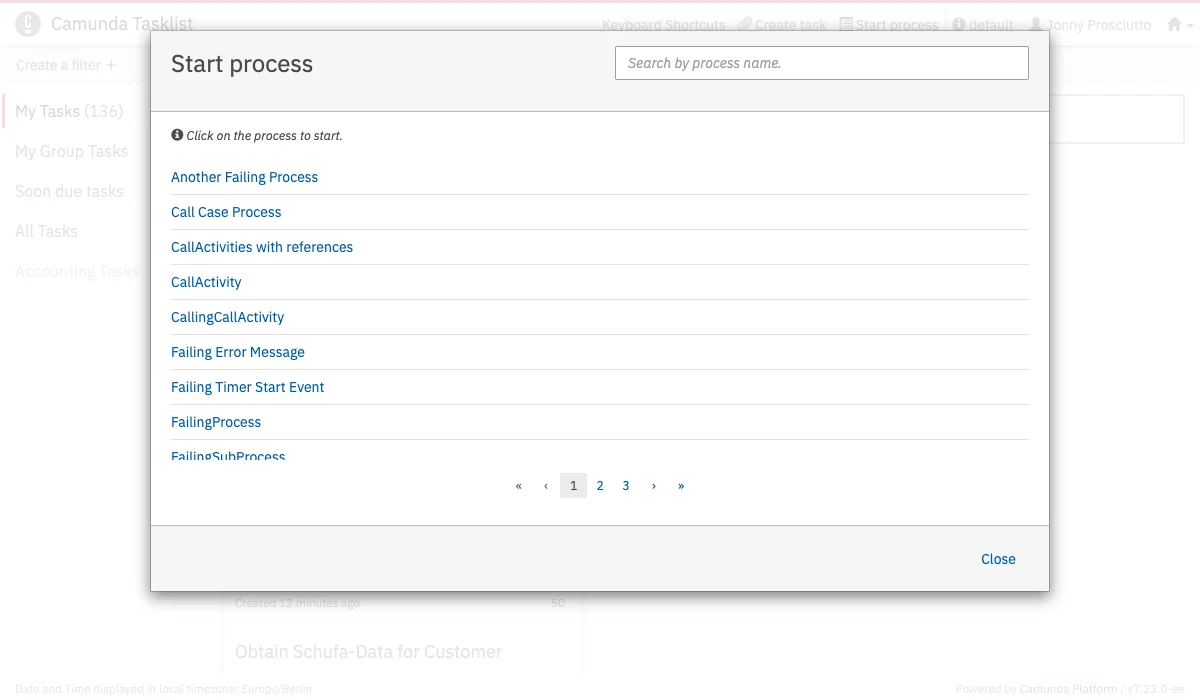
Start a process
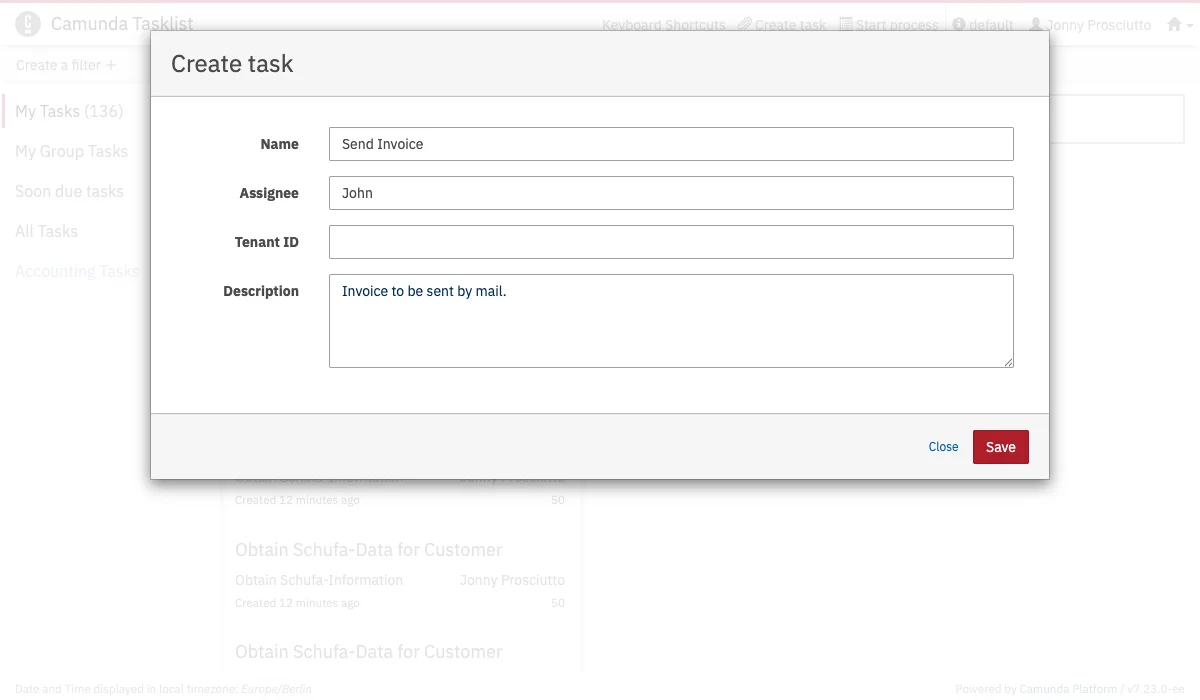
Create a standalone task
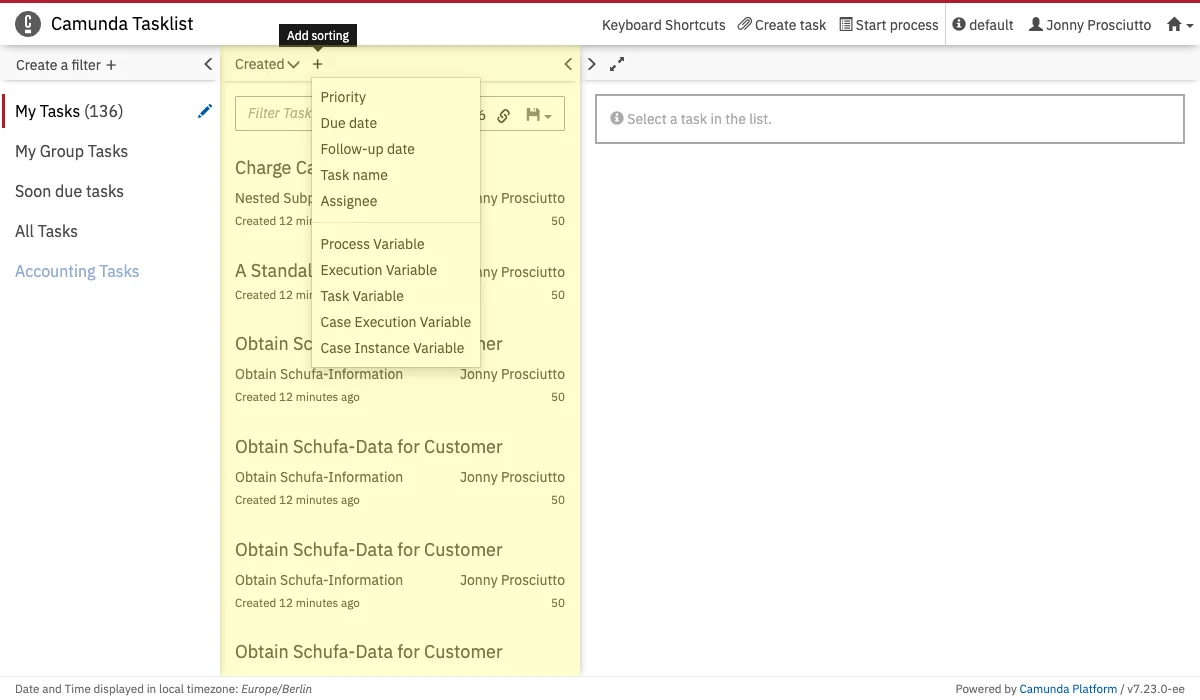
Filter results
Search for tasks
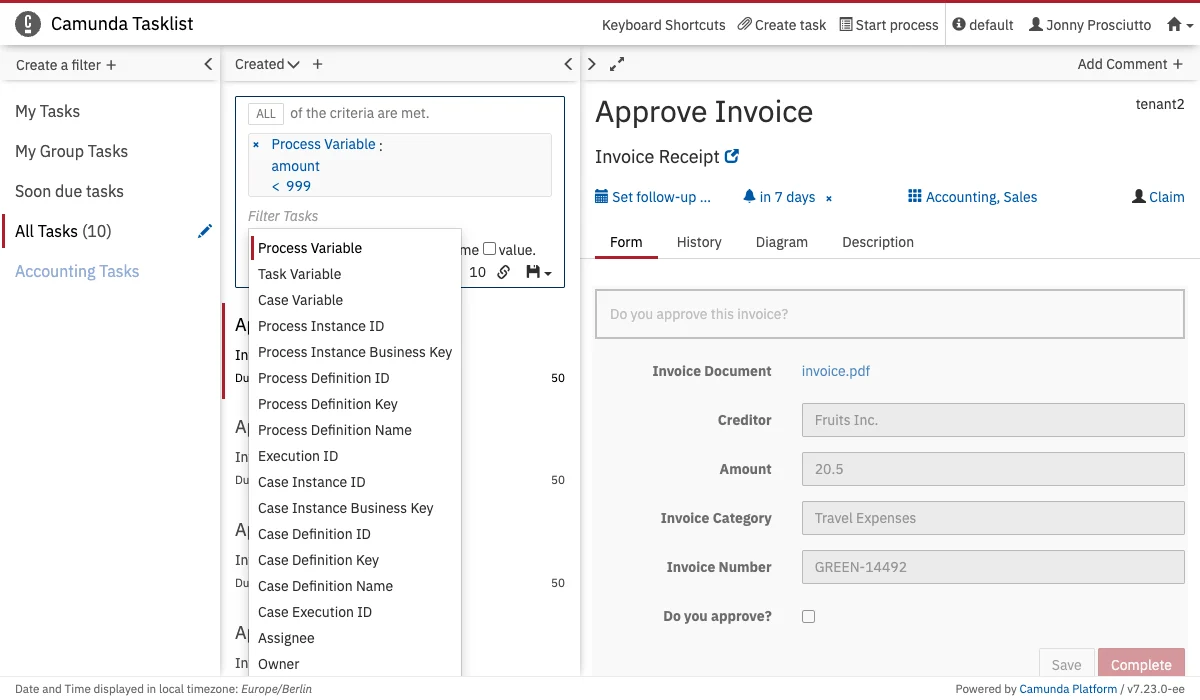
'like', which allows to search for a task where the entered value is a substring of the property value. The 'in' operator allows you to provide a comma-separated list of possible values.
If you are searching for variables, you also have to enter the variable name you want to search for. If the filter you have selected has defined labels for variables, you can select the label of the variable as variable name. Otherwise (if there is no label definition for a variable), you have to enter the variable name to search for it. If you change the filter selection, the search will be performed on the selected filter and the results will be updated accordingly.
If you are searching for a variable of type string, which has a numeric, boolean or null value, you have to wrap the value in single quotes (e.g '93288' or 'NULL').
Furthermore, you can copy a link to the current search query to your clipboard by clicking on the button and you can save search queries to your local browser storage by clicking on the button and inserting a name in the drop down menu that appears. You can then retrieve the search query by clicking on the button and selecting the chosen name in the drop down menu.
Case insensitive search
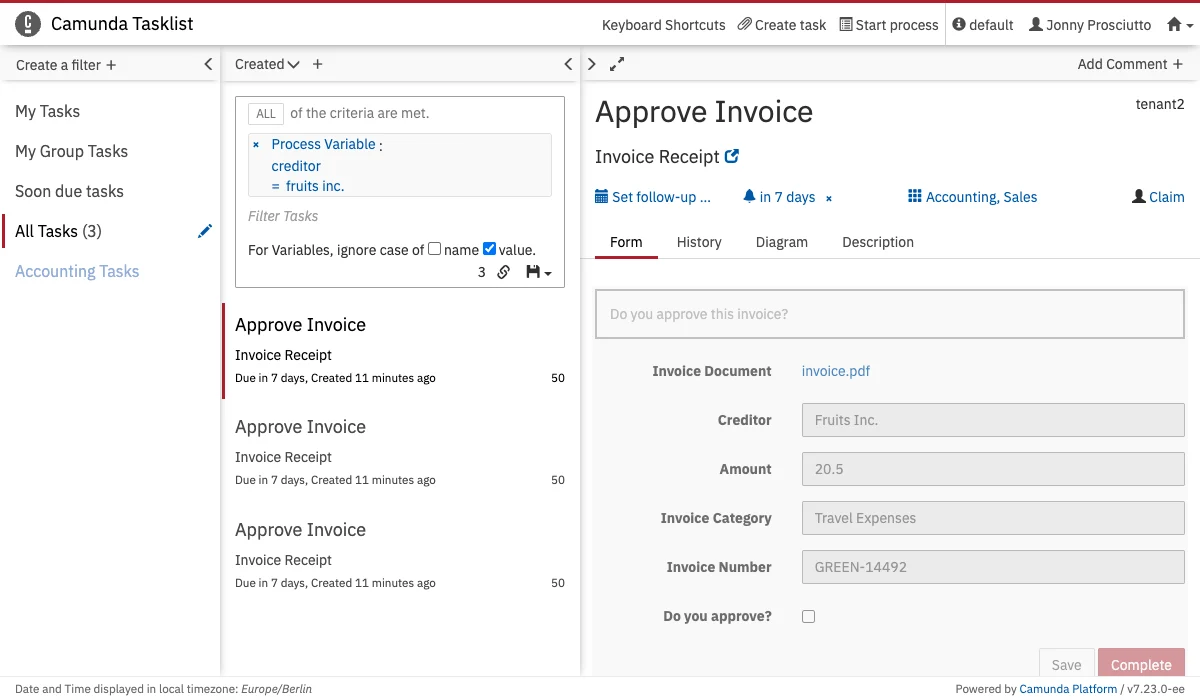
'Fruits Inc.' will also return matches for values like 'fruits inc.' or 'FRUITS Inc.'.
When your search contains one of the Variables mentioned above, two checkboxes appear. You can choose the case handling for the variable name and variable value independently. The option applies to all variable queries within the same search.
IN operator
IN operator support for the following query criteria:
- Tenant ID
- Process instance ID
AND (conjunctive normal form).
Occasionally, you may search for multiple query criterion values. The IN operator allows searching for multiple values where any of the values match.
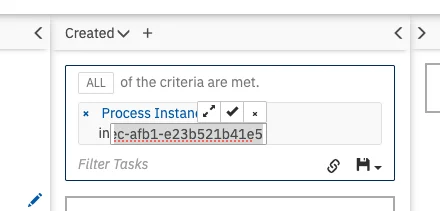
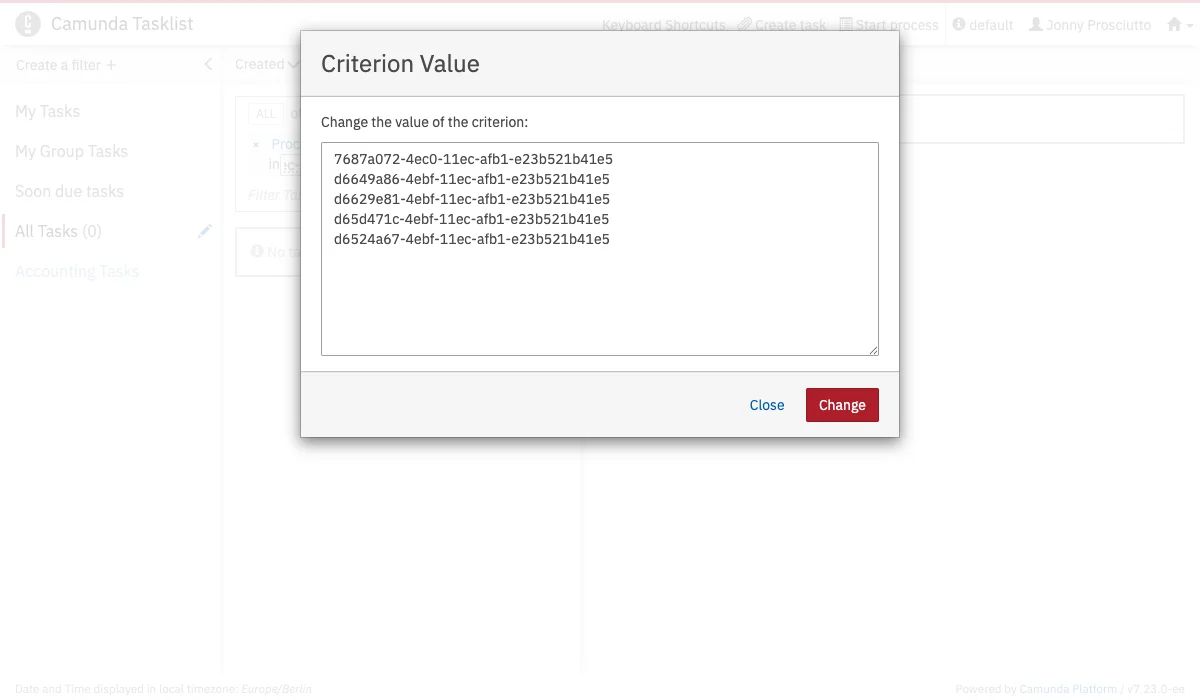
To use the IN operator, select a query criterion that supports the IN operator, and provide the values as a comma-separated list. To adjust the comma-separated list of values,
start editing by clicking on the value. You can expand the value in a modal dialog for easier editing by clicking on the button.
Task view
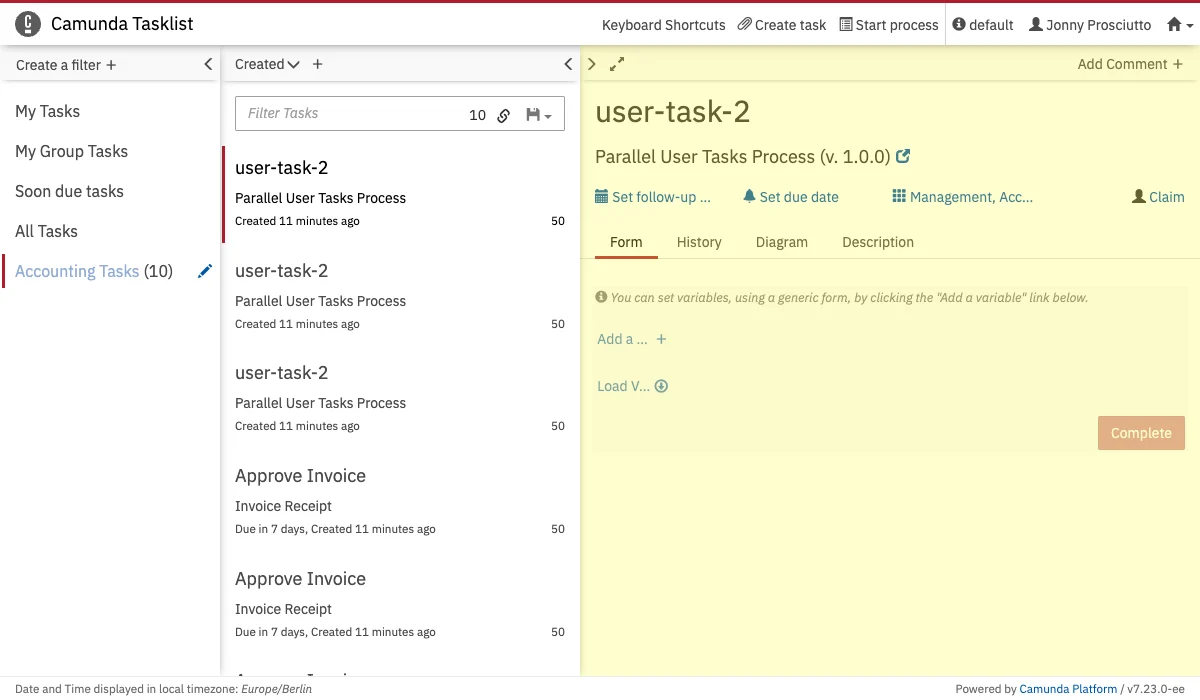
Set due dates and follow-up dates
In the upper section of the task view, you can set a due date and follow-up date for the selected task. A due date can be set to determine when the task needs to be completed and a follow-up date can be set as a reminder or for monitoring purposes.Claim, unclaim, and reassign tasks
Within the task view, you can claim, unclaim and reassign tasks. To claim a task, simply select Claim. Unclaim a task by hitting the (remove icon) button next to the username of a claimed task and reassign a task to a different user by clicking on the username and inserting the username of the user you want to assign the task to. You can also assign tasks to user groups by clicking on Add Groups.Comments
In Tasklist you can add and view comments on specific tasks. After selecting a task from the filter results, click on Add Comment at the top of the task view section to add a comment to the selected task. The comments of a task can be viewed in the task history.Task Detail Tabs
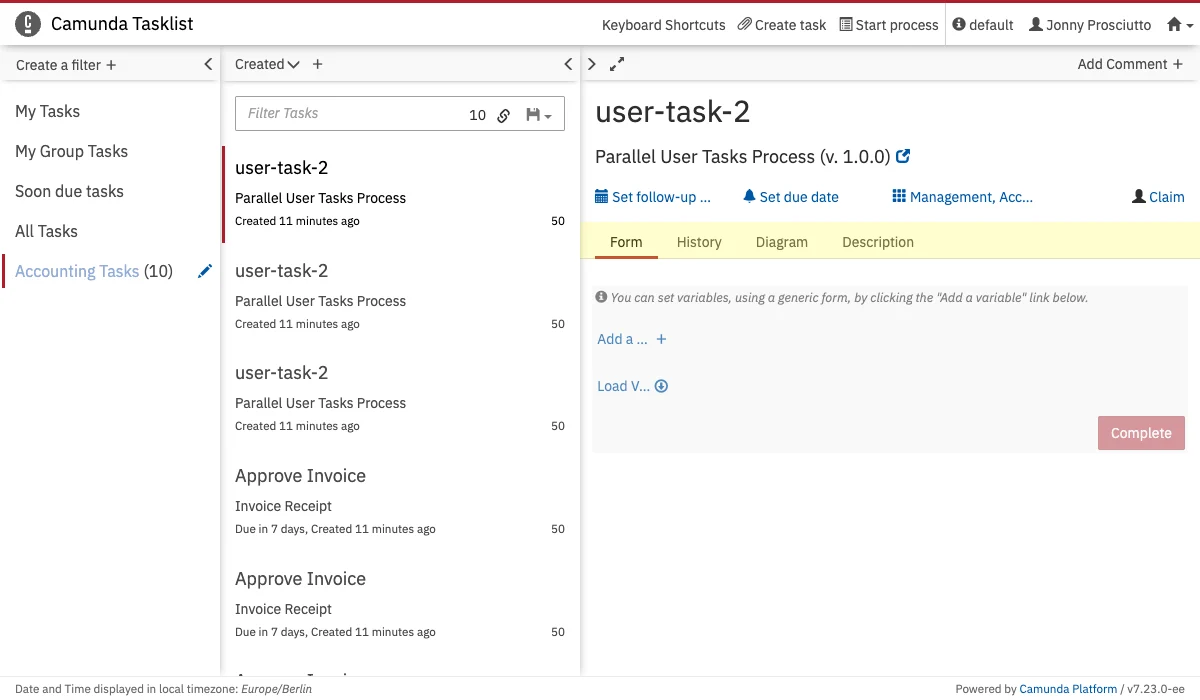
- Task form view - The Form tab, which is selected by default, displays the task form (provided that the task form is an embedded, generated or generic task form). Here you can work on and complete the task.
- Task history - The History tab displays the history of this user task. Here you can see detailed information, such as the assignment history, updates to the due date and follow-up dates and claiming and unclaiming of tasks. Comments are also displayed here.
- Diagram view - The Diagram tab shows the diagram of the process definition. The current user task is highlighted in this diagram.
- Task description - Open the Description tab to inspect the User Task description. Have a look at the BPMN 2.0 reference for more information about descriptions of tasks.