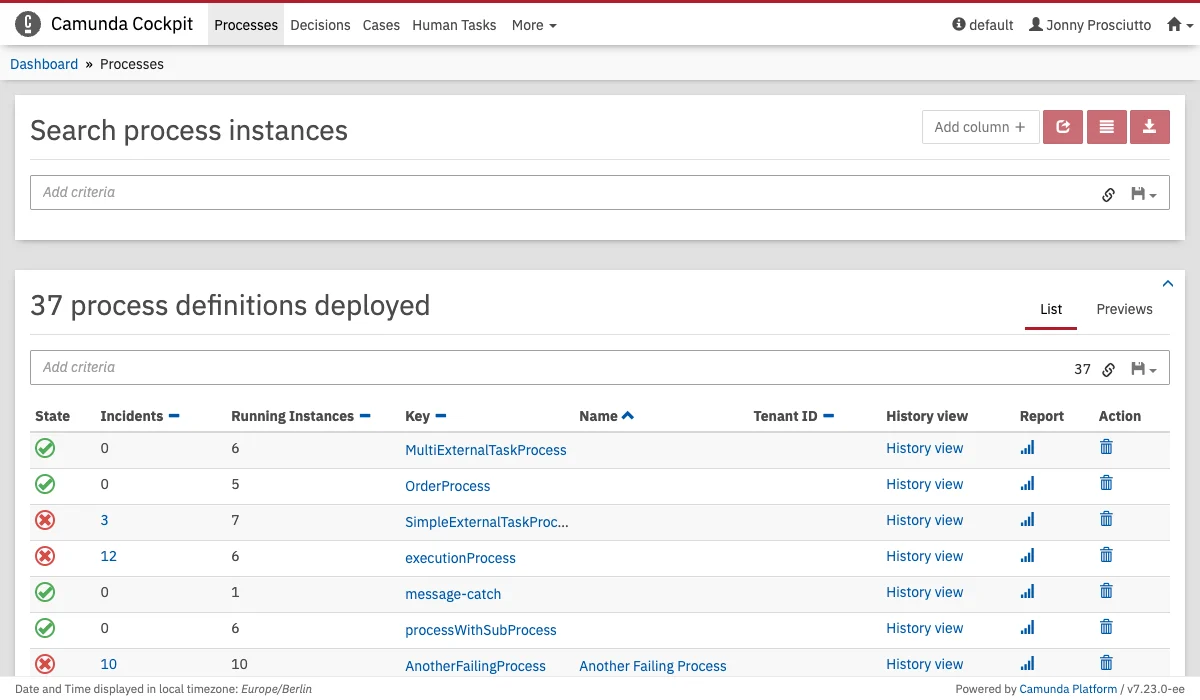
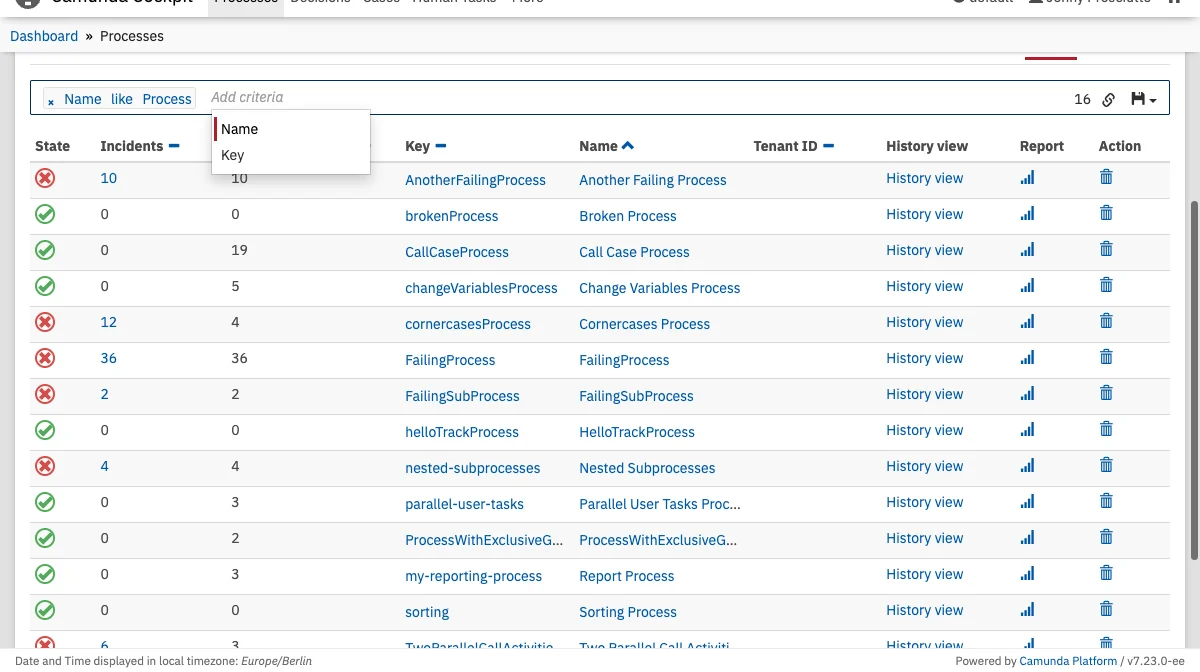
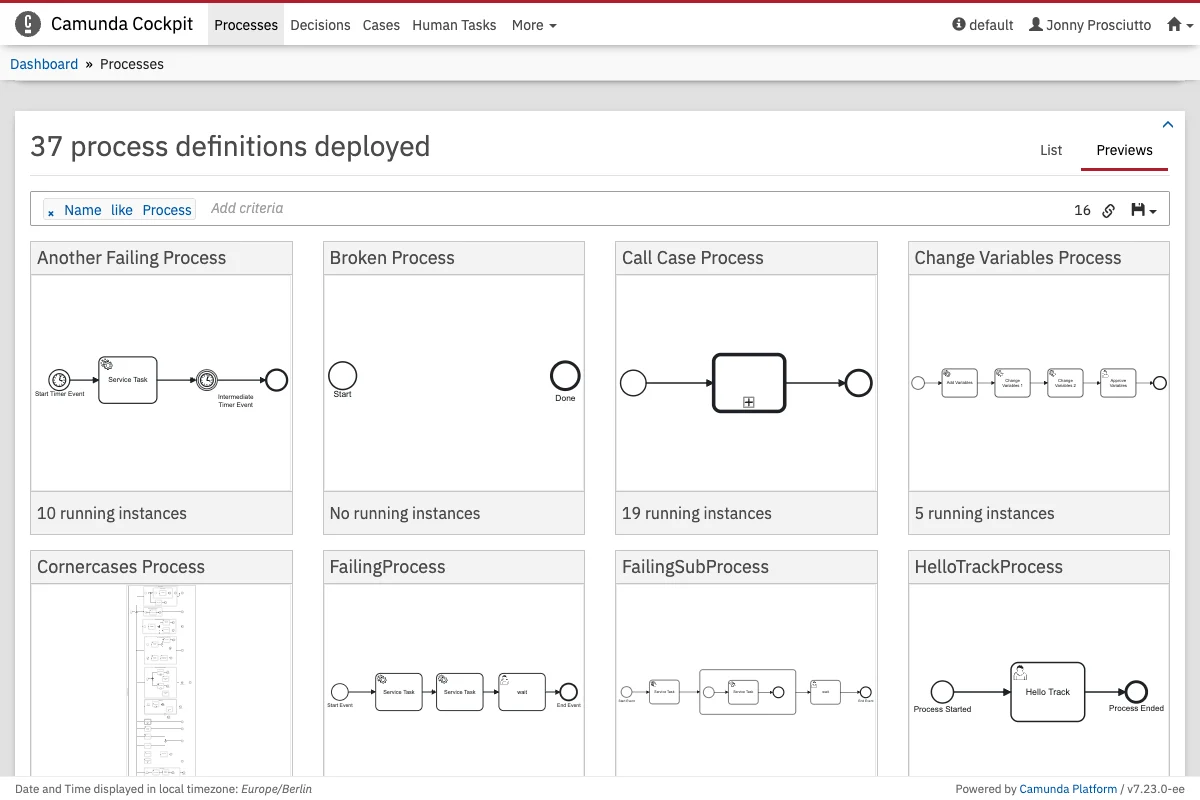
Deployed Processes
Process Instances Search
Heads-up!The process instance search operates on the history endpoint of the engine. In case the requested historic data is not persisted to the database, then the search does not deliver the desired results.
CSV Export for Process Instances
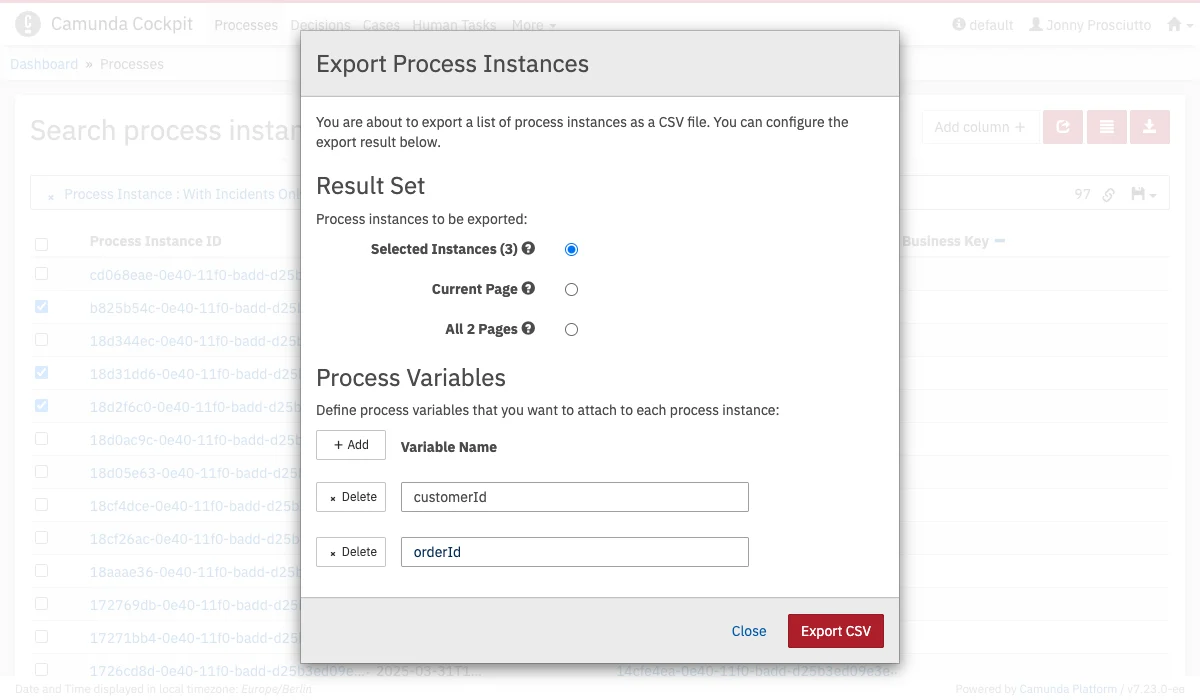
Sometimes incidents make it necessary for the Operations Engineer to intervene manually. However, these incidents might not always be solvable from Cockpit if other services or systems are involved. For this case, Cockpit provides a feature to export affected process instances and their process variable values as CSV spreadsheets. The export feature helps to communicate efficiently with other system owners.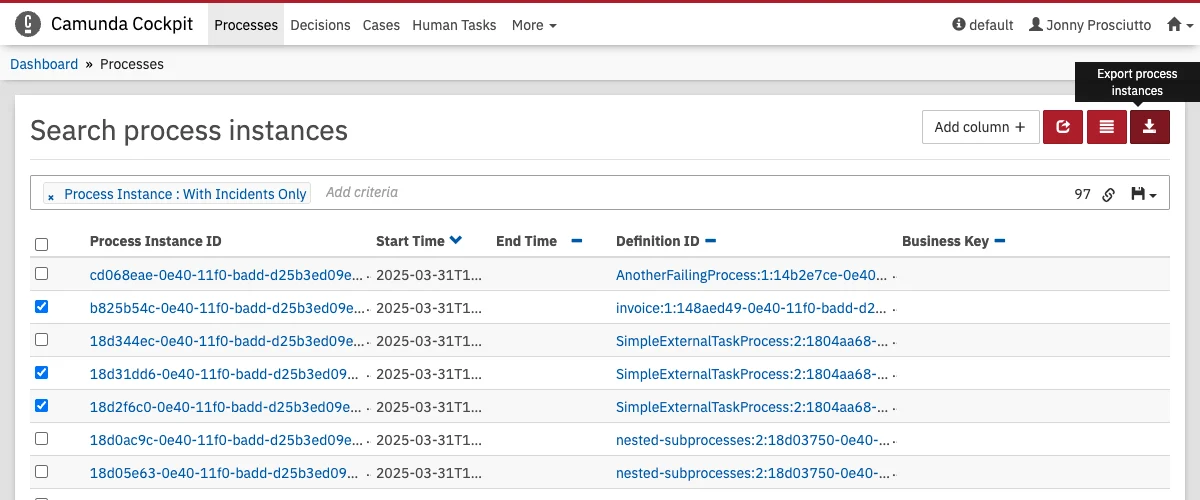
Heads-up!
- Exporting all pages is more inefficient than exporting a selection or a single page of process instances and can cause extra load on the database and application server. Also, a more complex query that runs against an unbounded number of rows affects the execution time negatively.
- For security reasons, you can limit the maximum number of process instances that can be exported via the Query Maximum Results Limit.
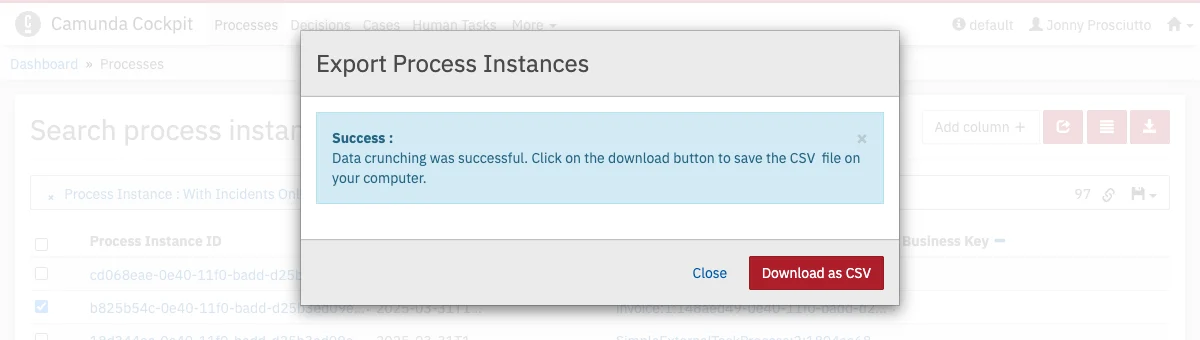
Export Result
The format of the export result is a file of Comma-separated values (CSV) (opens an external link to Wikipedia).Structure of the Spreadsheet
- Each row in the spreadsheet represents a process instance, while each property has its dedicated column.
- The spreadsheet has a dedicated column for each variable property and displays its value in the respective row that matches with the process instance.
- The spreadsheet displays:
- A
nullvalue as<<NULL>> - An unsupported variable value type as
<<UNSUPPORTED TYPE>> - A non-existing variable as empty cell.
- A
Example

Limitations
- You can only export variables with the following value types:
booleanstringdatedouble,integer,long,short(number types)
- You can only export the value property of a variable.
Copy the IDs of selected Process Instances
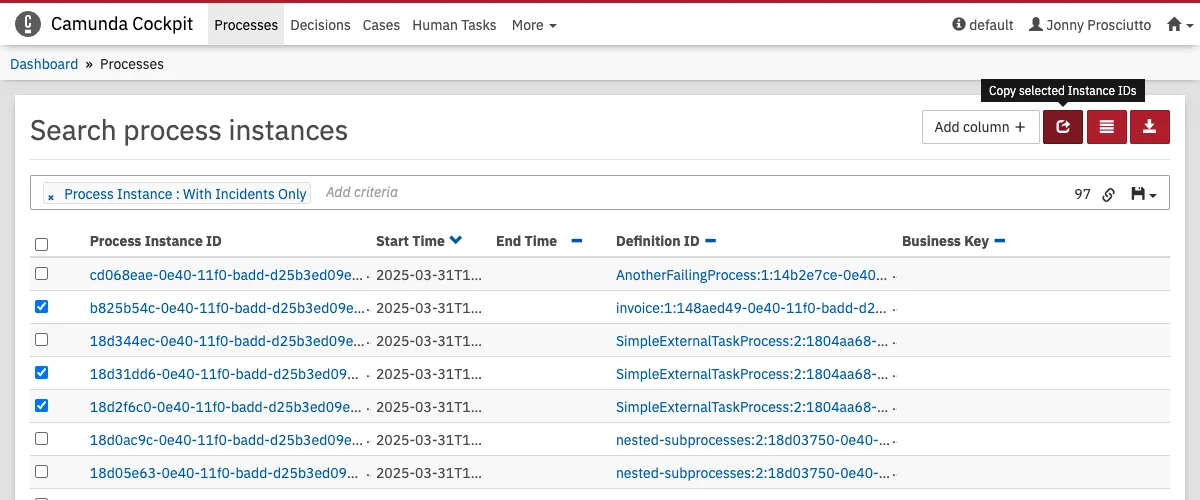
Sometimes incidents make it necessary for the Operations Engineer to intervene manually. To make it easier to work with a subset of Process Instances it is possible to copy the IDs of the selected Process Instances using theCopy selected Process Instances IDs button:
IN filter operator or the Not In filter operator.
IN operator

IN operator support when filtering for process instances for the following query criteria:
- Process instance ID
- Business key
- Process definition key
- Variable value
AND (conjunctive normal form).
Occasionally, you may search for multiple query criterion values. The IN operator allows searching for multiple values where any of the values match.
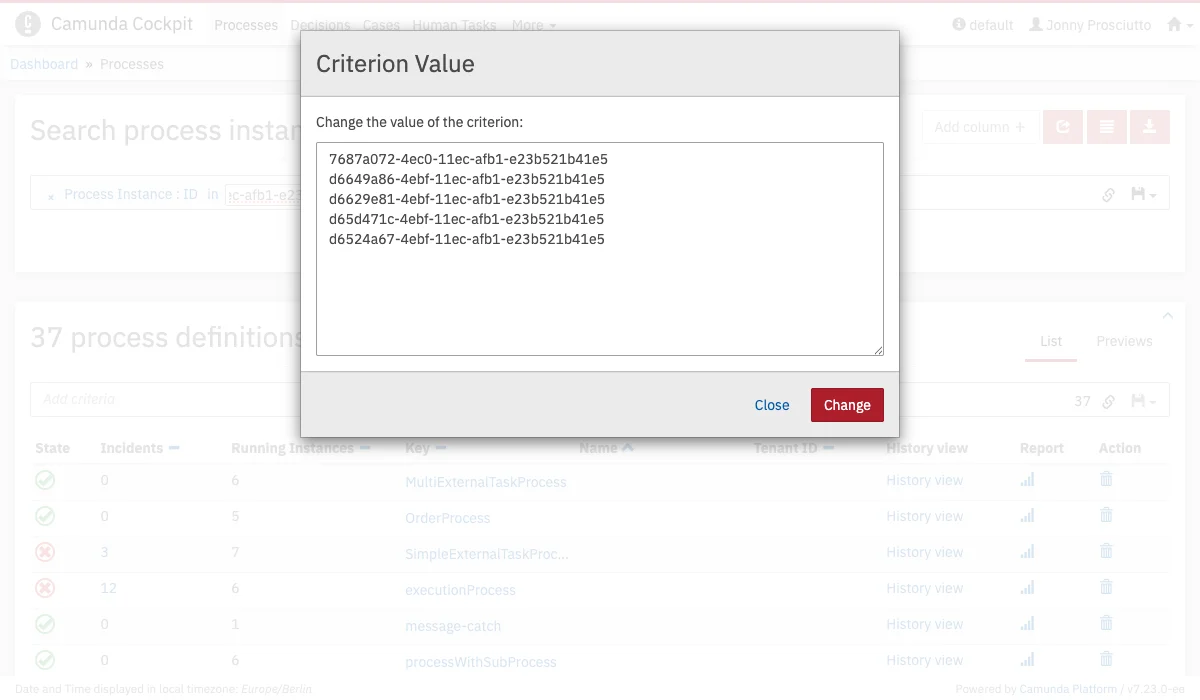
To use the IN operator, select a query criterion that supports the IN operator, and provide the values as a comma-separated list. To adjust the comma-separated list of values,
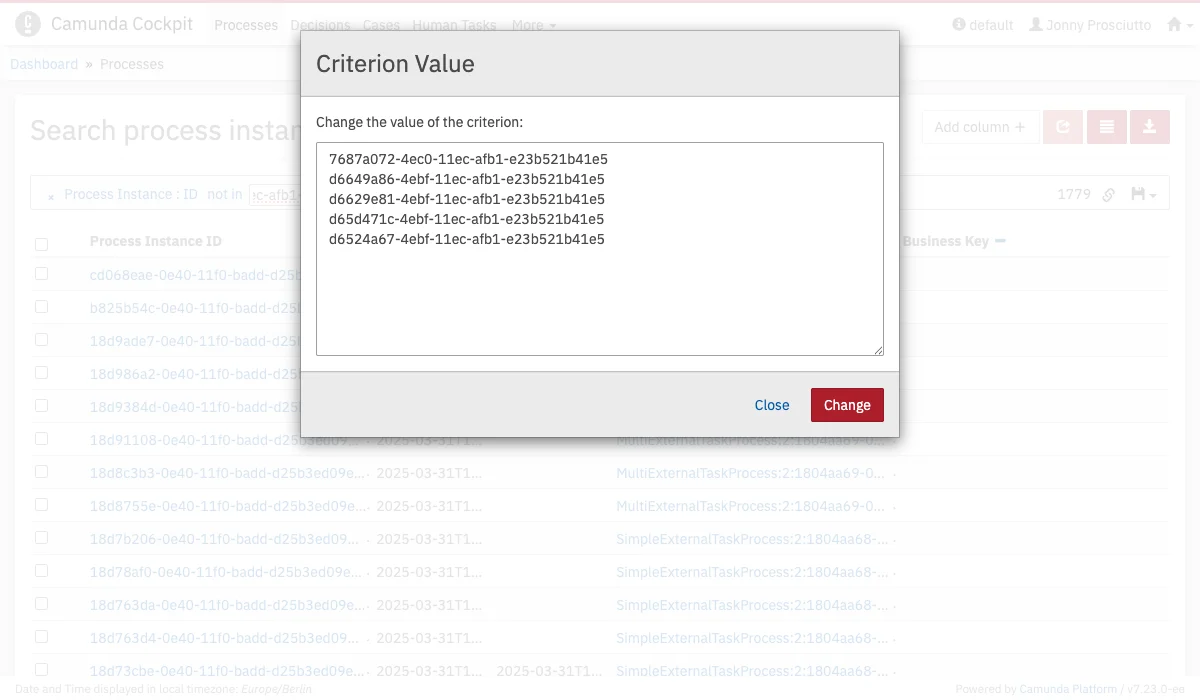
start editing by clicking on the value. You can expand the value in a modal dialog for easier editing by clicking on the button.
NOT IN operator
NOT IN operator support when filtering for process instances for the following query criteria:
- Process instance ID
- Process definition key
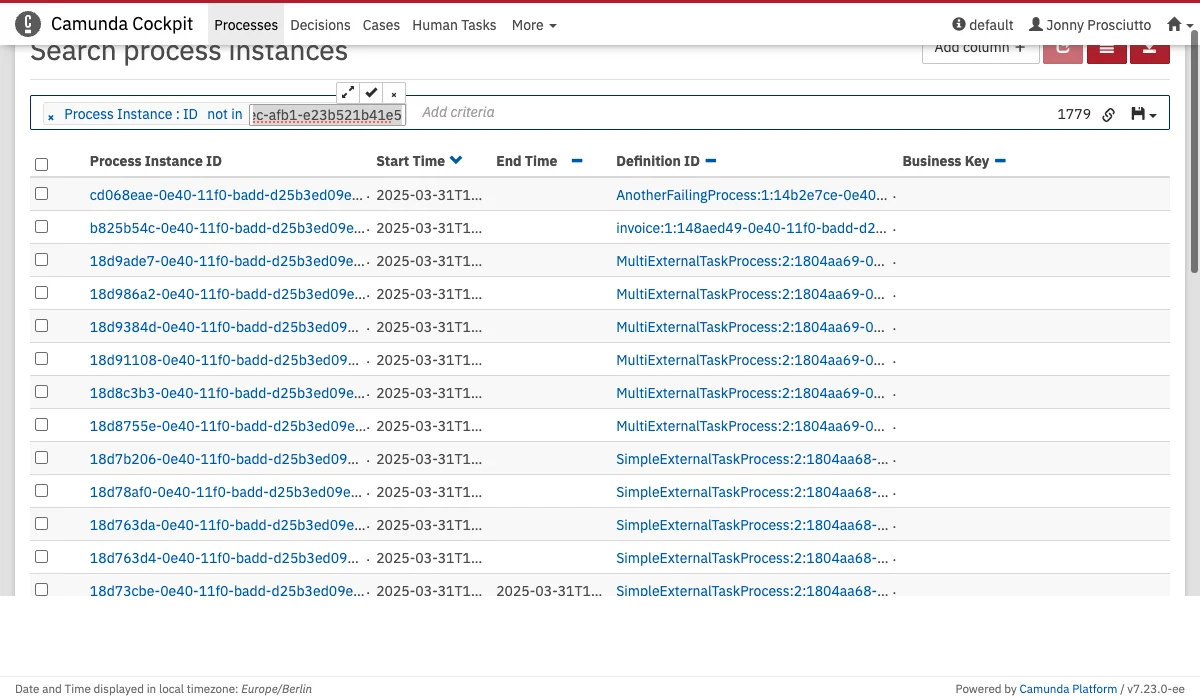
NOT IN operator to exclude any results matching one of the specified values.
By default, all search criteria are combined with a logical AND (conjunctive normal form). If you need to exclude multiple values, select a criterion that supports the NOT IN operator and provide them as a comma-separated list. To edit the list, click the value. For more extensive editing, click the
button to open a modal dialog.