This guide demonstrates how to integrate decision automation into BPMN processes using business rule tasks and DMN decision tables.

Add a business rule task

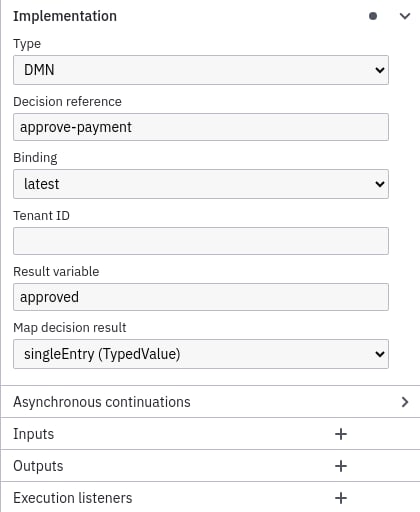
Open your Payment Retrieval process in the Camunda Modeler. Select the Approve Payment task and change its type to Business Rule Task via the wrench menu. Change to a business rule task Configure the task properties:
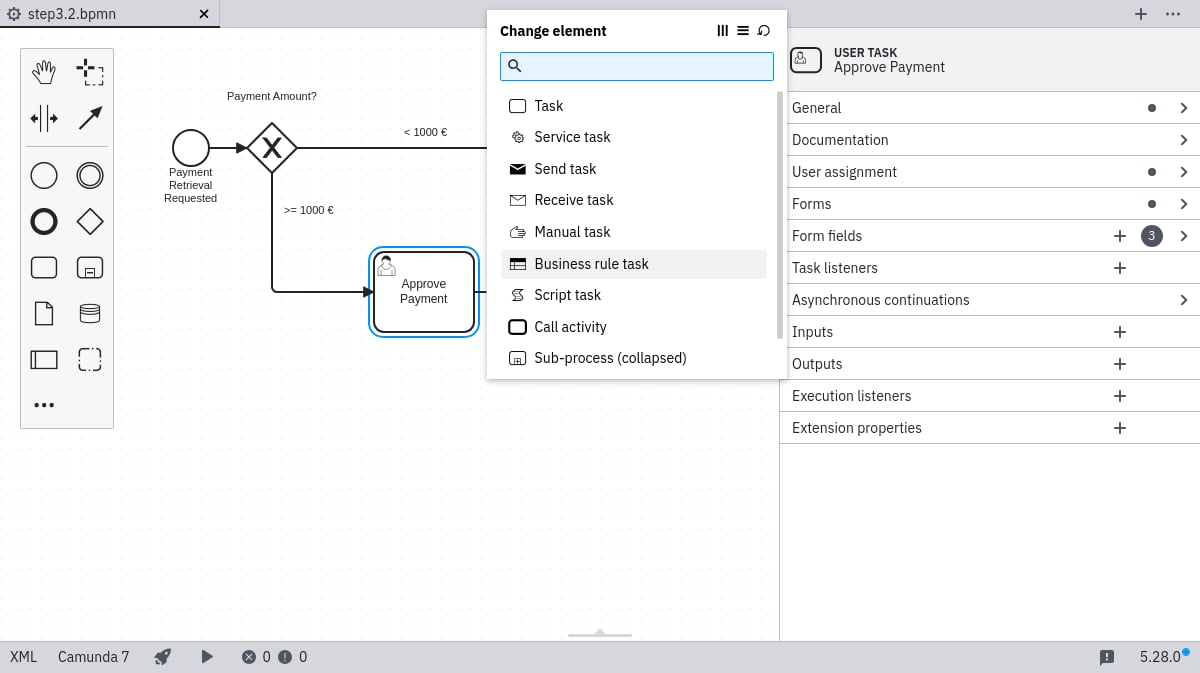
  • Implementation: DMN
  • Decision Ref: approve-payment
  • Result Variable: approved
  • Map Decision Result: singleEntry
Configure the business rule task Deploy the updated process using the deploy button.

Create a DMN table

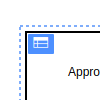
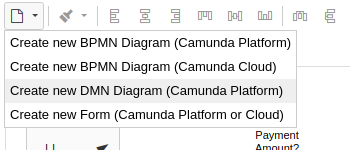
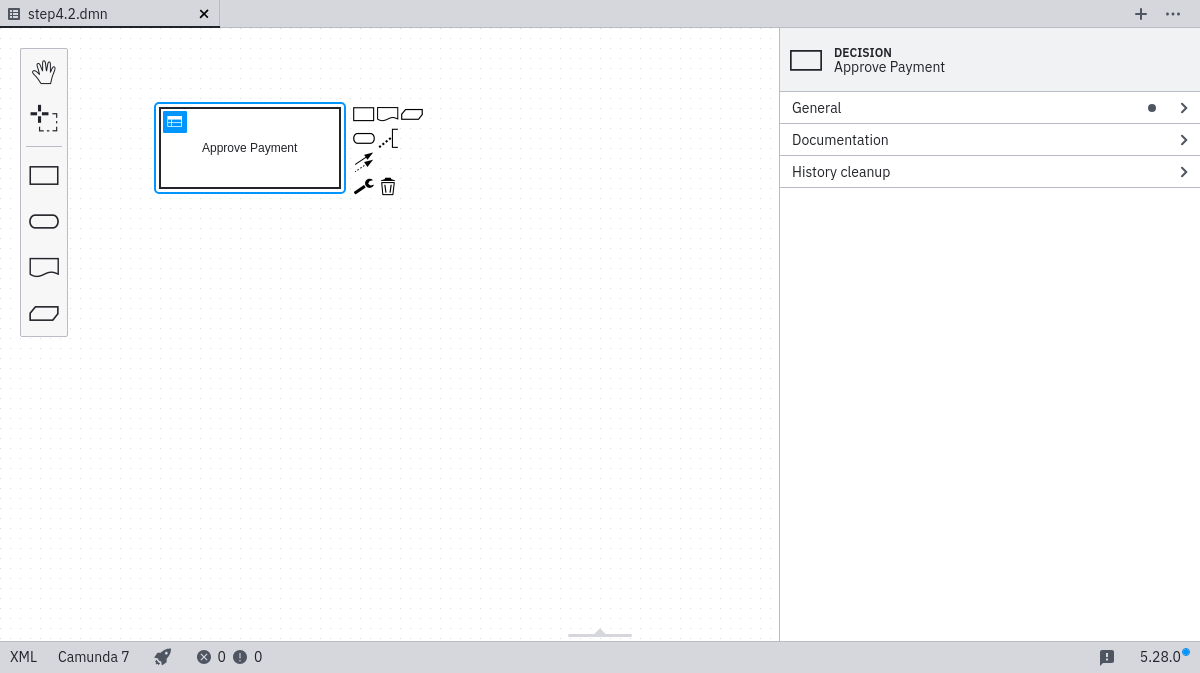
Create a new DMN diagram via File > New File > DMN Diagram. Create a new DMN diagram Name the decision element Approve Payment with ID approve-payment (matching your BPMN Decision Ref). Set the decision id Click the table button to generate a new DMN table. Generate the DMN table
Specify the DMN table

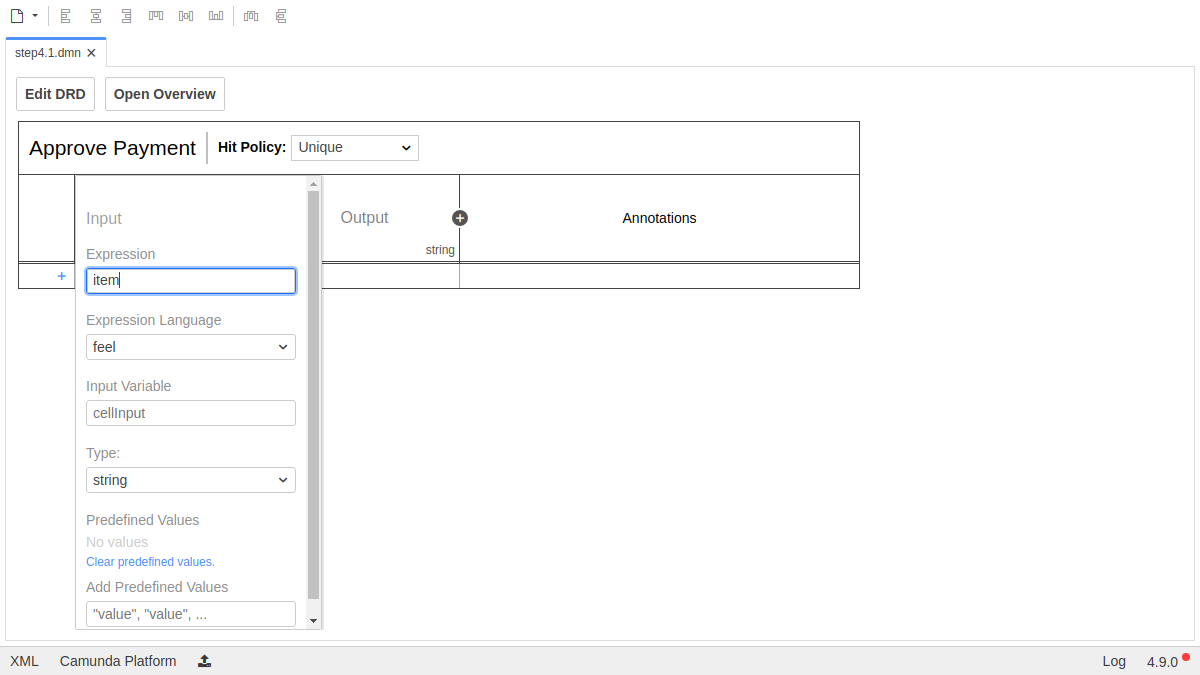
Double-click Input to configure:
  • Input Label: Item
  • Input Expression: item
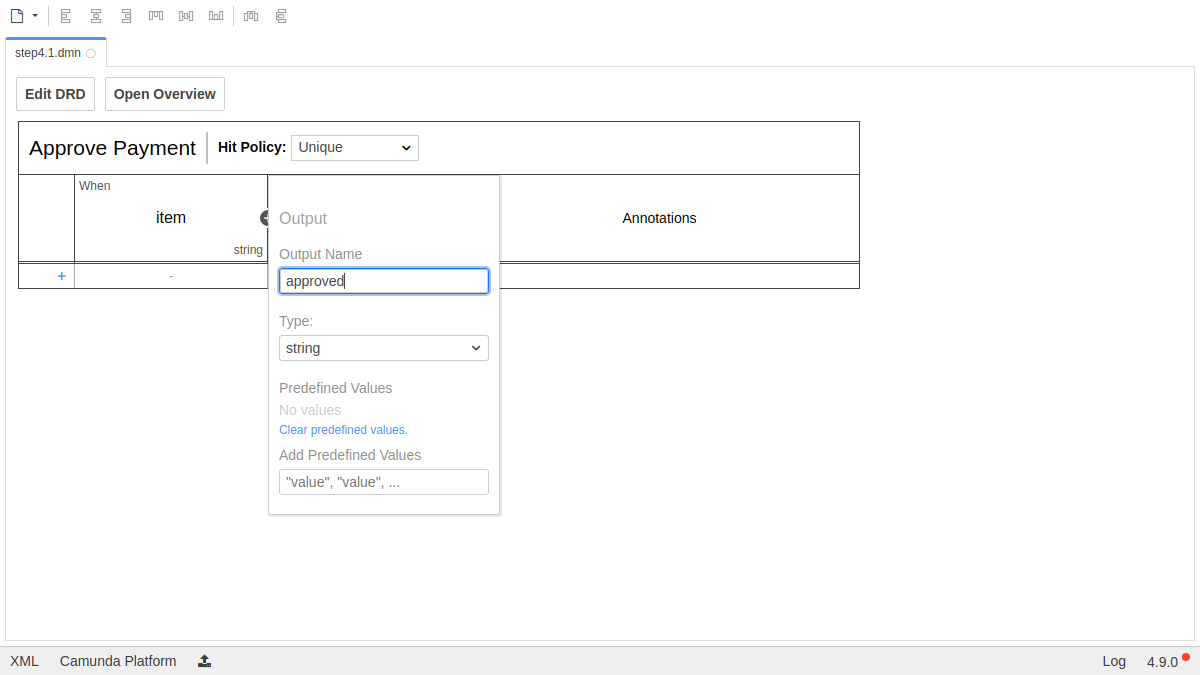
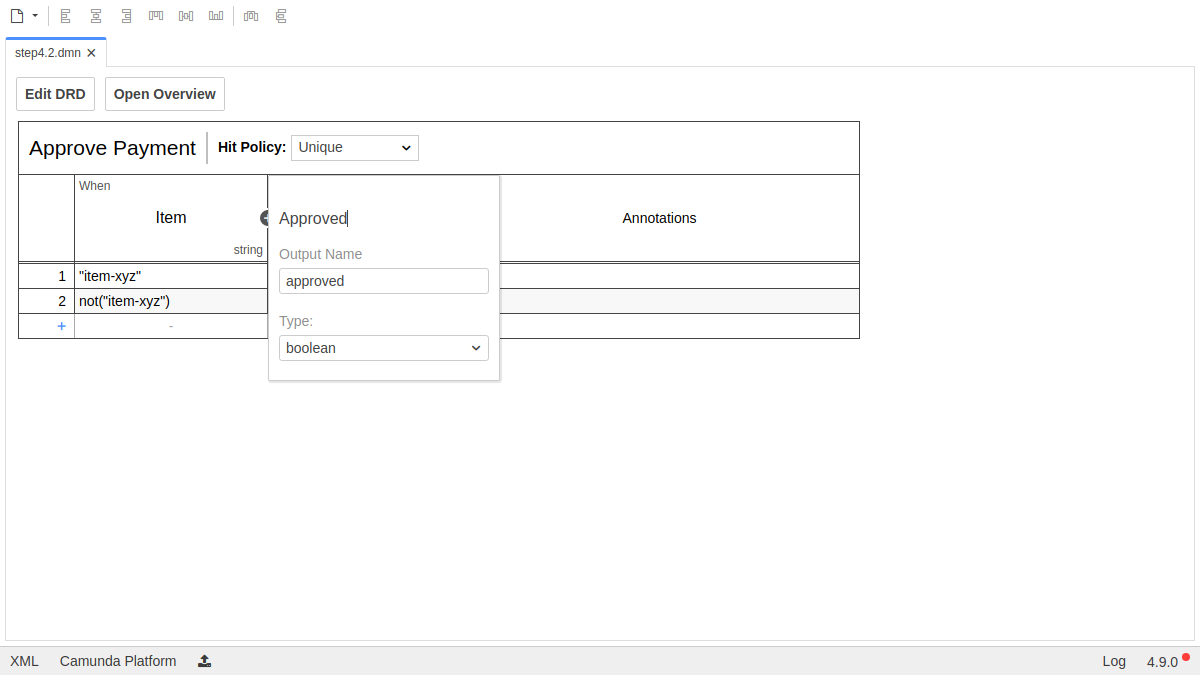
Configure the input column Configure the output column:
  • Output Label: Approved
  • Output Name: approved
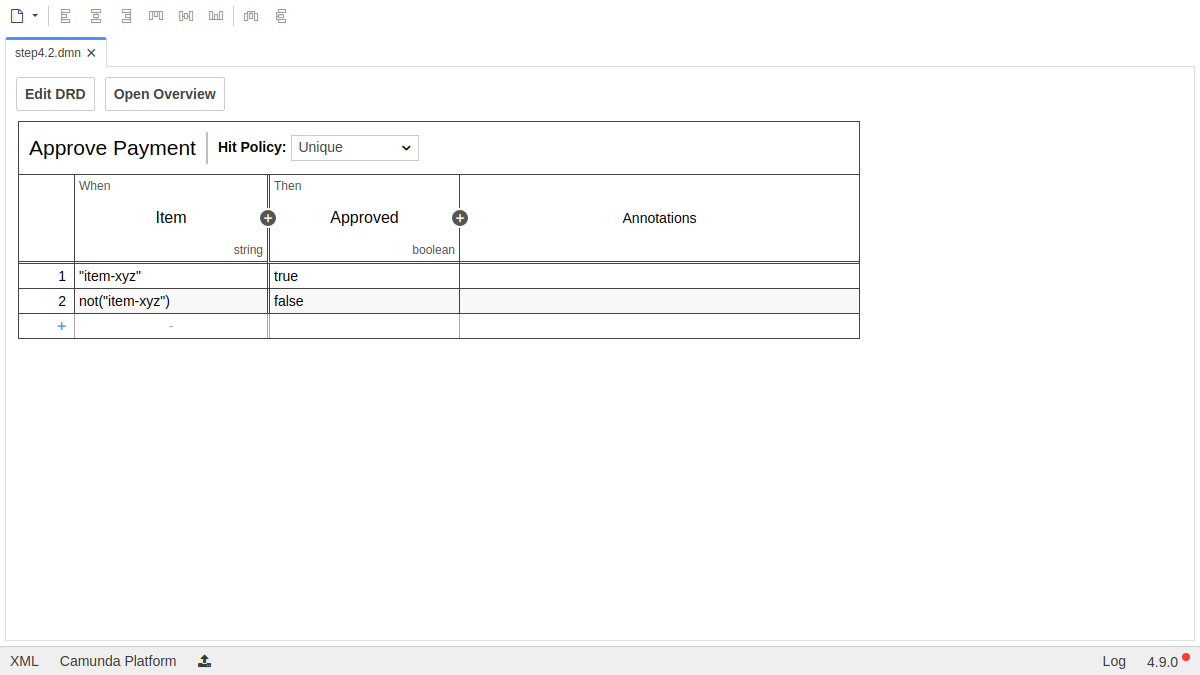
Configure the output column Add rules using the plus icon and set the output column data type to boolean. Add rules Your completed table should resemble: Completed decision table

Deploy the DMN table

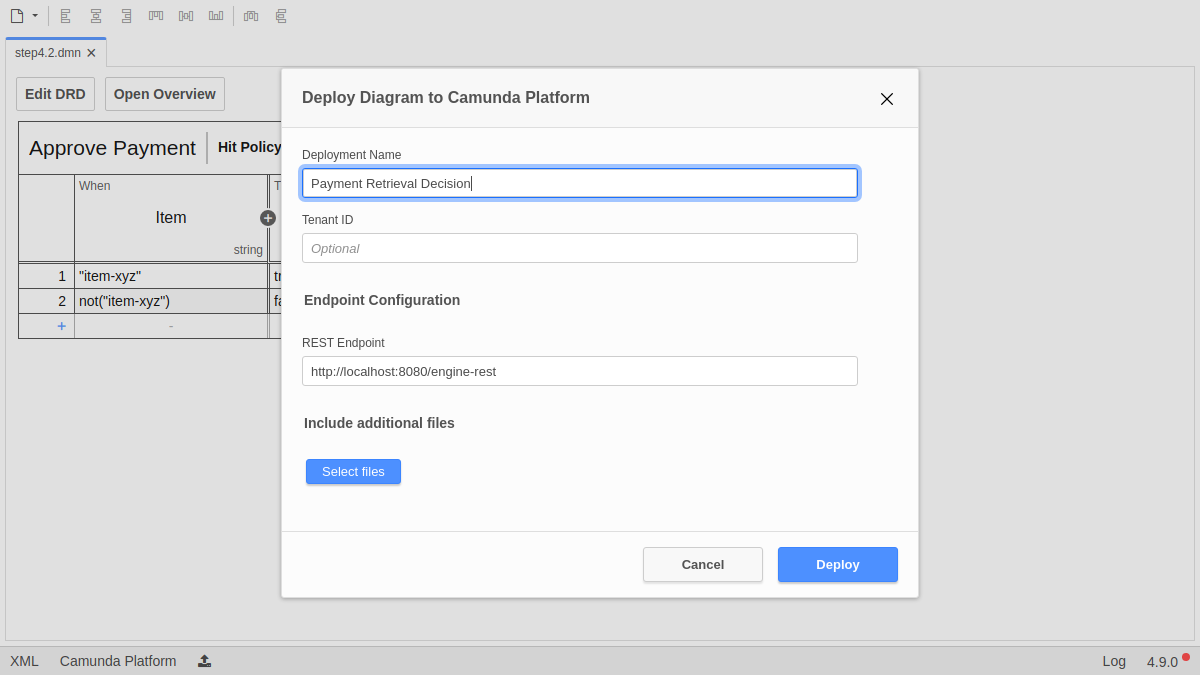
Click Deploy in the Modeler. Provide the deployment name Payment Retrieval Decision and confirm. Deploy the DMN table
Verify the deployment with Cockpit

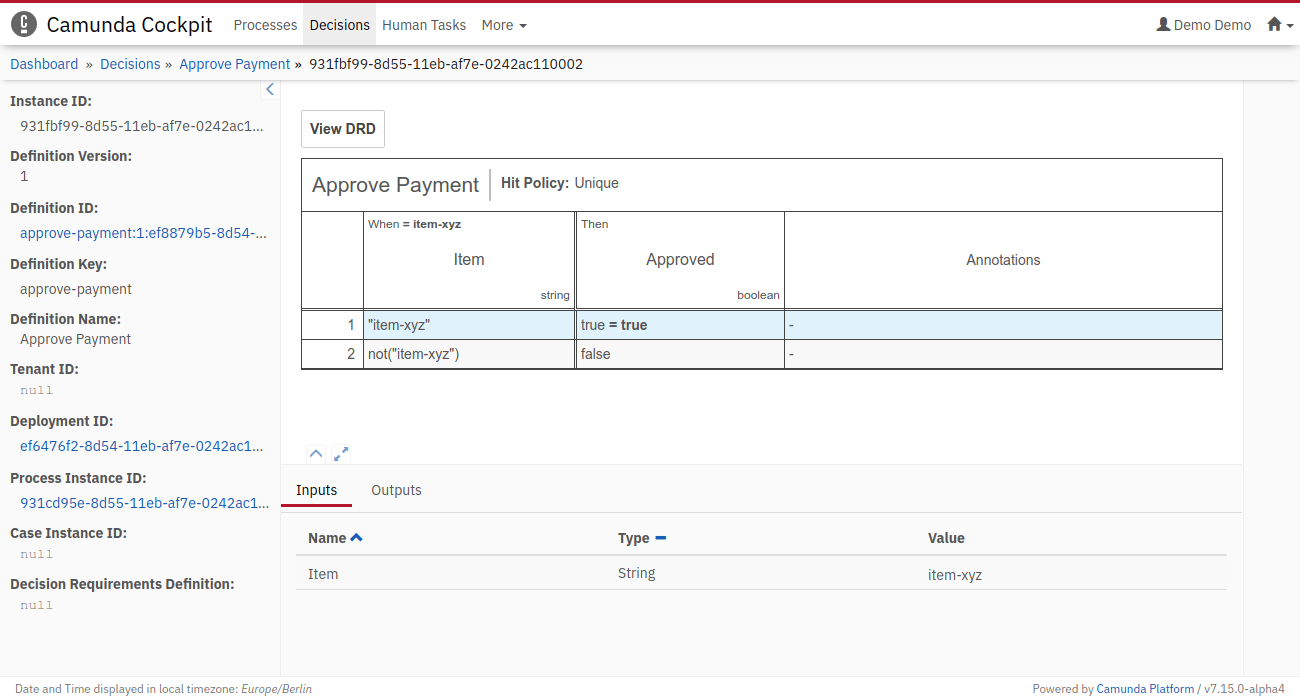
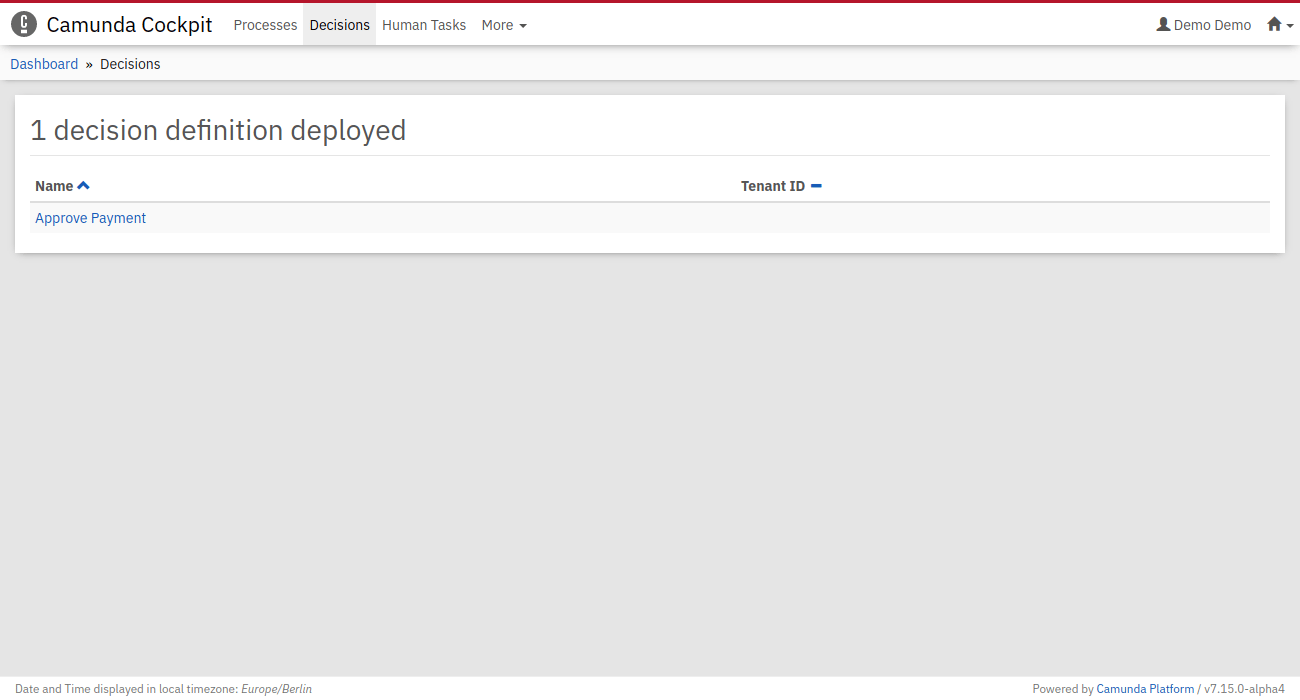
Navigate to http://localhost:8080/camunda/app/cockpit/ and log in with demo / demo. Open the Decisions section to confirm Approve Payment appears as a deployed decision definition. The deployed decision in Cockpit
Inspect with Cockpit and Tasklist

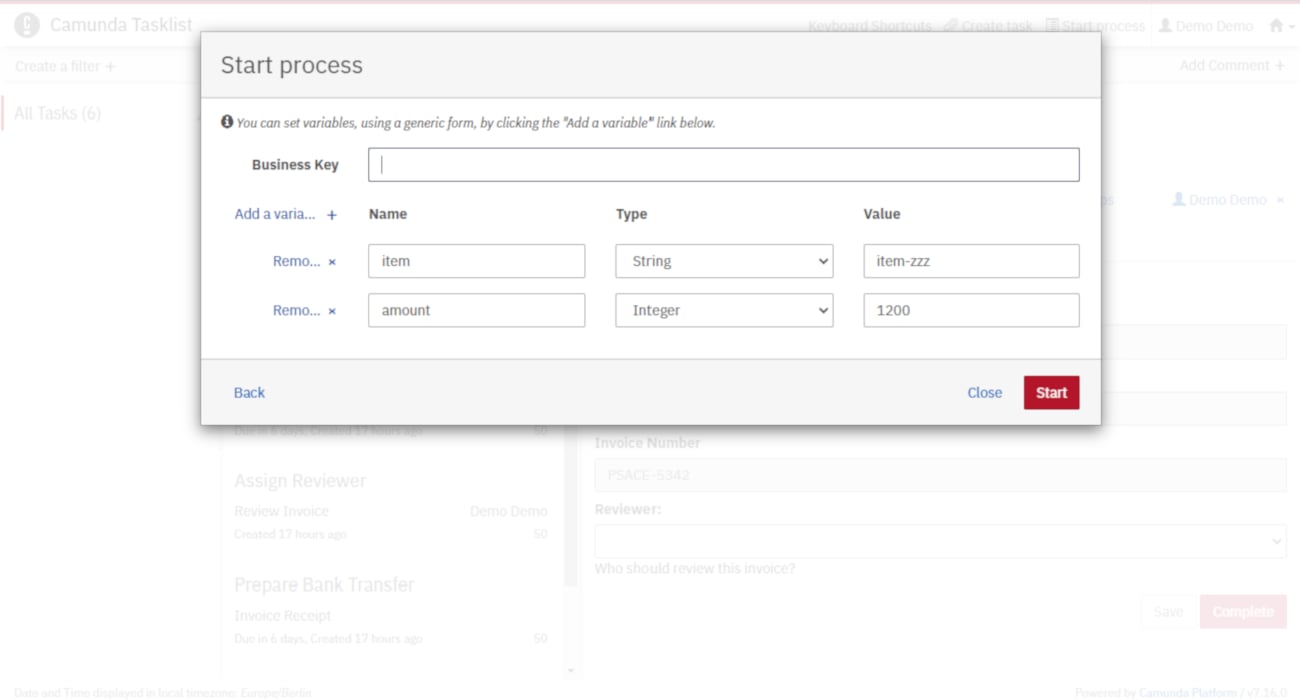
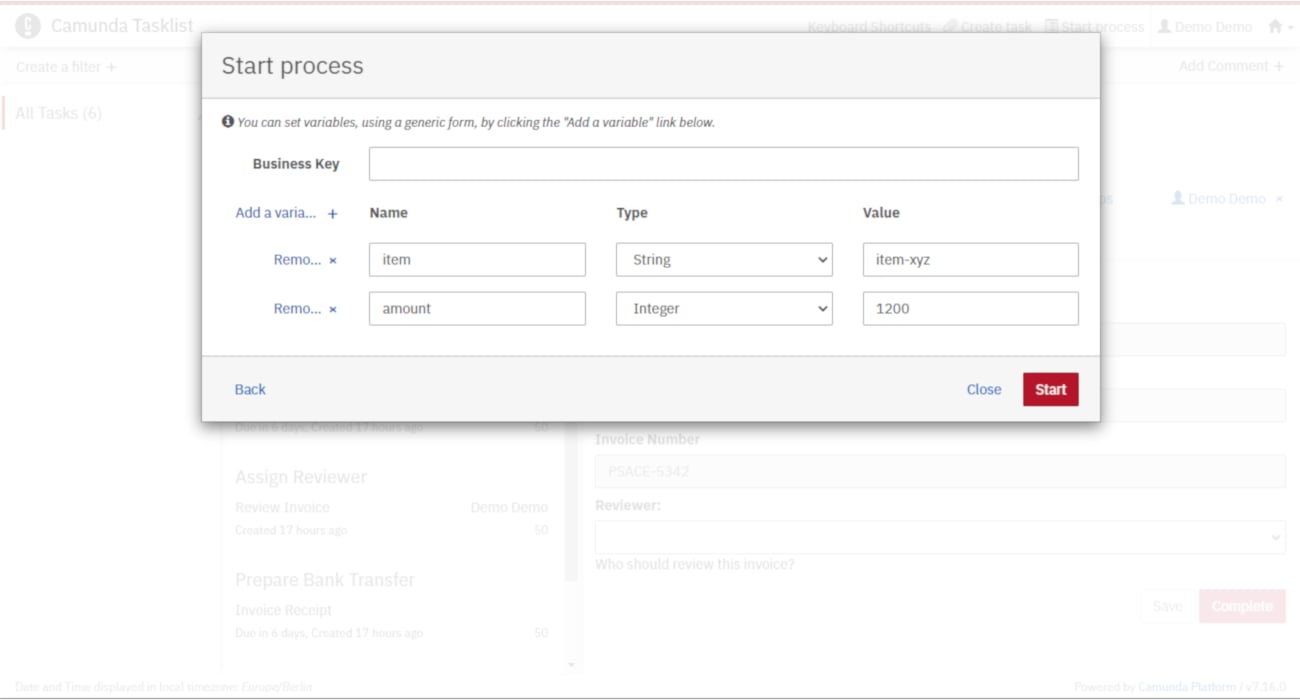
Open Tasklist at http://localhost:8080/camunda/app/tasklist/. Start two Payment Retrieval instances with different inputs to observe routing variations based on the DMN evaluation. Start instances in Tasklist Observe routing variations Review the executed decision instances in Cockpit’s Decisions section: Decision instances in Cockpit
Success!

You’ve completed the quick start. For next steps, explore the ASEE Flow documentation.
Catch up: get the sources of Step-5
git clone https://github.com/camunda/camunda-get-started-quickstart.git
git checkout -f Step-5
Or download as a .zip.